GoHighLevel's Gmail integration puts your one-to-one emails with leads into the CRM, so you can reply from Conversations and still see the thread in Gmail. Setup takes a couple of minutes, but most complaints I see are about emails that never show up. So I connected a Gmail account to my own GoHighLevel sub-account, sent a real test email, checked it in Conversations, and then disconnected it again. Below are the exact steps, what syncs and what doesn't, the limits, and the fixes for missing emails, all checked against HighLevel's own help docs.
Short version
- Connect Gmail inside the sub-account: Settings, My Profile, the Email (2-way sync) section, pick Gmail, then Connect.
- Only one-to-one emails with CRM contacts sync. Bulk emails and workflows still go through your sending domain.
- Old emails from before you connected are not pulled in, and emails with sub-account users don't sync.
- Gmail allows about 500 emails a day through the sync, with attachments up to 25 MB.
- Lost permissions cause the "Insufficient Permission" error. Reconnect and allow every permission to fix it.
What the Gmail integration does (and doesn't)
HighLevel calls it Gmail Two-Way Sync. Its Gmail setup doc says it syncs inbound and outbound emails with existing contacts, lets you create contacts and conversations from Gmail, and keeps both sides in sync in real time. In plain terms: when you email a lead from GoHighLevel, the email goes out from your Gmail address and lands in your Gmail Sent folder. When that lead replies to your Gmail, the reply shows up in Conversations.
What it doesn't do is just as important:
- It doesn't copy your whole inbox. Only emails with people who are contacts in the CRM sync.
- It doesn't import old mail. Emails from before you connected stay in Gmail only.
- It doesn't send your bulk emails or workflow emails. Those use the sub-account's email service.
- It's per user. Connecting my Gmail doesn't change anything for other users in the same sub-account.
The same screen also offers Outlook, which works in a similar way, but this guide only covers Gmail.
Before you connect
Three things to check first, all from HighLevel's docs:
- Be inside the sub-account. The sync is set up from a sub-account, not the agency dashboard. Log in to the sub-account directly, or use Login As from the agency view.
- Be a user of that sub-account. The doc says you only see the Profile tab if you are added as a user of the sub-account you are viewing.
- Personal Gmail or Google Workspace. The launch changelog says both are supported.
Also decide which sub-account this Gmail belongs to. If you work in several sub-accounts, connect each Gmail to one of them only. I explain why in the limits section.
How to connect Gmail, step by step
This is exactly what I did in my sub-account. HighLevel's getting started doc and the Gmail doc describe the same path.
- Open Settings in the sub-account and click My Profile. In my account the sync sits under the Email and conversations tab.
- In the Email (2-way sync) section, pick Gmail as your email provider and click Connect.
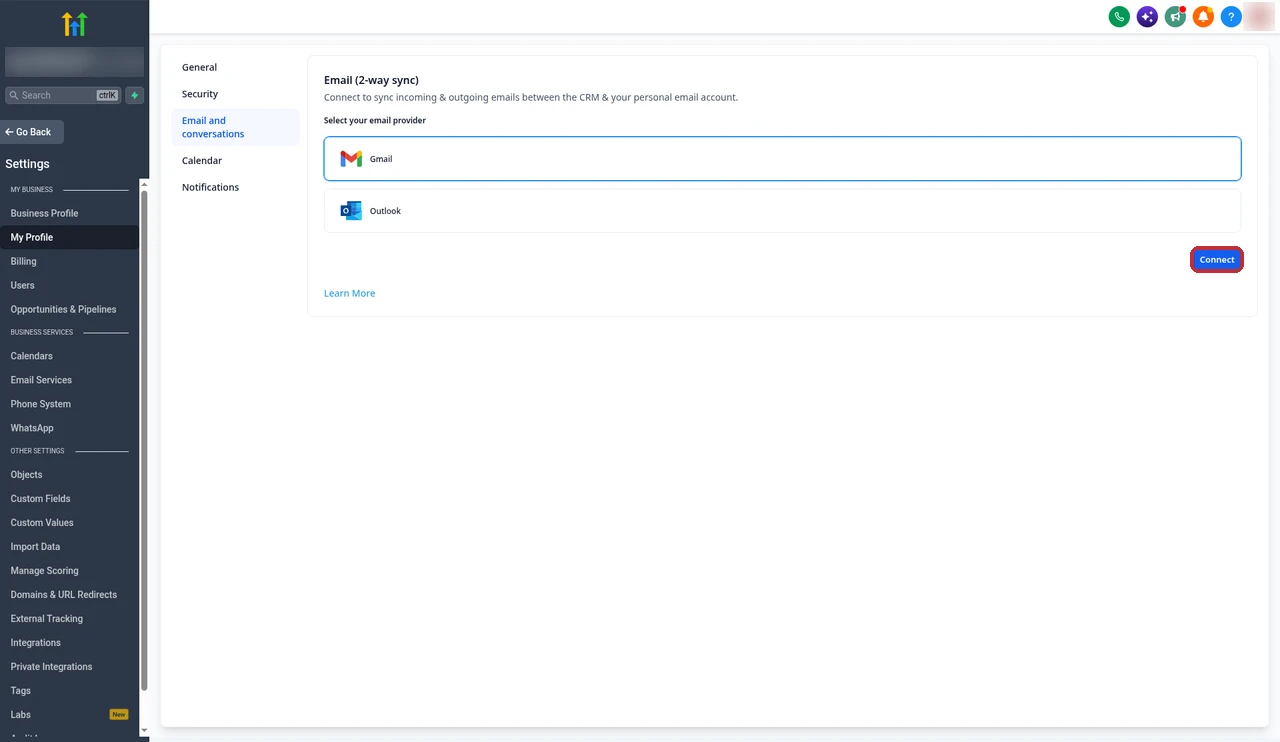
- Google opens a sign-in window. Pick the Gmail account you want to connect, or sign in to a new one.
- Google shows what "Leadconnector for Gmail" wants to access: View your email messages and settings and Send email on your behalf. Tick Select all so both boxes are on, then click Continue.
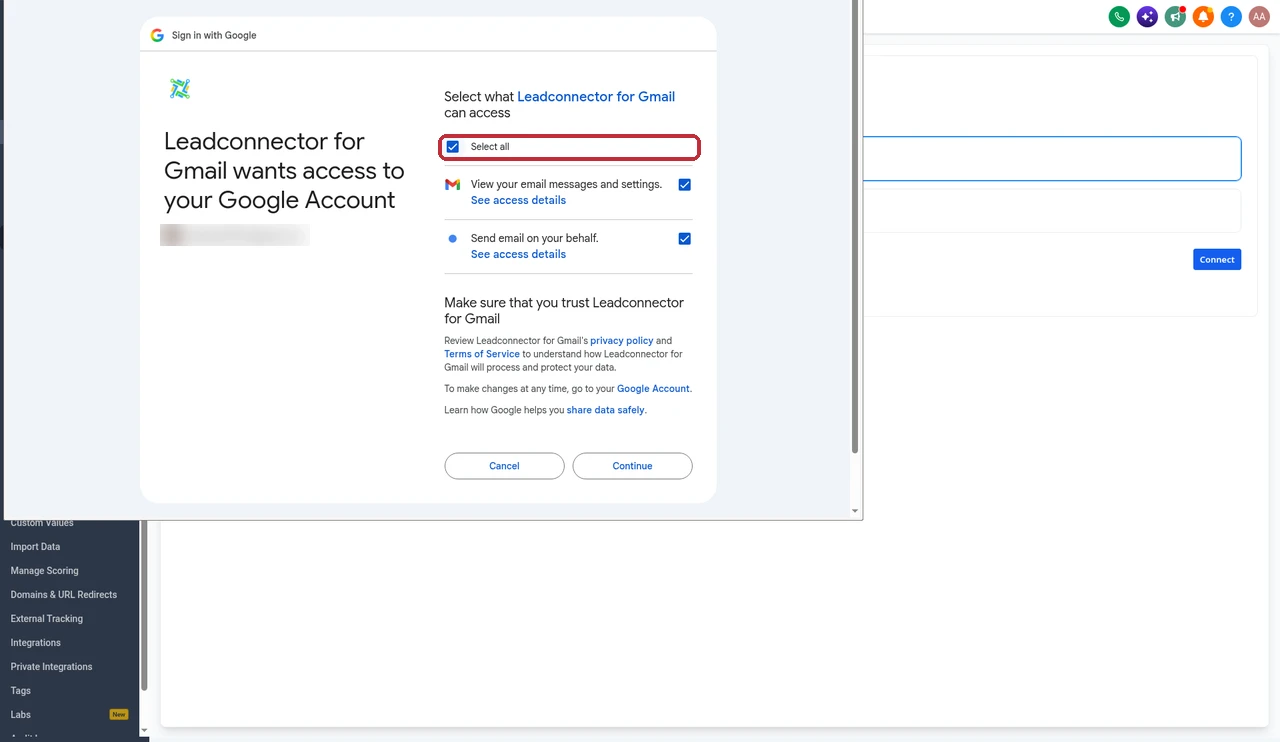
LeadConnector is the name HighLevel uses for its apps, so that's the name you'll see on Google's screens. Leave both permissions on. If you untick one, the sync can fail later with a permission error.
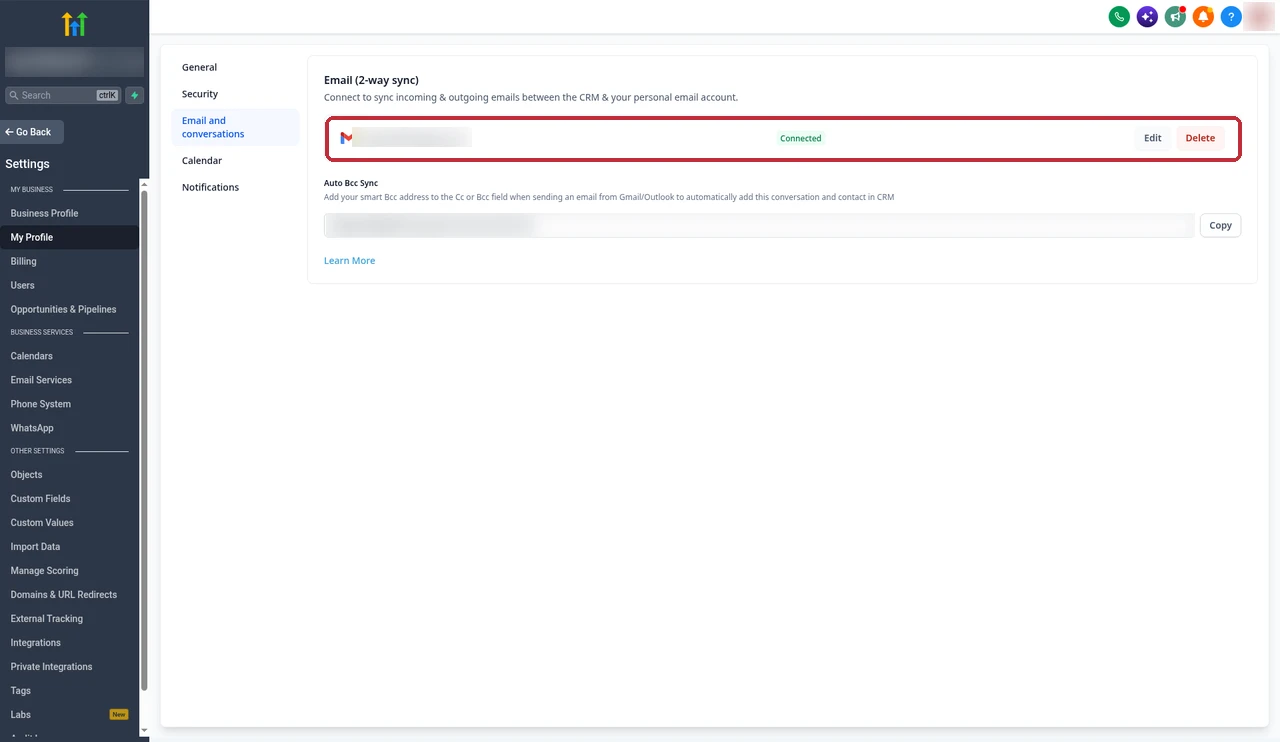
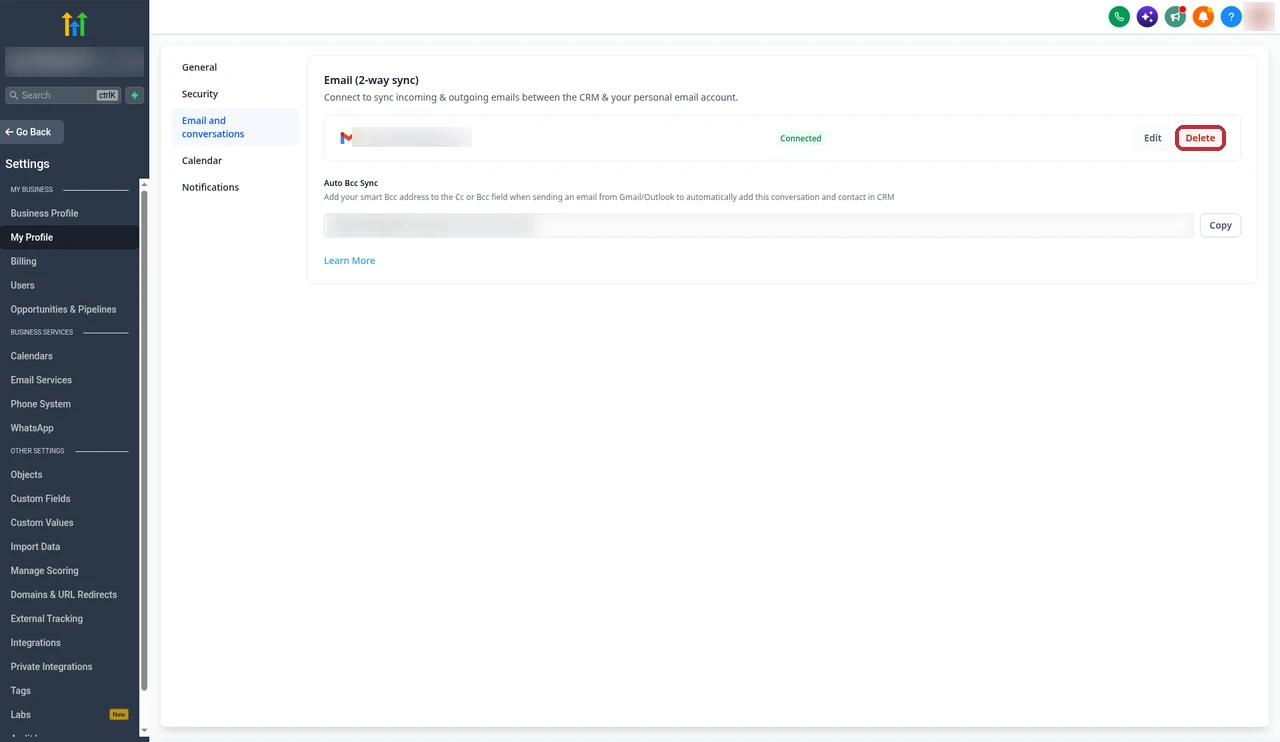
- You land back on My Profile. Your Gmail address now shows with a green Connected label, plus Edit and Delete buttons.
Send your first synced email
To test it, I added a contact in the CRM and sent one email to it from GoHighLevel. HighLevel's doc puts it this way: open Conversations, click the pencil icon for a new message, choose a direct message, pick the contact, and your connected Gmail address fills the From field. Then write the email and send it.
My test email had the subject "Upmish Gmail sync test" and one line: "Testing 2-way sync." It showed up in the contact's conversation right away:
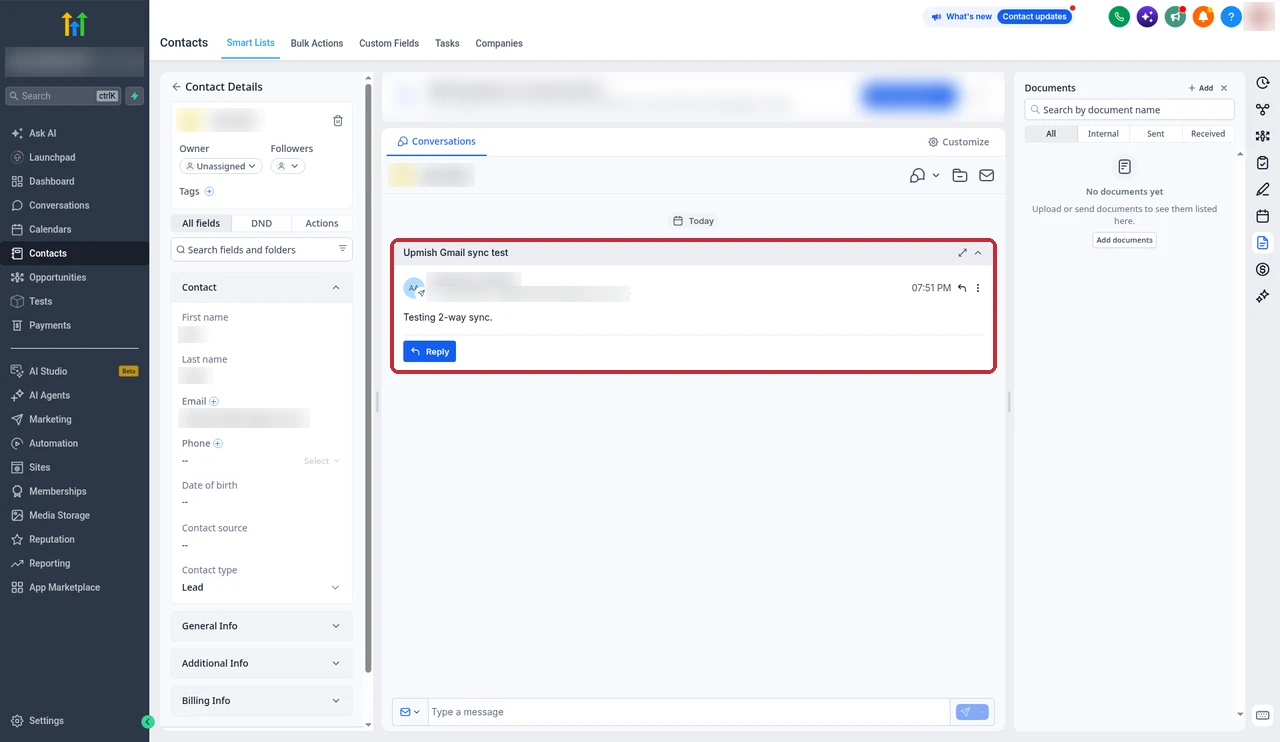
One thing to know before you test: the contact must not be a user of the sub-account. HighLevel doesn't sync emails with contacts who are also users, so a test email to your own user address won't show up. I used an address that is only a contact.
Free 30 day trial + 2 months free on annual

Try 2-way email sync free for 30 days Connect your Gmail, email a lead from the CRM and see the thread in Conversations.
- Free trial
- 30 days
- Annual saving
- 2 months free
- In the trial
- Full access to your plan
What goes through Gmail vs your sending domain
This is where most of the confusion comes from. Connecting Gmail doesn't move all your email to Gmail. HighLevel's doc says bulk emails and workflow emails keep using the sub-account's email service, which is LC Email, Mailgun or your own SMTP.
| Email type | Sent through | Syncs with Gmail? |
|---|---|---|
| One-to-one email from Conversations | Your connected Gmail | Yes, both ways |
| Contact's reply to your Gmail | Gmail | Yes, into Conversations |
| Bulk email | The sub-account's email service | No, unless the From address is your connected Gmail |
| Workflow email | The sub-account's email service | No |
The bulk exception comes from HighLevel's Enhanced Email Sync changelog: a bulk email goes through Gmail only when its From field is your connected address. With Gmail's daily cap, I wouldn't use that for real campaigns.
If replies to your bulk or workflow emails are missing, that isn't a Gmail sync problem. HighLevel's missing replies doc points to the sending domain setup instead, for example a root domain whose Google Workspace MX records clash with Mailgun. I cover how to set that up properly in my GoHighLevel dedicated sending domain guide.
Limits to know
| Limit | What HighLevel says |
|---|---|
| Daily sending | Gmail supports about 500 emails a day. Emails beyond that fail. |
| Attachments | Up to 25 MB. |
| Old emails | Emails from before you connected are not synced. |
| Several sub-accounts | Inbound email goes to every sub-account with that Gmail connected, but only the one you reply from keeps the thread. |
The 500 a day sounds like plenty for personal emails, and it is. It's also the reason Gmail is the wrong tool for newsletters or campaigns. Use your sending domain for those.
Why emails go missing (checklist)
When someone tells me their Gmail emails aren't showing in GoHighLevel, I go through this list in order. Every point comes from HighLevel's docs.
- The sender isn't a contact yet. Sync only covers CRM contacts. An email from a stranger stays in Gmail. Add the contact, or use the BCC trick below.
- The email is older than the connection. Nothing from before you connected is synced.
- The contact is also a sub-account user. Those emails are skipped on purpose, because they may be internal. The changelog adds that an email still syncs if at least one recipient is a contact who isn't a user.
- You are in the wrong sub-account. The sync belongs to the sub-account where you connected it. With the same Gmail on several sub-accounts, only the one you replied from keeps the thread.
- CC, multiple recipients or duplicates. CC and BCC recipients don't become new contacts. With several people in the To field, the first contact gets the conversation. If two contacts share an email address, the first one created gets it.
- Permissions were lost. A password change, revoked access or a Workspace security policy can cut the connection. That shows as the error in the next section.
- The reply landed in a new thread. Gmail doesn't always send the header that links a reply to its thread. HighLevel's email system changelog says it added grouping logic for this, so check the contact's other conversations.
Fixing "Insufficient Permission for 2-Way Sync"
This error means GoHighLevel can no longer read or send through your Gmail. HighLevel's permission error doc lists the usual causes: you revoked access, changed your password, an organization security policy ended the connection, the mailbox was removed, or Google asked for consent again.
The fix HighLevel gives:
- Go to Settings, then Email Services, and click Reconnect on the account.
- On Google's screen, allow all the permissions.
- Send a test email to a contact and check that it shows in Conversations.
If it still fails, HighLevel suggests disconnecting and connecting again, asking your Google Workspace admin to check third-party app restrictions, and trying the connection in an incognito window. Reconnecting doesn't delete any emails.
HighLevel says this fix doesn't apply to "Insufficient funds", "Authentication Failed" (an SMTP error), "quota exceeded" or "Domain not verified". Those come from your wallet, your SMTP login, the daily limit or your sending domain.
The BCC trick for new contacts
When you email someone new straight from Gmail, they aren't a contact yet, so nothing syncs. HighLevel's fix is the BCC address. In my account it shows under Auto Bcc Sync, right below the connected Gmail, with a Copy button.
Copy that address and put it in the Cc or Bcc field when you send from Gmail. HighLevel says this adds the contact and the conversation to the CRM, and future emails from that contact sync on their own.
HighLevel says Gmail may show a "Delivery incomplete" message when you use the BCC address, but the email can still post to the CRM. Check the contact in GoHighLevel before you assume it failed.
Changing or disconnecting Gmail
On the connected Gmail row there are two buttons. Edit lets you switch to a different address without disconnecting first. HighLevel says new emails from the CRM then go out from the new address, and new messages in old threads on the previous address stop syncing.
Delete disconnects Gmail. That's what I did after my test. Clicking it opens a Disconnect email? dialog where you confirm.
After I confirmed, the section went back to the provider picker with Gmail and Outlook, so the account was no longer connected.
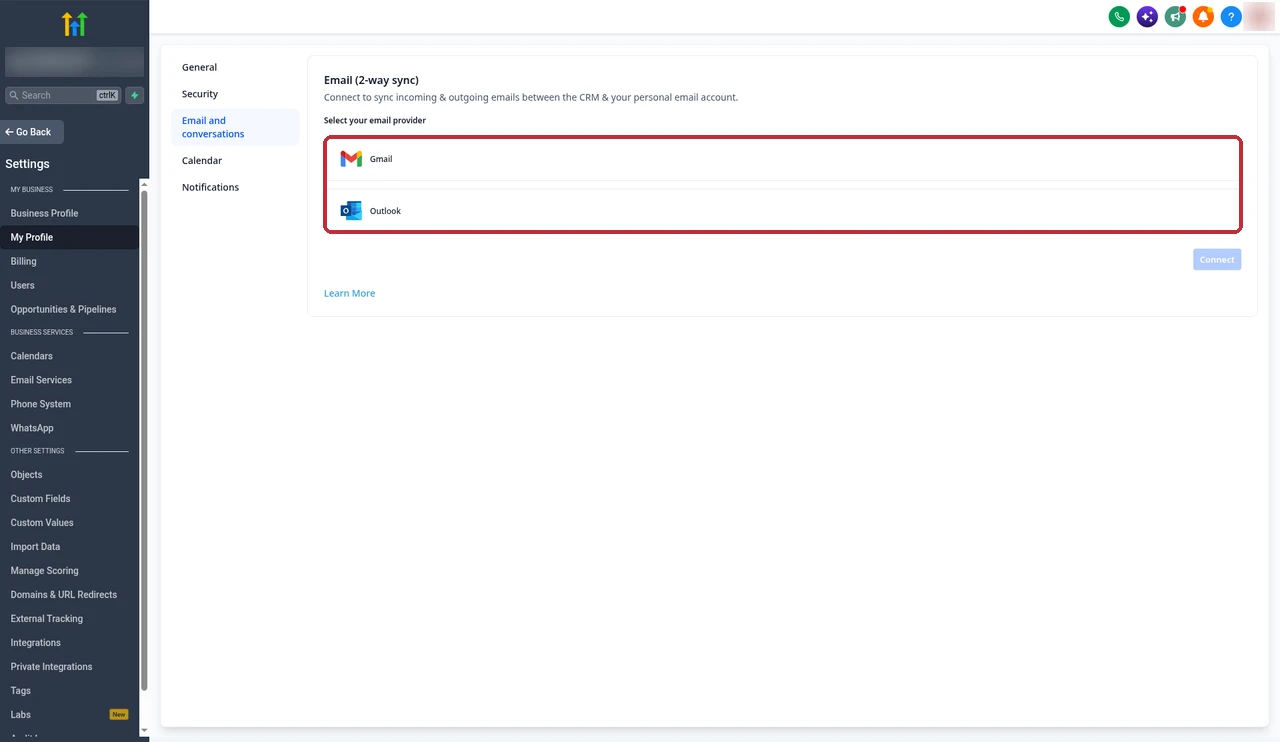
HighLevel says disconnecting doesn't delete existing emails. It only stops new ones from syncing between Gmail and the CRM.
If you are new to the CRM side, my GoHighLevel tutorial for beginners walks through contacts and Conversations. And if you want a bot to answer those emails for you, see GoHighLevel Conversation AI. The sync works on every GoHighLevel plan, and my GoHighLevel pricing guide explains what each one costs.
Partner offerFree 30 day trial+ 2 months free on annual
- 30 days instead of the public 14
- Full access to the plan you choose
- Cancel any time before it ends
Common questions
Does GoHighLevel integrate with Gmail?
Yes. GoHighLevel has a built-in Gmail 2-way sync. Each user connects their own Gmail inside a sub-account under Settings, My Profile, then the Email (2-way sync) section. After that, one-to-one emails with CRM contacts sync between Gmail and Conversations in both directions.
Does it work with Google Workspace?
Yes. HighLevel says the sync supports both personal Gmail and Google Workspace accounts. If a Workspace account won't connect or keeps losing access, ask your Workspace admin whether third-party app access is restricted for LeadConnector.
Why aren't my Gmail emails showing in GoHighLevel?
The most common reasons are that the sender isn't a contact in the CRM yet, the email was sent before you connected Gmail, the contact is also a user of the sub-account, you are looking in the wrong sub-account, or Google permissions were lost. Reconnecting under Email Services fixes the permission case.
Does it sync old emails?
No. HighLevel says past emails from before you connected are not synced. Sync starts when you email a contact from the CRM, or when an existing contact emails your Gmail after the connection is live.
Can I send bulk emails or workflows through Gmail?
Not by default. Bulk emails and workflow emails go through the sub-account's email service, such as LC Email, Mailgun or SMTP, not through Gmail. HighLevel's changelog says bulk emails use Gmail only when the From address is your connected Gmail address.
What's the Gmail sending limit?
HighLevel's doc says Gmail supports about 500 emails a day through the sync, and emails beyond that fail. Attachments can be up to 25 MB.
Does disconnecting delete my emails?
No. HighLevel says removing a synced account doesn't delete existing emails. It only stops new emails from syncing between Gmail and the CRM. In my account, the Delete button asks you to confirm in a Disconnect email? dialog first.
Can I connect the same Gmail to several sub-accounts?
You can, but it causes trouble. HighLevel says an email from a contact then shows in every sub-account where that Gmail is connected, but only the sub-account you reply from keeps the thread. Sync breaks for the others, so I keep one Gmail on one sub-account.
The verdict
GoHighLevel's Gmail integration does one job well. It puts your one-to-one emails with leads into the CRM, so your team sees the whole conversation and you can reply from either side. Connecting it took me a couple of minutes, and my test email showed up in Conversations straight away.
Most "missing email" problems come from expecting more than it does. It only syncs contacts, it starts from the day you connect, it skips sub-account users, and it doesn't handle bulk or workflow email. Keep those rules in mind, allow every permission when you connect, and use one Gmail per sub-account.
Checked on 21 October 2026 against HighLevel's Gmail 2-way sync doc (updated 15 June 2026), the personal inbox guide, the permission error doc, the missing replies doc and the Gmail sync, Enhanced Email Sync and email system changelogs, plus a live test in our own account. Screens change from time to time, so check your account if something looks different.
Some links on this page are partner links. How that works is explained on our affiliate disclosure page.