A GoHighLevel dedicated sending domain means your emails go out under your own name instead of a shared one. Setting it up takes about fifteen minutes in GoHighLevel and another ten at your domain provider. Most of the time it fails for the same three reasons, and all three are easy to avoid.
Short version
- Set this up on the agency account. It does not appear inside a sub account.
- Use a subdomain like lc.yourdomain.com, not your main domain.
- GoHighLevel gives you the DNS records. Copy them exactly, do not retype them.
- DNS changes can take a few hours, so verification failing straight away is normal.
- Do not send to a big list on day one. Start small and build up.
Why you need a dedicated domain
When you first start sending email from GoHighLevel, you are on a shared sending domain. That means you share a reputation with everyone else using it. If other people send spam, your emails suffer for it, even though you did nothing wrong.
You can usually tell this is happening. Your emails land in spam or in the Promotions tab. Open rates drop for no clear reason. Clients tell you they never got something you know you sent. Or emails just vanish with no bounce and no error.
A dedicated sending domain fixes this. Your emails go out under your own domain, your reputation is yours alone, and what other people do stops affecting you. It also looks better, because the email comes from your business rather than a system address.
LC Email is short for LeadConnector Email, which is the email service built into GoHighLevel. When you see LeadConnector mentioned in the setup screens, it is the same thing.
Subdomain or root domain?
Use a subdomain. This is the one decision people get wrong, and it is worth thirty seconds of thought.
A root domain is yourdomain.com. A subdomain is something in front of it, like lc.yourdomain.com or mail.yourdomain.com. GoHighLevel's own example uses lc, but any short word works.
Here is why a subdomain is safer. Your root domain is what your normal business email runs on. If your marketing emails ever hit a spam problem, that trouble stays on the subdomain instead of spreading to the address you use to talk to clients. Keeping them separate means one bad campaign cannot take down your everyday email.
| Subdomain | Root domain | |
|---|---|---|
| Example | lc.yourdomain.com | yourdomain.com |
| Protects your normal email | Yes | No |
| Reputation kept separate | Yes | No |
| Risk if a campaign goes badly | Limited to the subdomain | Hits everything |
Pick your subdomain now and write it down, because you will type it in the next step and it has to match everywhere.
Free 30 day trial + 2 months free on annual

No account yet? Start a free trial, then follow this guide with the Email Services screen open beside you.
- Free trial
- 30 days
- Annual saving
- 2 months free
- In the trial
- Full access to your plan
Set up the domain in GoHighLevel
Make sure you are on the agency account before you start. This option does not show up inside a sub account.
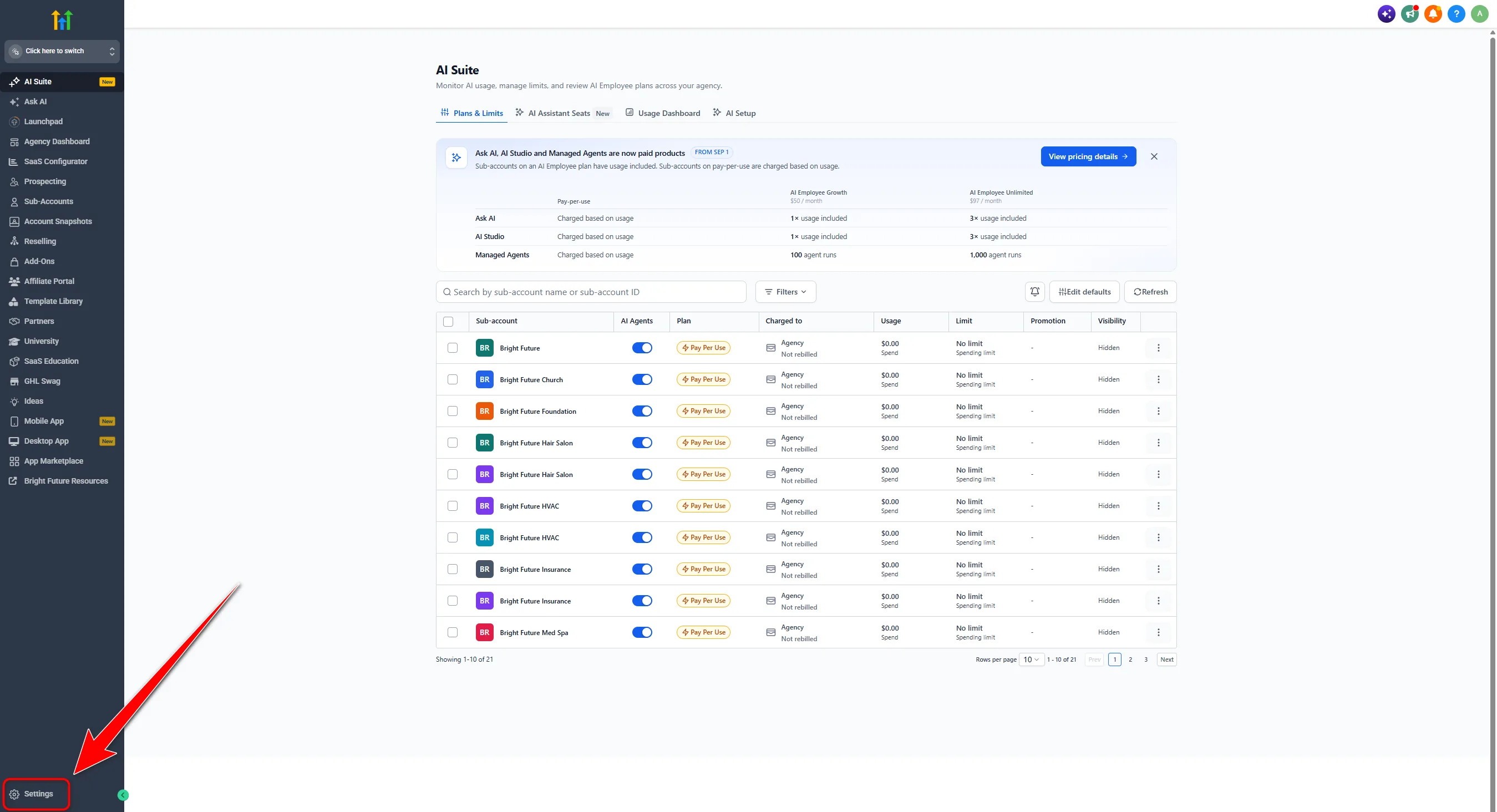
- From the left side navigation, click Settings.
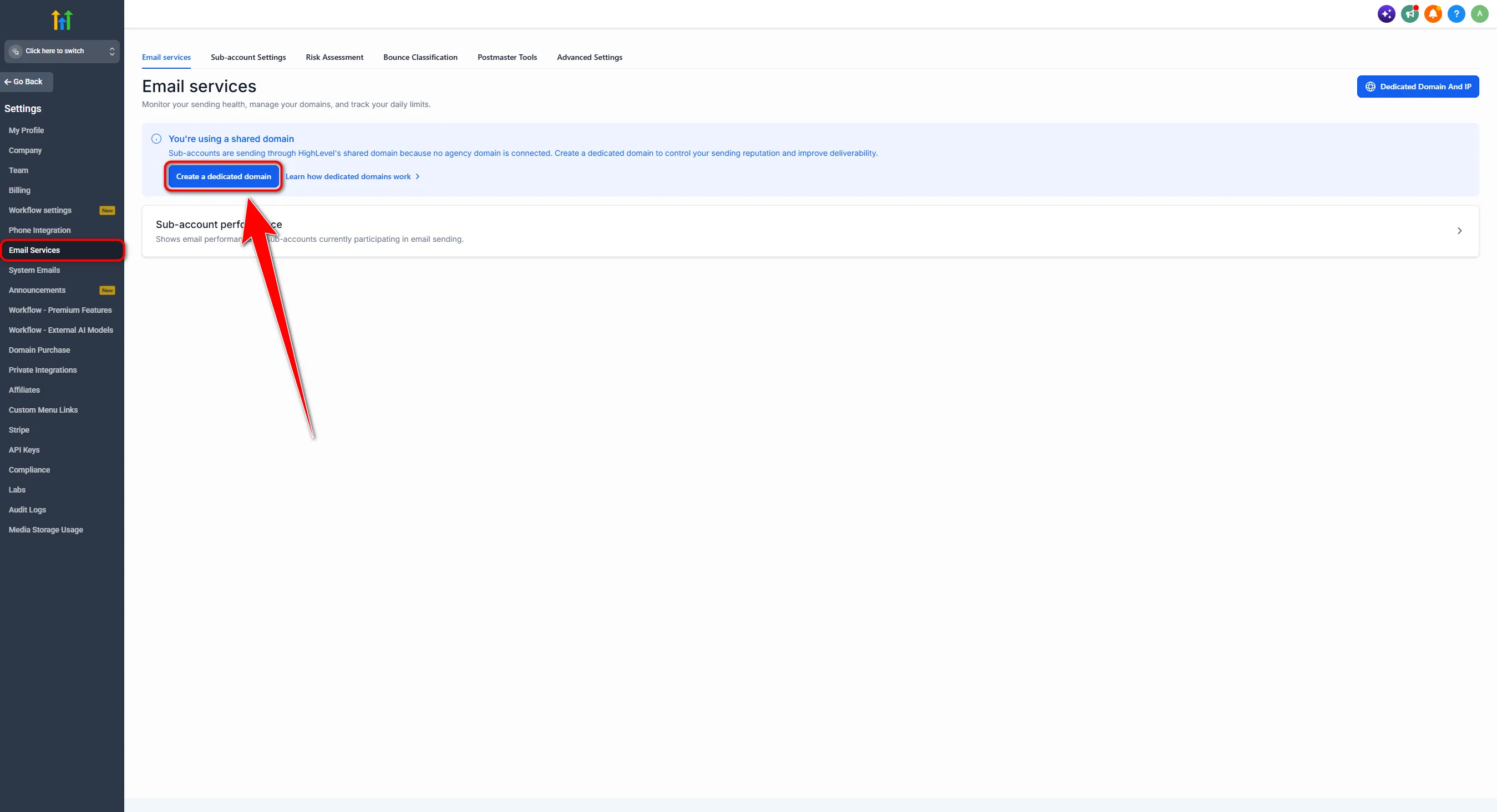
- Click Email Services, then click Create a dedicated domain.
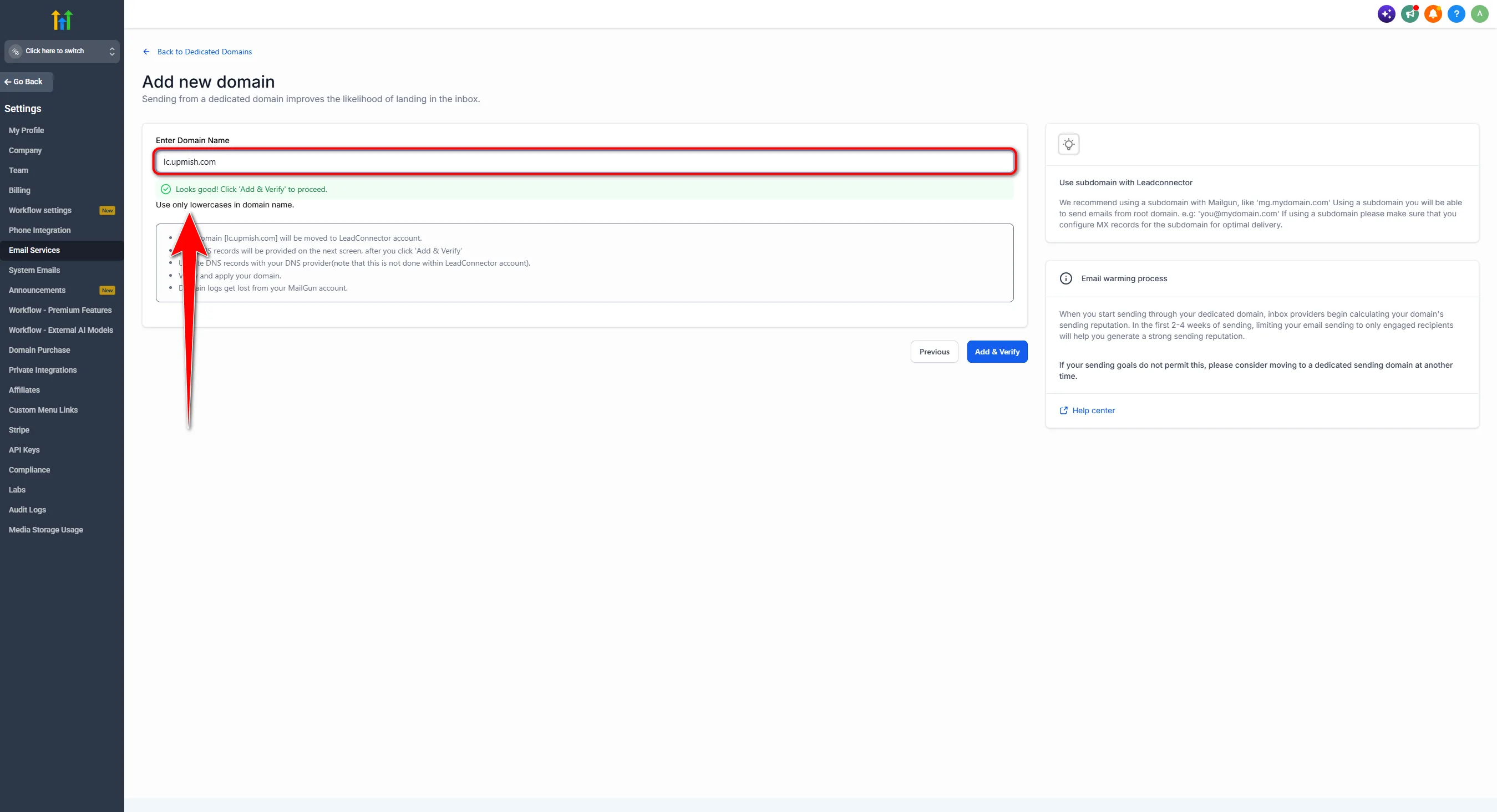
- Click the Enter Domain Name field and type your sending subdomain in lowercase, for example lc.yourdomain.com. Lowercase matters, and so does leaving off the https and the www.
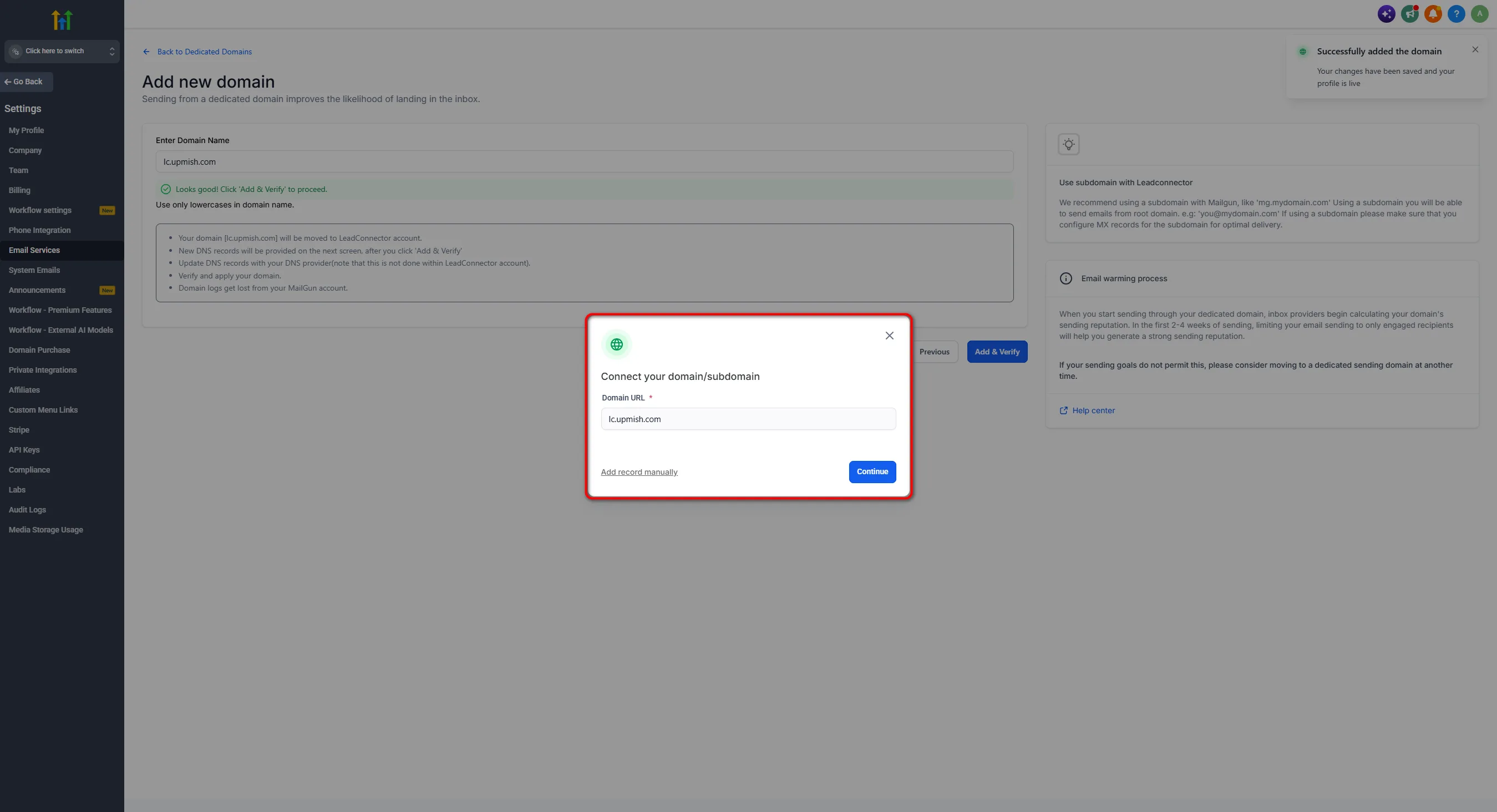
- Click Add & Verify. A Connect your domain/subdomain modal appears. Click Continue.
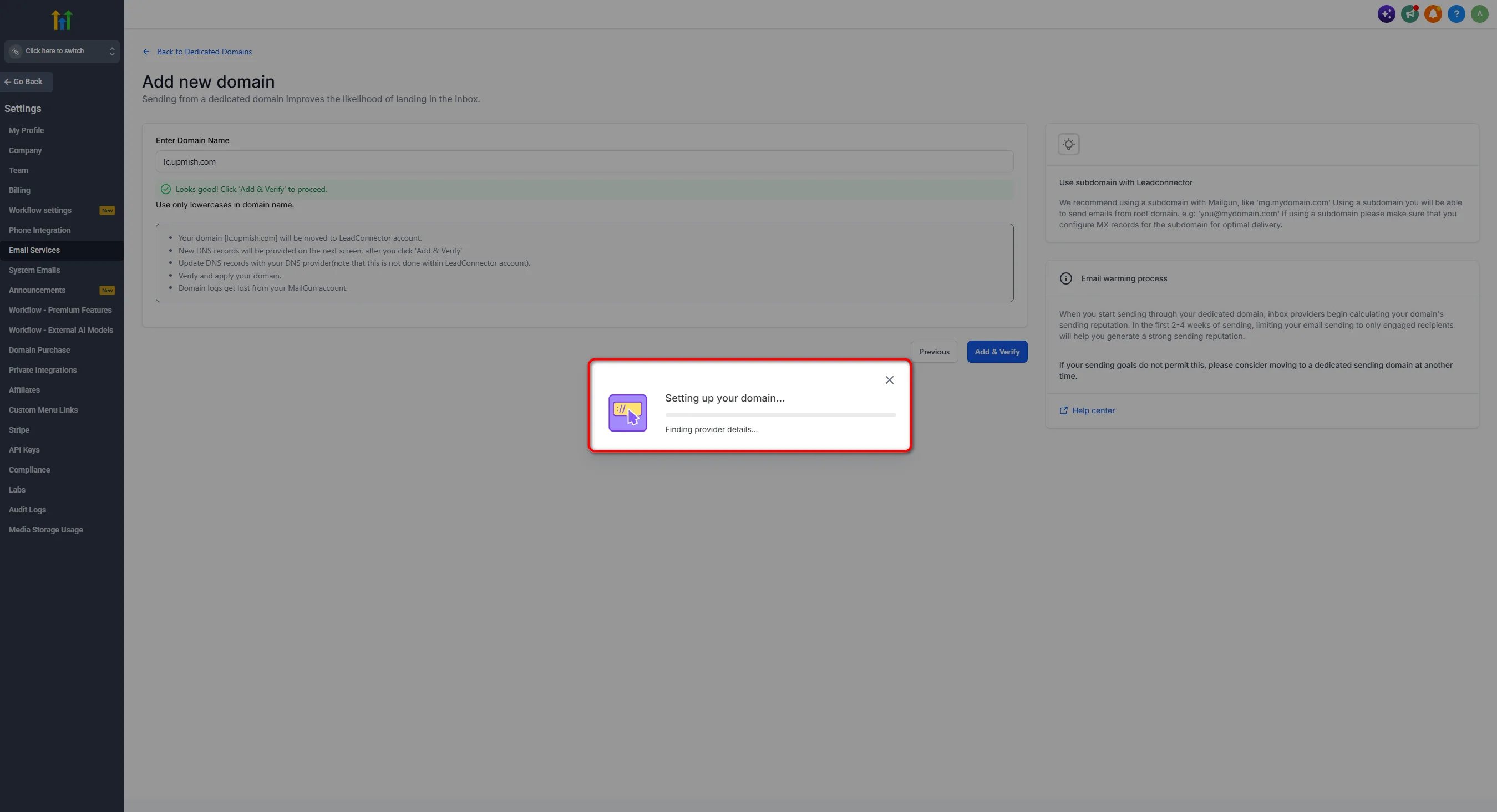
- Wait while it works through Setting up your domain, Finding provider details and Finalizing the setup. This takes a few seconds.
- A modal appears asking you to add DNS records. Copy each Record, Host and Required value it shows you. Do not close this window until you have added them all, and use copy and paste rather than typing them out.
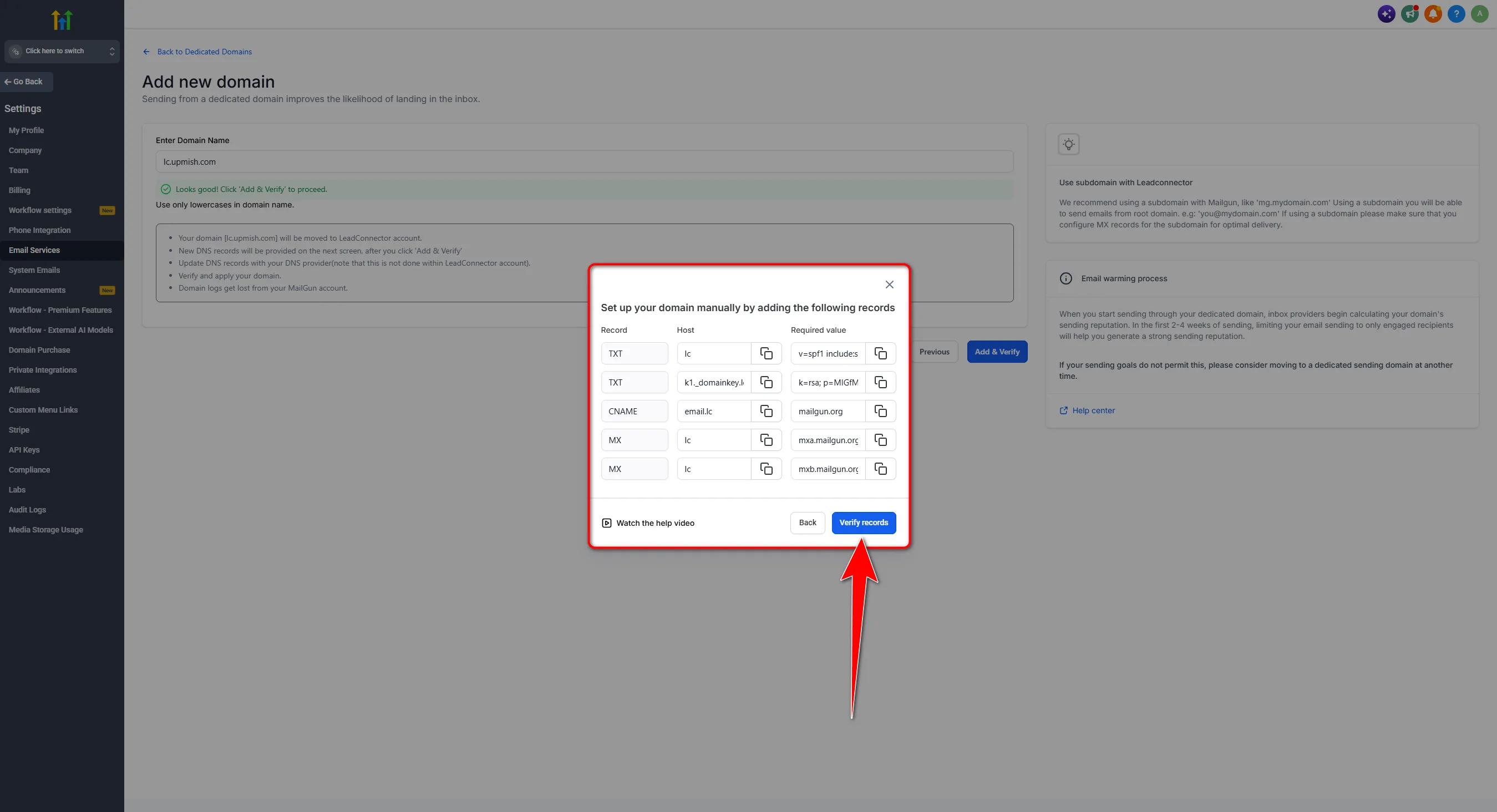
Leave that modal open. You are about to go to your domain provider and paste these values in, then come back and click verify.
The DNS records you will add
GoHighLevel shows you the exact records. You do not need to work anything out. But it helps to know what each one is for, because that is what makes the errors make sense later.
DKIM values are long strings of random characters. One wrong letter and verification fails, and you will not be able to see which letter. Always copy and paste, and paste into a plain text box rather than anything that might add formatting.
Adding the records at your registrar
Your registrar is wherever you bought your domain. GoDaddy, Namecheap, Cloudflare, Siteground, Hostinger, and so on. The screens look different but the job is the same in all of them. Find the DNS settings, add each record, save.
Cloudflare
Log in and pick your domain, then open the DNS tab. Click Add record for each one. Choose the type, paste the host into the Name field and the value into the Content field, then save.
One Cloudflare specific thing. Set the proxy status to DNS only, which shows as a grey cloud rather than an orange one. If the orange cloud is on, Cloudflare hides the record and verification will never pass. This trips up a lot of people.
Everyone else
The pattern is almost always the same. Look for DNS, or DNS Management, or Advanced DNS in your account. Find the option to add a record. Pick the type, paste the host, paste the value, save. Repeat for each record GoHighLevel listed.
Two things worth knowing wherever you are. Some providers add your domain to the host field automatically, so if you paste in lc.yourdomain.com you end up with lc.yourdomain.com.yourdomain.com. Check what it shows after saving. And if a TTL value is asked for, leave it on automatic or the default.
Why verification fails
You have added the records, you click Verify records, and nothing happens. Here is what is usually going on.
DNS has not updated yet
This is the most common one and it is not a mistake. DNS changes take time to spread, sometimes minutes, sometimes a few hours.
What to do: wait an hour and try again. If it still fails after a few hours, then start looking for a real problem.
A value got mangled
An extra space at the start or end, a missing character, or quote marks that your provider added on its own.
What to do: delete the record and paste it again straight from the GoHighLevel modal. Check that nothing was added around it.
The host field doubled up
You pasted lc.yourdomain.com but your provider already appends the domain, so the record is now lc.yourdomain.com.yourdomain.com.
What to do: look at how the saved record actually reads. If it is doubled, enter just the first part instead.
Cloudflare proxy is on
The orange cloud means Cloudflare is hiding your record from the outside world, so GoHighLevel cannot see it.
What to do: click the cloud to turn it grey, so it reads DNS only, then verify again.
An old SPF record is already there
A domain can only have one SPF record. If you already had one, adding a second means neither works properly.
What to do: merge them into a single record rather than keeping both. If you are unsure how, ask your provider's support, they deal with this daily.
You are in the wrong account
The records were added to a different domain, or you are trying to verify from a sub account rather than the agency account.
What to do: check the domain name character by character, and check you are on the agency account.
When verification passes, your dedicated sending domain is connected and you can start sending from it.
Partner offerFree 30 day trial+ 2 months free on annual
- 30 days instead of the public 14
- Full access to the plan you choose
- Cancel any time before it ends
Card required. Nothing charged until the trial ends.
Warm up before you send
This is the part most guides skip, and skipping it undoes everything you just did.
A brand new sending domain has no reputation at all. Inbox providers do not know you. If your first act is to email five thousand people, that looks exactly like what a spammer does, and you get filtered before anyone reads a word.
Build up slowly instead. Something like this works well.
- Days one to three. Send to yourself and a few colleagues. Open them, reply to them. That is the signal inboxes want to see.
- Week one. Send to your most engaged contacts only, the people who actually open your emails. Keep it under about fifty a day.
- Week two. Double it, as long as nothing is bouncing and people are still opening.
- Weeks three and four. Keep doubling each week until you reach your normal volume.
Two rules while you do this. Clean your list first, because sending to dead addresses damages a new domain quickly. And never start with a cold list. Warm up on people who know you.
Remember that email sending is charged on usage in GoHighLevel, separately from your plan. Our GoHighLevel email pricing breakdown covers what that usually adds up to.
Common questions
Do I need a dedicated sending domain in GoHighLevel?
If you send any real volume of email, yes. On the shared domain your delivery depends on how everyone else behaves. A dedicated domain gives you a reputation of your own.
Should I use a subdomain or my main domain?
A subdomain, such as lc.yourdomain.com. It keeps your marketing email separate from your normal business email, so a bad campaign cannot affect the address you use with clients.
How long does verification take?
Sometimes minutes, sometimes a few hours. If it fails right after you add the records, that is normal. Wait an hour and try again before assuming something is wrong.
Can each sub account have its own domain?
The setup covered here is done on the agency account. If you need different sending domains for different clients, check what your plan allows in Email Services before promising it to anyone.
Why does verification keep failing?
Usually DNS has not updated yet, a value was retyped instead of pasted, the host field doubled up, or Cloudflare's proxy is switched on. Work through those four first.
Can I change the domain later?
Yes, but you start again from zero. The new domain has no reputation, so you have to warm it up the same way. Pick one you are happy to keep.
Does this fix my text messages too?
No. Email and SMS are completely separate. For texts you need A2P 10DLC registration, which our A2P guide walks through.
The verdict
Connecting a dedicated sending domain is the single biggest thing you can do for email delivery in GoHighLevel, and it takes less than half an hour.
Get four things right and it works first time. Use a subdomain, not your main domain. Copy the DNS values rather than typing them. Wait an hour before deciding verification has failed. And warm the domain up slowly instead of emailing everyone on day one.
Do it before you build campaigns, not after. Finding out your emails were going to spam for a month is a painful way to learn this.
Setup screens and required records are set by GoHighLevel and change from time to time. Always use the exact values shown in your own account rather than copying them from anywhere else, including this page.
Some links on this page are partner links. How that works is explained on our affiliate disclosure page.