Snapshots are the reason I never build a GoHighLevel client account from scratch. You build one sub-account the way you like it, save it as a snapshot, and drop that whole setup into the next account. They're also the most confusing part of GoHighLevel for new agencies, mostly because "import" and "load" sound like the same thing. Here's how snapshots work, what they copy and what they don't, and every step from creating one to pushing updates, with screens from my own agency account.
Short version
- A snapshot is a saved copy of a sub-account's setup: workflows, funnels, calendars, forms, pipelines, AI agents and more.
- It does not copy contacts, conversations, appointments, Stripe connections or integrations.
- Import puts a shared snapshot in your agency library. Load applies it to a sub-account. There's no Import button; you import by opening a share link.
- Snapshots don't update themselves. Refresh, then push updates to your own sub-accounts.
- Snapshots are in HighLevel's $97 Starter feature list, so every plan gets them.
What is a GoHighLevel snapshot?
A snapshot is a reusable template of a sub-account's configuration. HighLevel's snapshots overview describes it as a way to copy reusable setups from one sub-account into new or existing ones, so you don't rebuild workflows, funnels, calendars and forms by hand every time.
The thing that trips people up: you don't build a snapshot directly. You build a normal sub-account first, get it working, and then take a snapshot of it. I keep a clean "template" sub-account for exactly this, with no real client data in it, so every snapshot I take from it is tidy.
Agencies use snapshots for a few jobs. HighLevel lists onboarding new clients faster, keeping every client on the same proven setup, building niche templates (dental, legal, spa, fitness, real estate, home services), powering SaaS mode offers, and sharing or selling templates to other agencies. That's also why you'll see so many "roofing snapshot" or "HVAC snapshot" searches: they're niche setups other agencies have packaged up.
What a snapshot copies, and what it doesn't
HighLevel updated its full list on 9 October 2026. What you can include depends on what's in the source sub-account and which assets you tick.
| Category | What copies |
|---|---|
| Automation and AI | Workflows, triggers, Agent Studio, Brand Voice, Conversation AI, Voice AI agents |
| Marketing and content | Funnels and websites, forms, surveys, quizzes, blogs, campaigns, email builder templates, text and email templates, social planner |
| Calendars | Calendars, calendar groups, services, service categories, resources and add-ons |
| CRM structure | Pipelines, tags, custom fields (including Company fields), custom values, custom objects, trigger links, smart lists |
| Ads | Google, LinkedIn and Meta ad campaigns |
| Memberships | Membership offers and products, certificates, webinars |
| Reporting | Dashboards, custom reports, custom metrics |
| Other | Design kit and brand colors, documents and contracts, knowledge bases, review settings, WhatsApp templates, WordPress site |
And here's what stays behind. This matters more than the first list, because it's what you'll have to set up by hand after a load:
| Doesn't transfer | What it means for you |
|---|---|
| Contacts, appointments, conversations, messages | Snapshots move setup, never customer records |
| Reputation data and live activity | Review settings copy, the reviews themselves don't |
| Stripe and other integrations | Reconnect them in the new sub-account |
| Phone numbers for Voice AI agents | The agent copies, you assign a number |
| LinkedIn Lead Gen Forms | Campaign structure copies, the forms don't |
| Private dashboards | Only shared dashboards come across |
| WordPress plugin or theme licences | Re-authenticate them after loading |
| Contact-to-contact associations | Not supported yet |
| Another creator's protected assets | Held back by Assets Protection |
Smart lists copy as settings only. They'll show whatever records exist in the destination account. WhatsApp templates also need Meta approval again before you can use them.
Which plans include snapshots
All of them. HighLevel's main pricing page doesn't break features down plan by plan, but its official $97 Starter feature list includes "Snapshots", and the pricing FAQ mentions a snapshot library of pre-built accounts for industries like real estate, dentists and gyms.
- Starter, $97 a month: snapshots included, but only 3 sub-accounts to load them into.
- Unlimited, $297 a month: unlimited sub-accounts, which is where snapshots really pay off.
- Agency Pro, $497 a month: adds SaaS mode, where a snapshot can be attached to a SaaS plan and applied automatically when a new sub-account is created at checkout.
My GoHighLevel pricing guide covers what else changes between the plans.
Free 30 day trial + 2 months free on annual

Build your first snapshot free for 30 days Set up a template sub-account, snapshot it and load it into a test account before you pay.
- Free trial
- 30 days
- Annual saving
- 2 months free
- In the trial
- Full access to your plan
How to create a snapshot
Everything lives in the agency view under Account Snapshots in the left menu. The page has four tabs: My snapshots, Imported snapshots, Shared snapshots and Snapshot templates.

- In the agency view, click Account Snapshots, then Create new snapshot in the top right.
- Give it a name that says what it's for, and pick the Sub-account you want to copy from.
- Click Next. You'll get the "List of assets linked with sub-account". Tick Select All or open each category and pick items one by one. The Create button stays greyed out until at least one asset is ticked.
- Click Create. The snapshot shows up under My snapshots.

If some assets fail to load while you're picking, HighLevel now shows a Retry option, so you don't have to start again. Associations between CRM objects come along automatically as long as you select both objects.
Each snapshot row in My snapshots has a few icons on the right: a plus, a refresh icon, a Load snapshot icon and a three-dot menu. The menu holds Settings, Copy snapshot ID, Share snapshot, Sell on marketplace, View history and Delete snapshot.
How to share a snapshot
Open the three-dot menu on a snapshot and choose Share snapshot. HighLevel's sharing guide says to refresh the snapshot first if you've changed the source sub-account, so the link carries your latest setup.

You pick a link type, then click Get Link and send it. Here's when I'd use each one:
| Link type | Who can import it |
|---|---|
| Permanent link | Anyone with the URL, as many times as they like. Good for a free template you hand out. |
| One-time share link | One successful import, then it stops working. Make a new one per recipient. |
| Email share link | The person you email it to, once. |
| Agency restricted link | Only the agencies whose relationship numbers you enter. |
| Sub-account restricted link | Only the one destination sub-account. |
| Marketplace share link | Buyers through your App Marketplace listing. Assets Protection is applied automatically. |
There's also an Enable assets protection checkbox. With it on, the receiving agency can use your assets across its own sub-accounts but can't share or resell them to anyone else. If your snapshot already holds someone else's protected assets, HighLevel just leaves those out of an external share and sends the rest.
If the Share option is missing, check that the user has the Share/Import Snapshots permission.
How to import and load a snapshot
This is the part most guides get wrong, partly because the screen changed. Here's the flow HighLevel gives in its import guide: share, import into the agency library, then load into a sub-account.
Import it into your agency library
There's no Import button on the Imported snapshots tab anymore. If you haven't imported anything yet, it just shows a short video, "You haven't imported a snapshot yet" and a link to the docs.
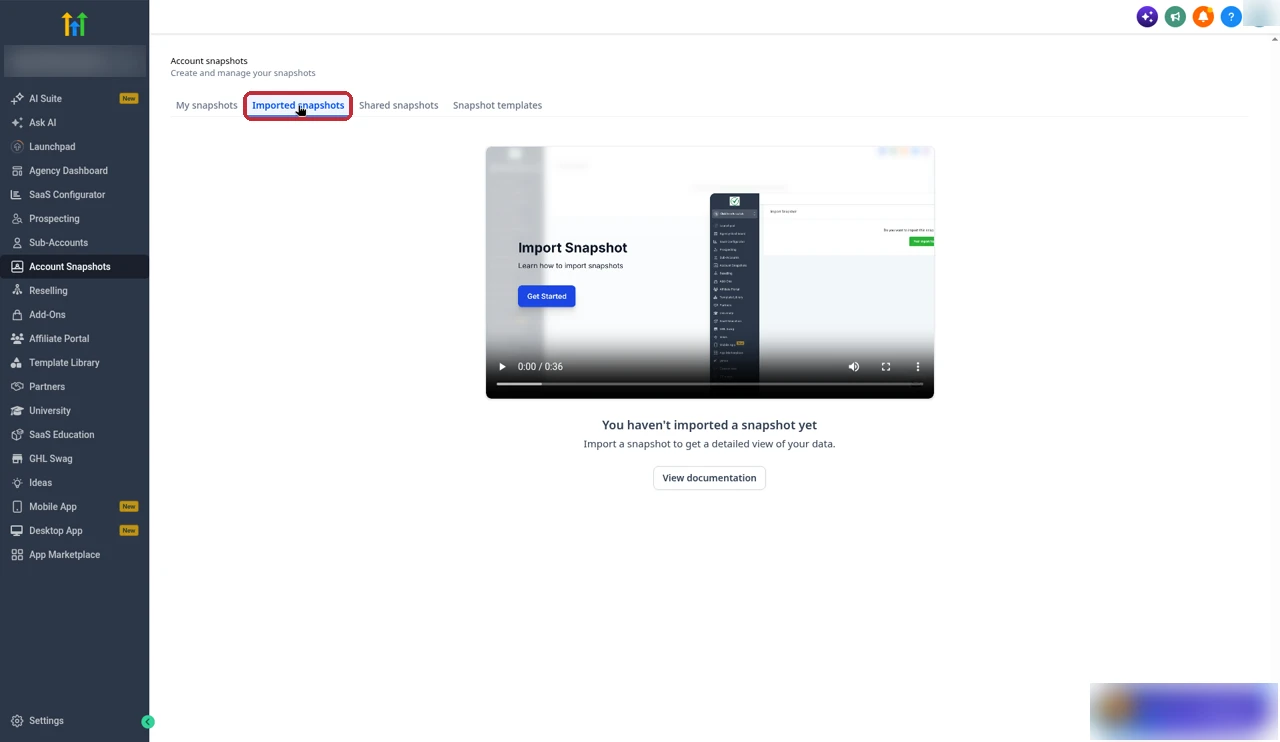
- Sign in to the agency where you want the snapshot to live.
- Open the share link the sender gave you, or click the link in the invitation email.
- In the pop-up, rename the snapshot if you want, then click Import Now.
- Wait. The snapshot shows greyed out in Imported snapshots while it processes. Don't import it again, just wait until it turns active.
If the link fails, it's usually expired, a one-time link that's already been used, or restricted to a different agency or sub-account. Ask the sender for a fresh one. A shield icon isn't an error, it just means the snapshot has protected assets.
Load it into an existing sub-account
- In the agency view, find the sub-account, open its menu and choose Manage Client.
- Click Actions, then Load Snapshot.
- Pick the snapshot and tick the assets you want.
- Review any conflicts. For each one you choose to override the existing asset or skip it. Then confirm.
Loading adds assets. It doesn't delete contacts, and existing assets only change when you choose override.
Start a new sub-account from a snapshot
When you create a sub-account, GoHighLevel asks you to Select Snapshot Template. The picker has three tabs: Snapshot Templates, My Snapshots and Imported Snapshots. If you don't want any template, pick Blank snapshot.

This is how I start almost every new client. Pick the snapshot, fill in the business details, and the account opens with the whole setup already in place. My GoHighLevel tutorial walks through the rest of a new sub-account.
Refresh and push updates
Snapshots don't keep up with the source sub-account on their own. When I improve a workflow or add a funnel in my template account, the snapshot still holds the old version until I refresh it. HighLevel's refresh guide lays it out:
- In Account Snapshots, click the refresh icon on the snapshot.
- Pick the new or changed assets to include and click Refresh. If a few assets fail, the rest keep going and you can retry just the failed ones.
- Click Push Update, choose which sub-accounts get it and which assets to send.
Two limits to know. Push updates only reach sub-accounts inside your own agency. If you shared the snapshot with another agency, they need a new link and a fresh import. And if a refresh removes a step from a workflow that came from the snapshot, HighLevel removes contacts waiting on that step so they don't get stuck, and logs it as "Removed by - Snapshot Refresh".
Every successful refresh also creates a new version. Click a snapshot's name, open the Version History tab, and each version shows what was added, removed or synced compared with the one before. HighLevel's version guide says there's no revert button, so it's a record, not an undo.
Buying, free and selling snapshots
The App Marketplace doesn't have a snapshots category. When I search "snapshot" in it, I get a long list of apps, many of them snapshots packaged by other agencies, some free and some paid.

Free snapshots usually reach you as a permanent share link from whoever built them. Paid ones come through the Marketplace or straight from the seller. Before I load anyone else's snapshot into a client account, I load it into a test sub-account first and check every workflow, because you're trusting someone else's build.
To sell your own, open the three-dot menu on a snapshot and pick Sell on marketplace. That starts HighLevel's guided listing flow, and Marketplace share links get Assets Protection on automatically. On SaaS mode, you can also attach a snapshot to a SaaS plan so new clients get it the moment they sign up.
Partner offerFree 30 day trial+ 2 months free on annual
- 30 days instead of the public 14
- Full access to the plan you choose
- Cancel any time before it ends
Mistakes to avoid
- Snapshotting a live client account. Build from a clean template sub-account so nothing client-specific slips in.
- Sharing before refreshing. The link carries whatever the snapshot held at its last refresh.
- Expecting it to be plug and play. Stripe, integrations, Voice AI phone numbers, WordPress licences and WhatsApp approval all need setting up again in the new account.
- Loading too much into an existing account. Pick assets on purpose and read the conflict list before you override anything.
- Using a permanent link for a paid template. Anyone with the URL can import it. Use a one-time, restricted or Marketplace link, with assets protection on.
Common questions
What is a snapshot in GoHighLevel?
A snapshot is a reusable template of a sub-account's setup. You build a sub-account the way you like it, then save it as a snapshot so you can copy its workflows, funnels, calendars, forms and other assets into new or existing sub-accounts.
Do GoHighLevel snapshots copy contacts?
No. HighLevel says snapshots copy configuration, not customer records. Contacts, appointments, conversations, messages, reputation data and live account activity don't transfer.
What's the difference between importing and loading a snapshot?
Importing adds a shared snapshot to your agency's snapshot library. Loading applies the assets you pick from that snapshot to a new or existing sub-account. You always import first, then load.
How do I import a GoHighLevel snapshot?
There's no Import button. Sign in to the agency where you want the snapshot, open the share link the sender gave you, rename it if you like and click Import Now. It then shows up under Imported snapshots once processing finishes.
Does a snapshot update automatically?
No. When you change the source sub-account, you refresh the snapshot to capture the changes. You can then push updates to sub-accounts inside your own agency. Other agencies have to import a new share link.
Can I use snapshots on the Starter plan?
Yes. HighLevel's own $97 Starter feature list includes Snapshots. Keep in mind Starter comes with 3 sub-accounts, so you can only load a snapshot into that many client accounts.
Will loading a snapshot delete data in a sub-account?
HighLevel says no. Loading adds the assets you select. Existing assets only change if you choose to override a conflicting one during the load.
Can I sell my own snapshots?
Yes. In Account snapshots, open the three-dot menu on a snapshot and pick Sell on marketplace. Marketplace share links get Assets Protection applied automatically, so buyers can't resell your protected assets.
The verdict
Snapshots are one of the best reasons to run an agency on GoHighLevel. Build a sub-account once, snapshot it, and every new client starts from your best setup. Just remember they copy setup, not data, and they need a refresh and a push to stay current.
If you're new to them, start small. Build one clean template sub-account, snapshot it, and load it into a test account. Once that works, you've got the base for every client after it.
Checked on 23 October 2026 against HighLevel's snapshots overview (updated 9 October 2026), creating snapshots, sharing snapshots, importing snapshots, refresh and push updates and version management guides, HighLevel's pricing page and Starter feature list, plus the Account Snapshots screens in our own agency account. Screens change from time to time, so check your account if something looks different.
Some links on this page are partner links. How that works is explained on our affiliate disclosure page.