GoHighLevel AI Studio is a builder inside each sub-account that turns a plain-English description into a working website, landing page, booking page or small web app. You type what you want, it writes the pages, copy, images and code, and you publish to a free preview address or your own domain. Usage is included in HighLevel's AI Employee Growth plan ($50 a month per sub-account), Unlimited includes three times as much ($97 a month), and without either plan you pay per use at token cost. One catch before you start: sub-account users don't get access automatically, so an agency admin has to switch it on first. This guide covers access, building, connecting forms and calendars, publishing, and what it costs. The screenshots come from our own GoHighLevel account.
Short version
- AI Studio builds sites, landing pages, booking flows, forms and small web apps from a prompt, a template or an uploaded image.
- Access for sub-account users and admins is off by default. Turn it on from the Home banner, from AI Suite, then AI Setup, or per user in Settings.
- Forms and calendars are not connected to your CRM until you ask AI Studio to connect them.
- You publish to a free
vibepreview.appaddress first, then add your own domain. - Cost depends on the work done, not on the number of pages. HighLevel's own examples range from $0.60 to $1.30 per build.
What GoHighLevel AI Studio is
AI Studio is HighLevel's conversational builder. You describe the page or app, it asks a few questions if your brief is vague, builds a first version with a live preview, and then you keep changing it by chatting, clicking on elements or editing the code. People sometimes call it GHL vibe coding, after the /vibe address the builder opens on.
HighLevel says it can build more than standard websites. Its help article lists landing pages based on a live URL you like, storefronts using your own photos, dashboards, appointment booking pages connected to your calendar, multi-step surveys and branded forms. New projects are full web apps with server-side code, which matters for search engines. More on that in the SSR section.
The names overlap with other HighLevel AI tools, so here is how they split:
| Tool | What it does | Cost |
|---|---|---|
| AI Studio | Builds sites, pages, forms and web apps from a prompt | Pay per use, or included in AI Employee |
| Funnel AI | Builds sections inside the classic Funnels and Websites builder | Free on every plan |
| Agent Studio | Builds AI agents that respond to events and automate tasks | Token cost on every plan |
AI Studio projects stay in AI Studio. You can't move or copy them into the Funnels or Websites builders, so pick the tool before you start a client job.
How to get access to AI Studio
AI Studio is live for every location, but HighLevel switched sub-account user and admin access off by default. Only people who had already turned it on in Labs kept it. If a client says they can't see it, this is almost always why.
- From the Home banner: agency owners, admins and agency users with write access see a banner on Home when people in your sub-accounts still need AI Studio access. Click Configure, give access to everyone or pick specific people, and confirm. HighLevel says setup usually takes a few minutes.
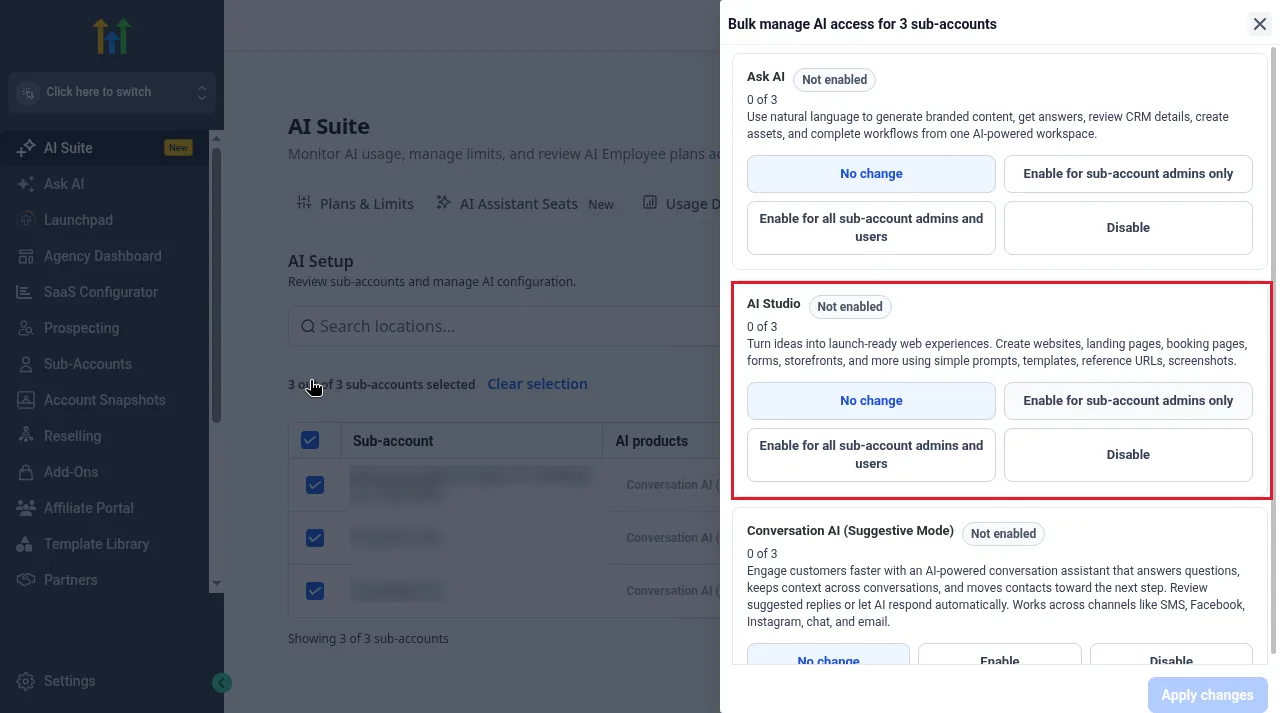
- For several sub-accounts: in the agency view, go to AI Suite, then AI Setup. Tick the sub-accounts, click Manage AI access, and in the AI Studio section choose Enable for sub-account admins only, Enable for all sub-account admins and users, or Disable. Click Apply changes.
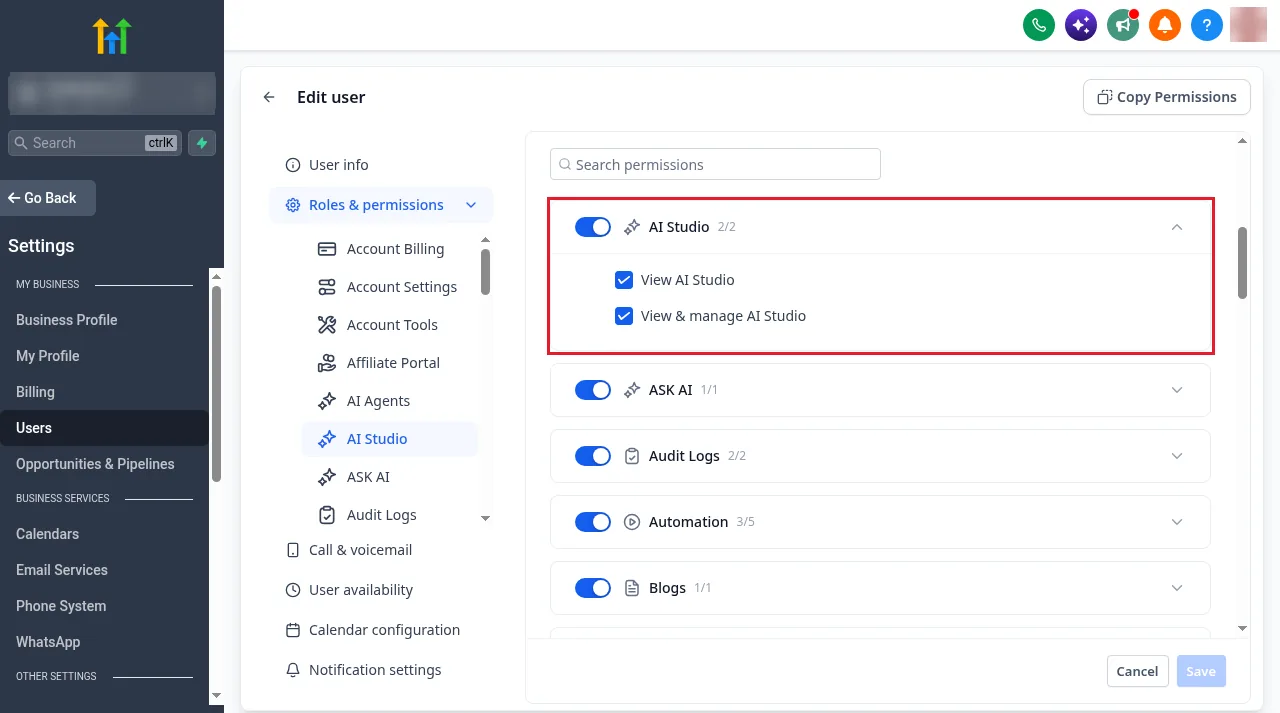
- Check the user's permissions. In the sub-account, open Settings, then Users, edit the user and open Roles & permissions. Under AI Studio there are two boxes: View AI Studio for read-only access and View & manage AI Studio for building and publishing.
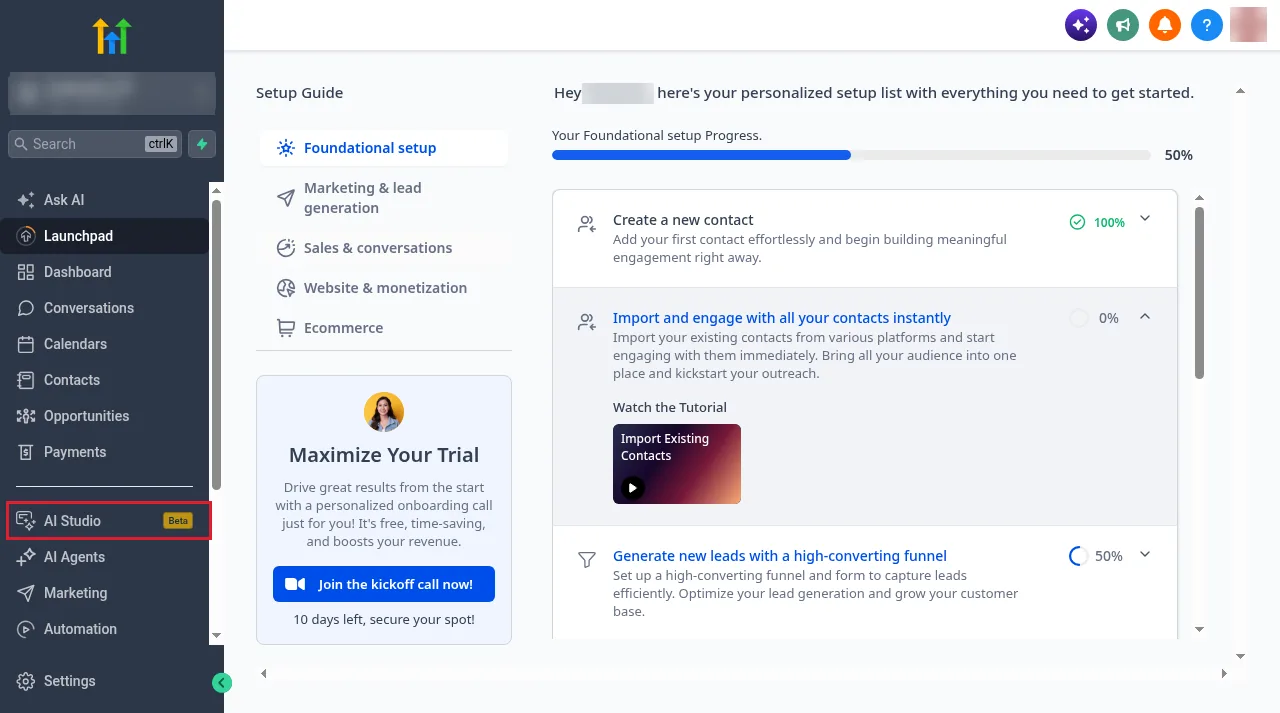
- Open it. AI Studio sits in the sub-account's left menu. In our account it still carries a Beta label. It opens full screen, with an arrow at the top left to go back.
A sensible split for agencies: your own team on View & manage, client staff on View until someone has walked them through it.
Free 30 day trial + 2 months free on annual

Not on GoHighLevel yet? Start a 30 day trial and try AI Studio on a test sub-account before you build anything for a client.
- Free trial
- 30 days
- Annual saving
- 2 months free
- In the trial
- Full access to your plan
How to build your first project
The home screen has one job: get a description out of you. Below the box are tabs for Recently viewed, My projects, Starred and Templates, and the left side lists your projects and recent work.
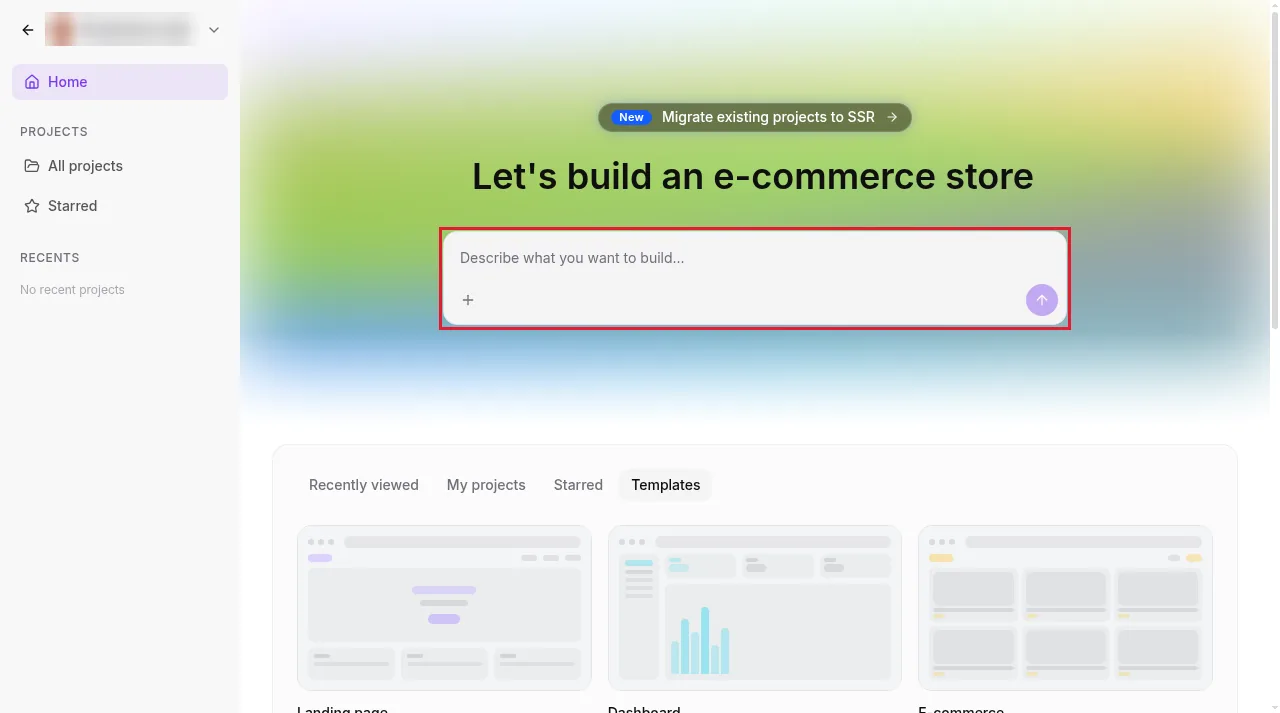
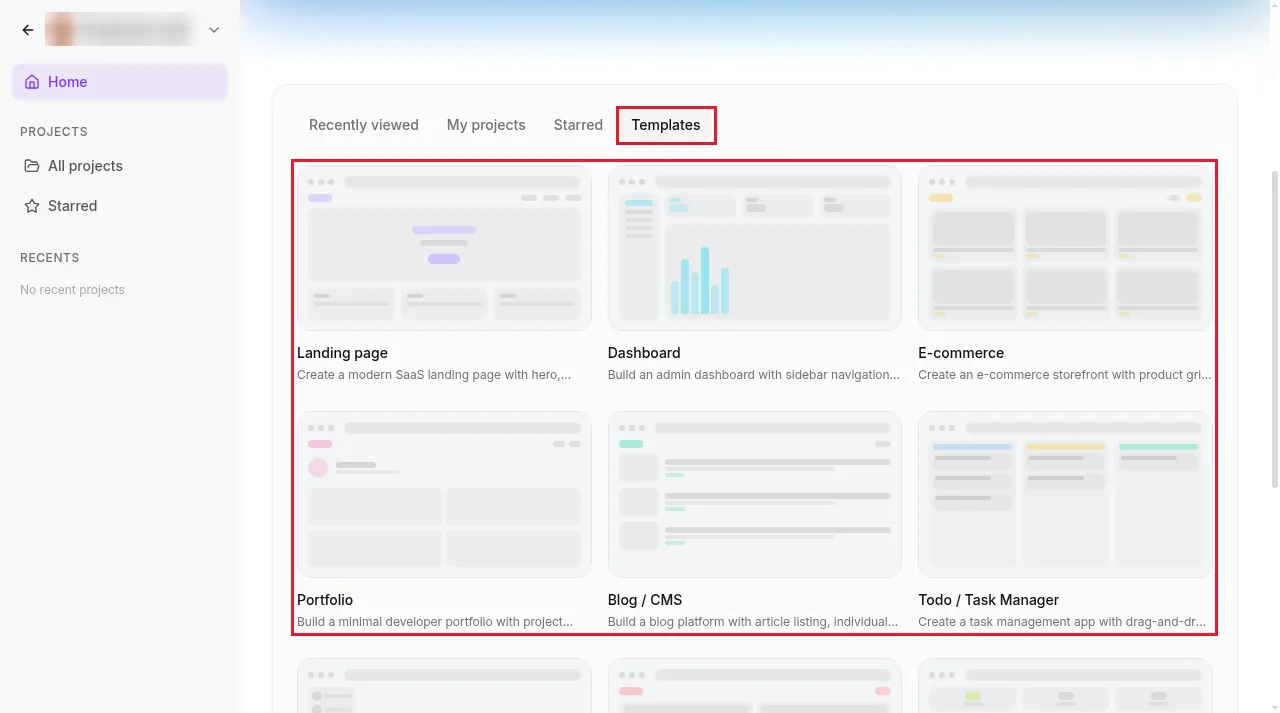
- Pick a starting point. Type a description, or open the Templates tab. Our account offered Landing page, Dashboard, E-commerce, Portfolio, Blog / CMS and Todo / Task Manager, with more further down.
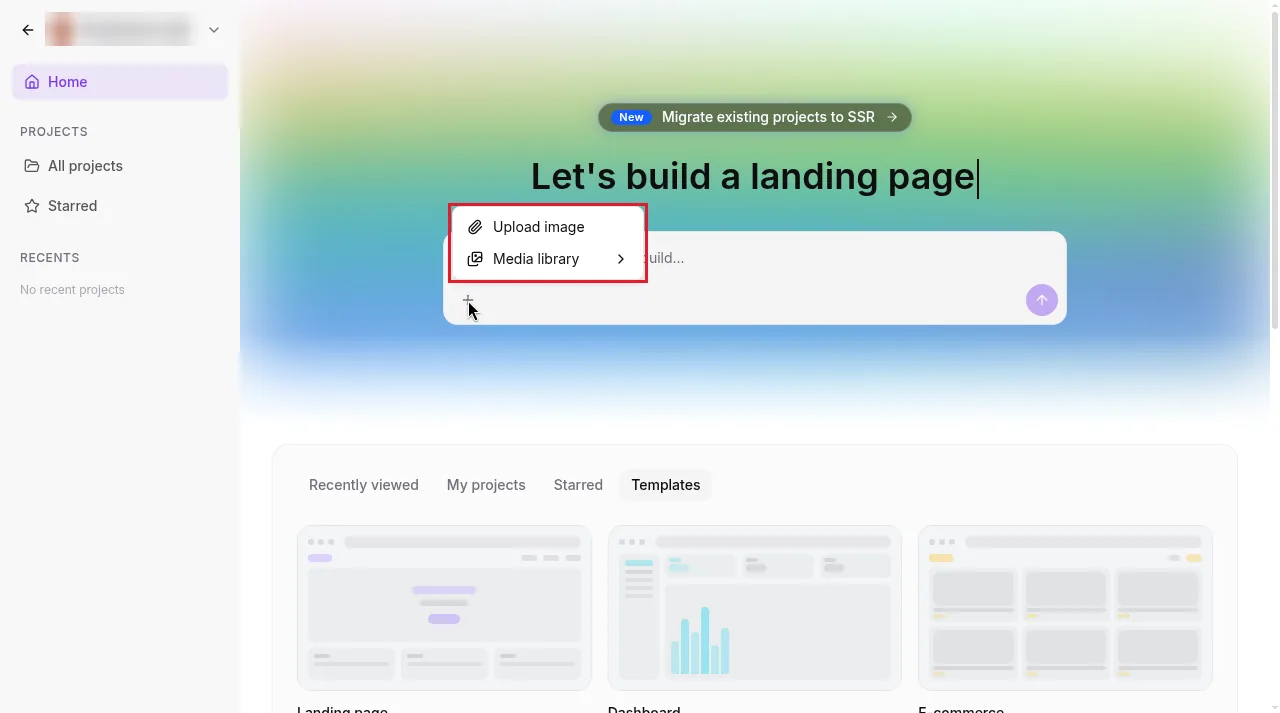
- Add images if you have them. The + button under the box opens Upload image and Media library. A screenshot of a site you like works as visual direction, and your own photos can go straight into the page if you ask for them. To use a live site as a reference, paste its URL into the prompt. HighLevel is clear that a URL or image is inspiration for layout and style, not a one-to-one copy.
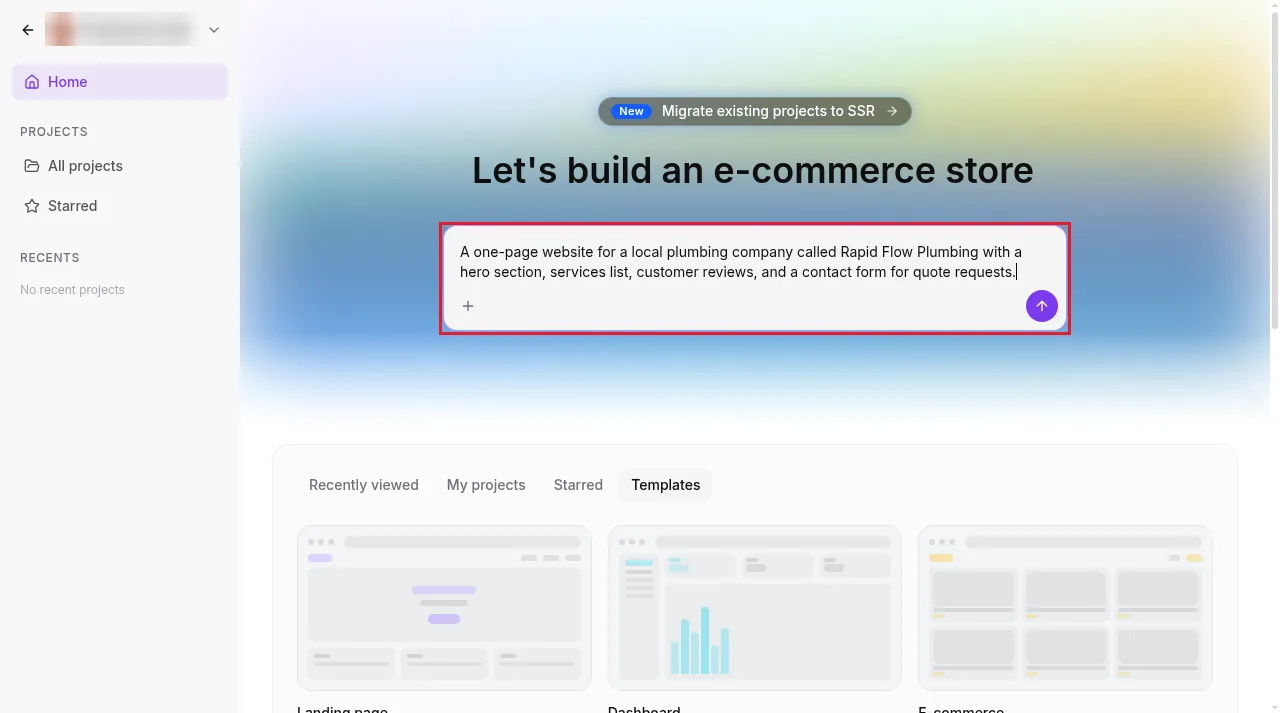
- Write a proper brief. Say what the business is, who the page is for, the sections you want, the one action visitors should take, and the look. The brief in our screenshot asks for a one-page site for a local plumber with a hero, services, reviews and a quote form. Press the arrow to send it.
- Answer the design questions, or skip them. If the brief is broad, AI Studio asks before it builds: colour palette, typography style, layout direction and the main conversion goal, shown as swatches, visual options, sliders or text answers. You can skip single questions or click Skip all and let it choose. If your brief already covers the style, it starts building straight away.
- Let it build. AI Studio plans the pages, writes the copy, generates images where you didn't supply any, and shows the result in a live preview on the right. The chat stays on the left for your next instruction.
A brief with real details saves you money as well as time. Each follow-up adds to the work AI Studio does, and work is what you pay for.
How to preview and refine it
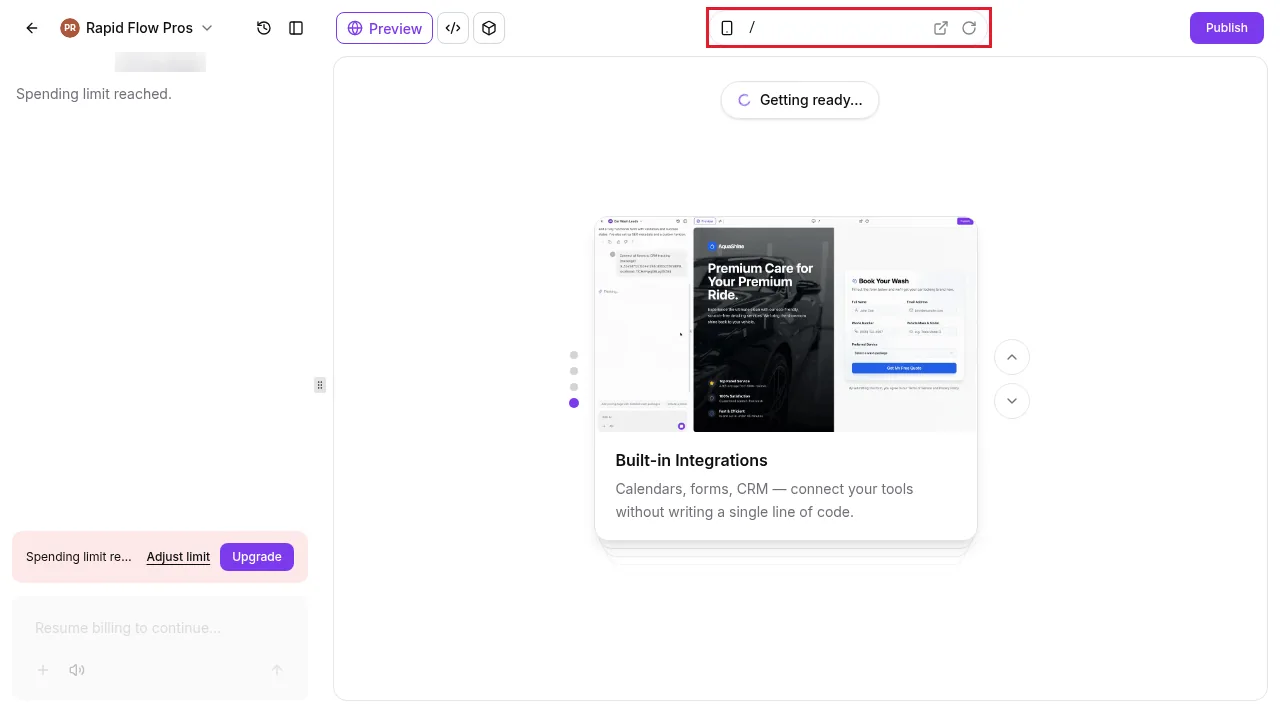
The toolbar above the preview switches between Preview and the code view, and the bar in the middle holds the device switch, the page you're looking at (/ is the home page), and buttons to open the page in a new tab or refresh it. Publish sits at the top right.
- Check every device. Click the device icon to switch between desktop, tablet and mobile. In a multi-page project, use the page selector to move between pages.
- Ask for changes in the chat. Plain instructions work: "use light green instead of orange", "add a Contact page", "make the top navigation like the reference site", "replace the hero image with the attached photo".
- Use Visual Edits for small fixes. Click Visual Edits in the prompt area at the bottom left. The preview becomes clickable: double-click text to edit it in place, select an element to change its text, image, icon, colour, spacing or layout, or type a prompt for just that element.
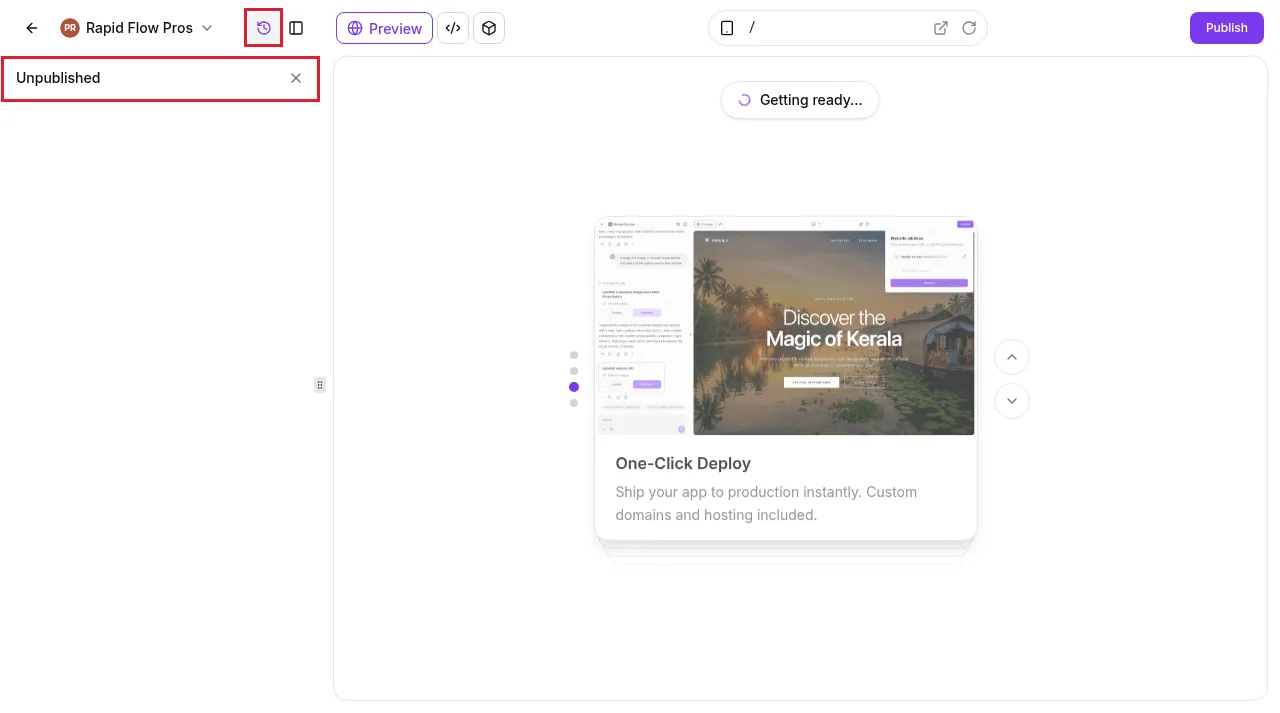
- Roll back when a change goes wrong. Every AI change creates a version. Open Version History with the clock icon next to the project name to preview an earlier version, bookmark it or revert to it.
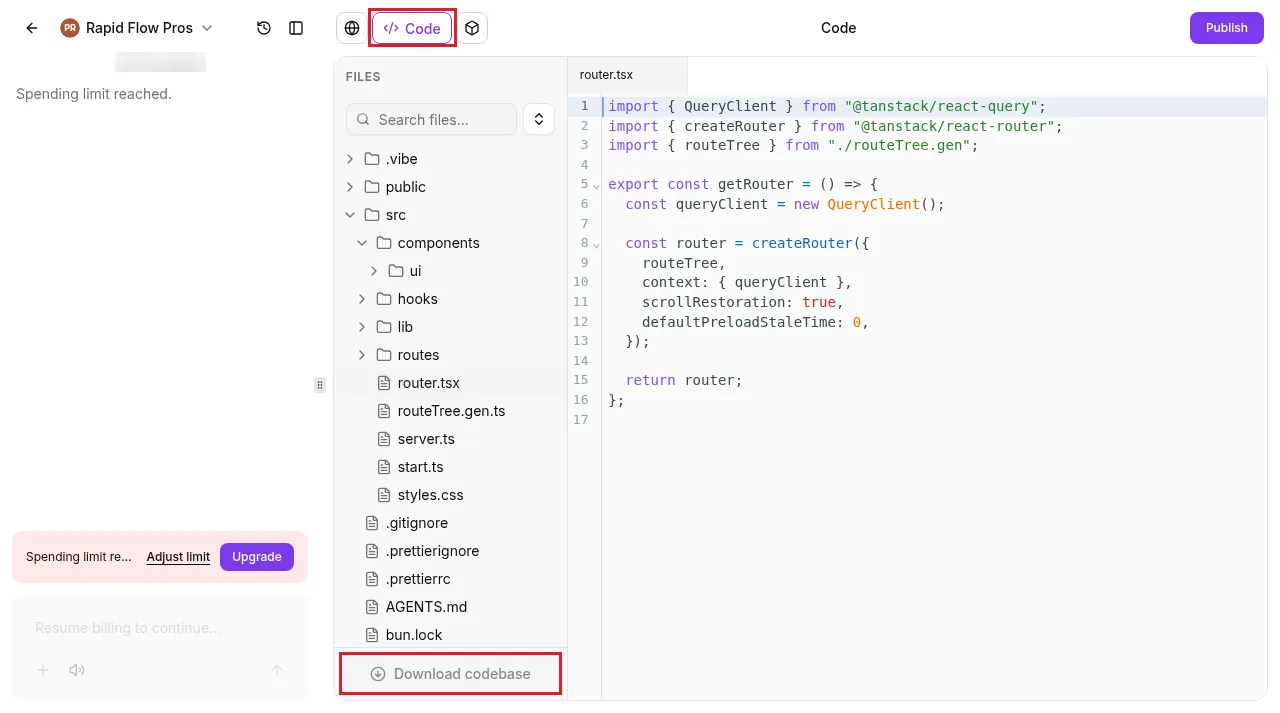
- Edit the code if you need to. The Code view shows the project's files with a search box, and a built-in editor for TypeScript, JSX, CSS and JSON. Changes show in the preview straight away, and when an error appears, a Try to fix option suggests a correction. There is also a Download codebase button at the bottom of the file list. You never have to touch the code to finish a page.
AI Studio writes copy to fill the gaps in your brief, so a draft can contain claims you never gave it. Check every number, review, address, phone number, opening hour and promise against the real business, and ask in the chat to remove or replace anything that isn't true.
Connect forms and calendars before you publish
This is the step people miss. AI Studio can build a contact form or booking section that looks finished, but HighLevel says forms and calendars are not connected automatically. Until you connect them, nothing reaches your sub-account.
- Forms: ask AI Studio to connect the form, or click Connect when it offers in the chat. That starts the Connect to CRM flow, so submissions create contacts in the sub-account.
- Calendars: ask for a booking section. AI Studio looks for calendars that already exist in the sub-account, pauses, and shows a selection card in the chat. Pick the calendar and the build carries on from where it stopped.
- Test it. Submit the form and book a slot yourself. Submissions appear under Contacts and under Sites, then Forms, then Submissions, then External Forms.
- Start your follow-up. In Workflows, use the AI Studio Form Submitted trigger, which can filter by project, form, page path and domain.
HighLevel's AI Studio help article has the full connection details. If you plan to send texts from those leads in the US, you will also need A2P 10DLC registration.
How to publish to your own domain
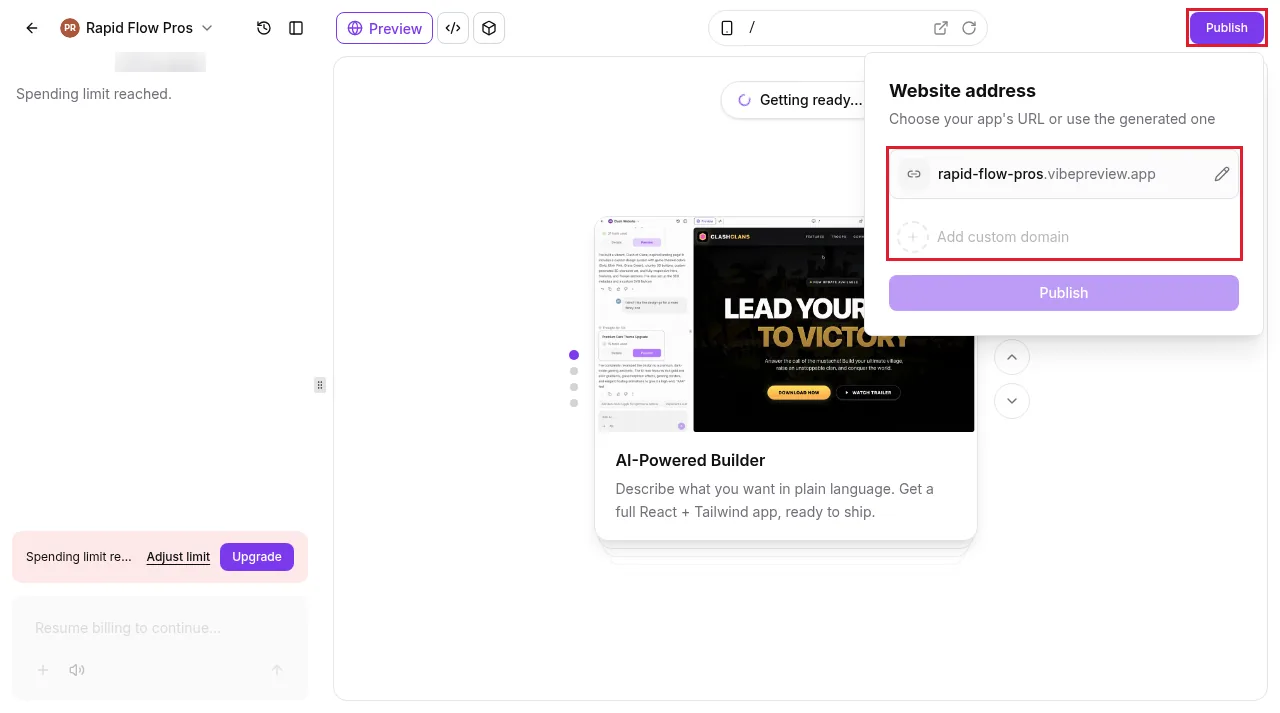
Every project publishes to a free preview address first. In our account it was the project name followed by .vibepreview.app. You can't add a custom domain until the project has been published to that preview address once.
- Click Publish at the top right. Under Website address, keep the generated address or click the pencil to change it, then click Publish.
- Set the site icon, name, description and social image, which control how links to the site look when shared. Click Apply Changes, then Publish.
- Open Publish again and choose Add custom domain. Type the domain. For a root domain or its www version, HighLevel offers to connect both and redirect one to the other, and recommends leaving that on.
- If the domain is already managed in HighLevel, the setup continues on its own. If HighLevel finds conflicting DNS records, review them before you click Add Records. If the domain is managed elsewhere, add the DNS records it shows at your registrar and click Verify DNS.
- When it's done, the chat confirms the domain is connected and gives you a View site link.
- If more than one address points at the project, open Publish, click the three-dot menu next to the address you want, and choose Set as primary. The others redirect to it with a 301.
After you publish, new edits stay in draft until you publish again, so you can keep working without changing the live site. The connected domain also shows up under Domains.
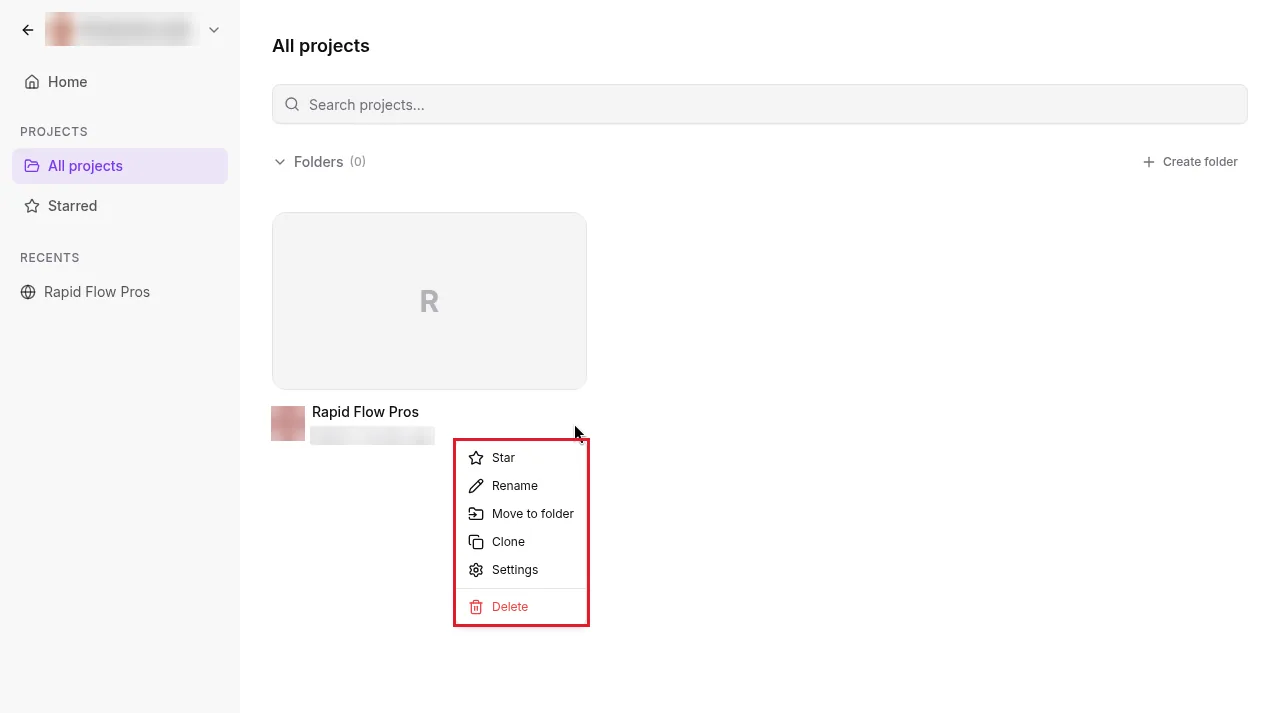
Back on the All projects page, each project card has a menu with Star, Rename, Move to folder, Clone, Settings and Delete. Clone copies a project within the sub-account or to another sub-account in your agency, with or without its chat and version history, which is handy for reusing a build across clients.
What GoHighLevel AI Studio costs
AI Studio runs on HighLevel's AI plans, which sit on top of your normal GoHighLevel plan. There are three ways to pay for it in a sub-account:
| Option | Price | AI Studio usage |
|---|---|---|
| Pay per use | No monthly fee | Billed at token cost |
| AI Employee Growth | $50 a month per sub-account | Usage included |
| AI Employee Unlimited | $97 a month per sub-account | 3x the Growth usage |
The 5-hour window. On Growth and Unlimited, AI Studio usage is measured over a rolling five hours. If you hit the limit, you wait for older activity to drop out of that window rather than for a monthly reset. HighLevel doesn't publish how much building the Growth allowance covers, only that Unlimited gives three times as much. Its AI Plan Calculator gives an estimate.
What a build costs. HighLevel charges for the work done in a session, not per prompt or per page. Generated images usually cost the most. Its published examples:
| HighLevel's example build | Session cost |
|---|---|
| One-page yoga lead capture page with a form | $0.60 |
| Image-heavy fashion landing page with animations | $1.30 |
| 7-page travel site with blog and tour collections | $1.10 |
So a structured multi-page site can cost less than one picture-heavy page. Follow-up changes, reference URLs or images, form and calendar connections, and domain setup all add to the total. Our GoHighLevel AI Employee review covers the Growth and Unlimited plans in full, including when each one pays for itself.
Alerts and limits. On a plan, AI Studio shows banners at 70% and 85% of your usage, and again as you approach 100%. On pay per use you get a notice every $50 spent. You can also set a monthly AI spending limit per sub-account.
If you see "Spending limit reached"
When a sub-account hits its AI limit, AI Studio stops mid-build. The chat shows Spending limit reached, the box at the bottom changes to "Resume billing to continue", and a banner offers Adjust limit and Upgrade.
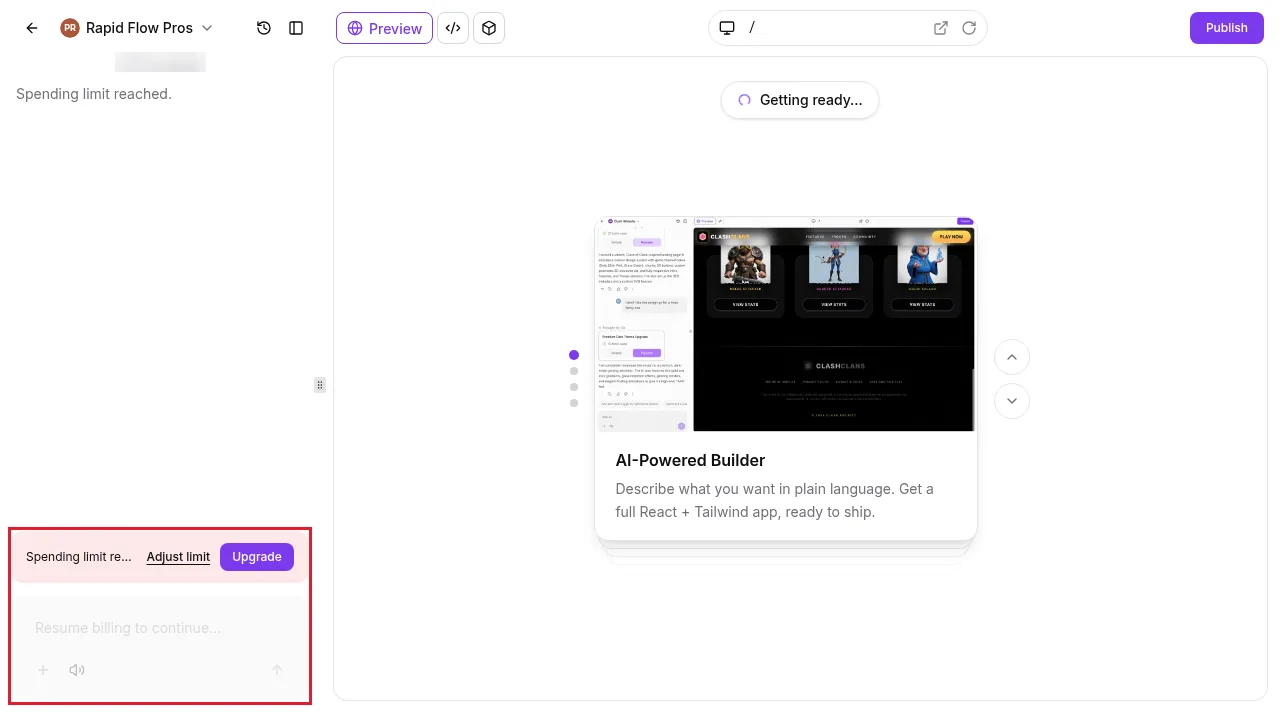
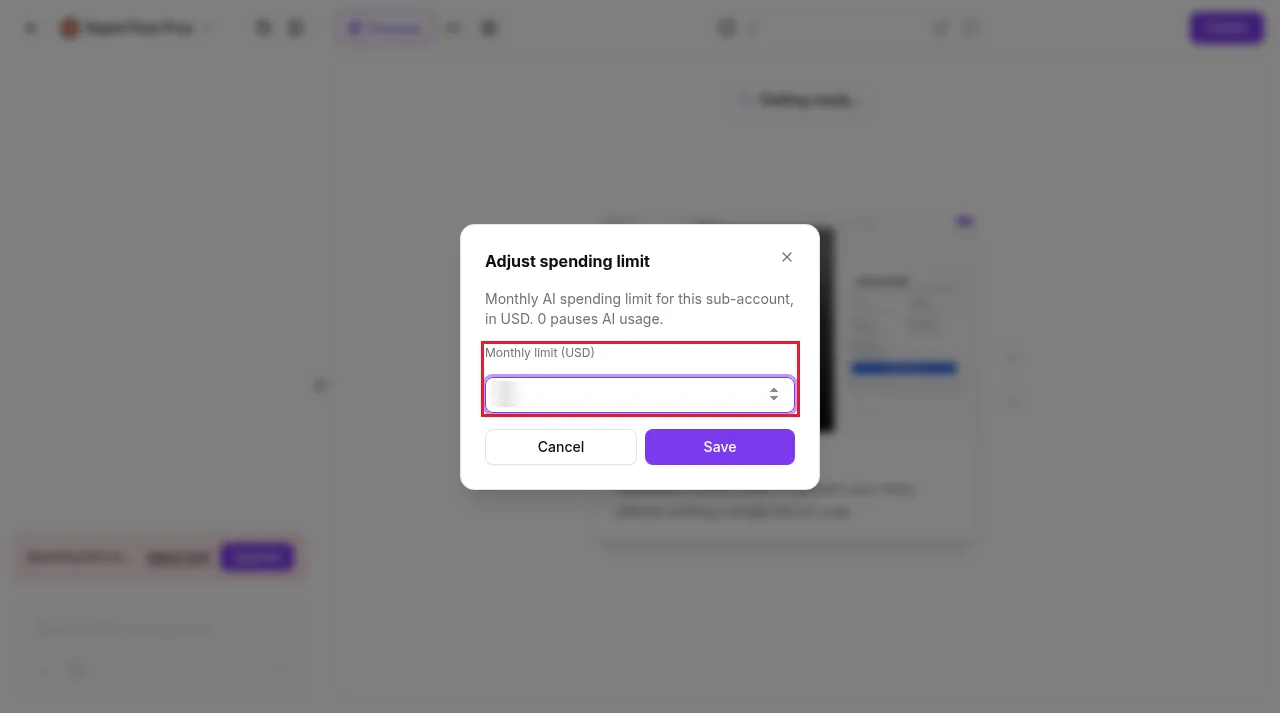
Adjust limit opens a box for the sub-account's monthly AI spending limit in US dollars, where 0 pauses AI usage. Raise it and save.
If raising the limit doesn't clear the message, look at the agency wallet. Pay-per-use AI is charged from it, and a balance below zero, for example after a failed auto-recharge, can keep AI Studio paused even after you raise the limit. Top up the wallet or update the card, then go back to the project.
What "Migrate existing projects to SSR" means
The AI Studio home screen shows a Migrate existing projects to SSR notice. Here is what it's about in plain terms.
Every new AI Studio project now runs on a framework called TanStack Start, with server-side rendering (SSR). Each page is built on the server before it reaches the browser, so search engines and link previews on LinkedIn or Slack see the real titles, headings and copy. New projects can also run private server code, offer their own API endpoints and keep API keys in a Secrets store instead of the page code. You can see this in the Code view of a new project, which includes files like router.tsx and server.ts.
Projects built before this change stay on their older React setup. They keep working and aren't converted automatically. If one of them needs SSR, server functions or secrets, open the project's Project Settings and use Migrate next to Migrate to SSR, marked as an advanced setting. According to HighLevel's changelog:
- It creates a copy of the project in the same sub-account, named after the original with "(TanStack)" added, and converts the copy.
- The live site and its domains stay on the original until you choose to publish the copy or move the domain.
- The conversion is charged like a normal build, and it may leave things to fix, so test the copy first.
- Workflow triggers keep listening to the original project until you point them at the new one.
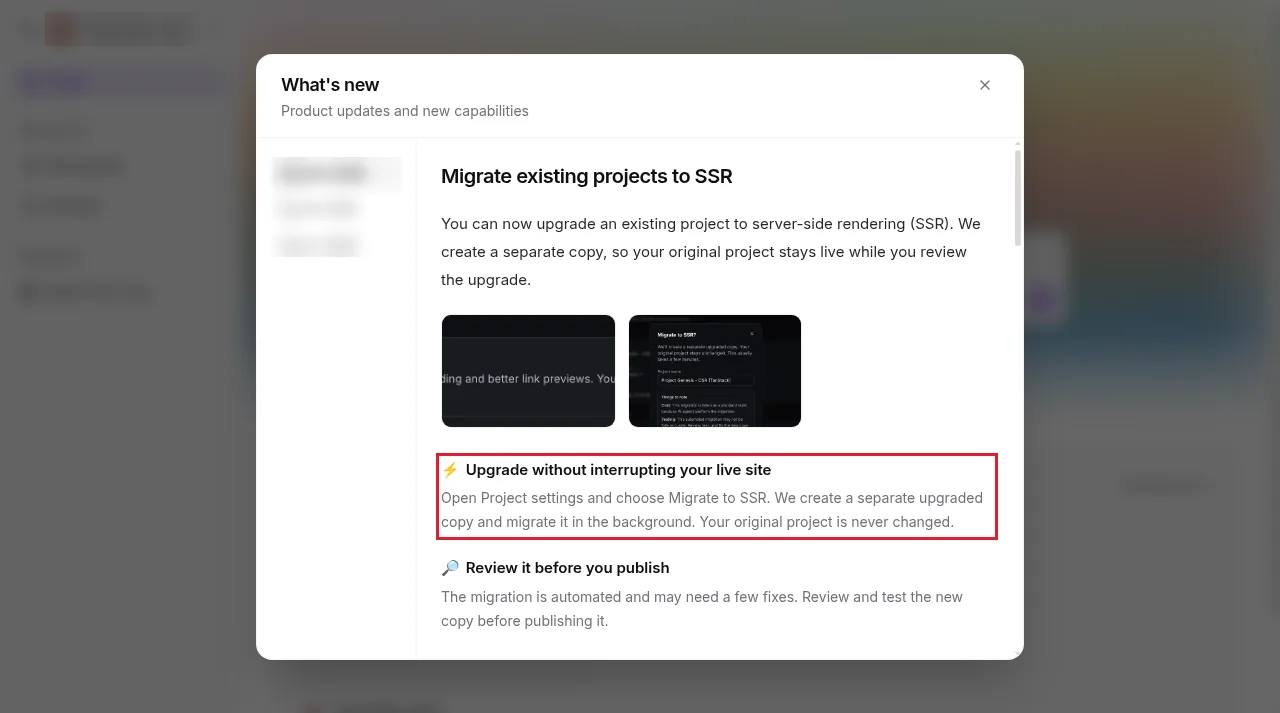
HighLevel's advice is not to rebuild an old project just because the new setup exists. Migrate only if the site needs what SSR adds. Its SSR help article explains the details.
Limits and checks before you go live
- No move to Funnels or Websites. Projects stay in AI Studio, publish from there, and can't be copied into the classic builders.
- Reference sites are loose. A URL or screenshot guides the layout and style. Expect a new page, not a copy.
- Connections are manual. Connect every form and calendar, then test a real submission and booking.
- Facts need checking. Remove any statistics, reviews or details the AI added that you didn't give it.
- Mobile needs a look. Check the tablet and mobile views before you publish.
- Access is per person. If a user can see projects but can't edit them, they have View rather than View & manage.
New to GoHighLevel itself? Our GoHighLevel tutorial for beginners covers the calendars, forms and workflows that AI Studio connects to.
Partner offerFree 30 day trial+ 2 months free on annual
- 30 days instead of the public 14
- Full access to the plan you choose
- Cancel any time before it ends
AI usage is billed from your wallet or covered by an AI Employee plan.
Common questions
Is GoHighLevel AI Studio free?
No. Without an AI Employee plan it is pay per use at token cost. The AI Employee Growth plan ($50 a month per sub-account) includes AI Studio usage, and Unlimited ($97 a month) includes three times as much. Funnel AI, a separate tool inside the classic builder, is free.
How much does an AI Studio build cost?
It depends on the work done, not on the number of pages or prompts. Generated images usually cost the most. HighLevel's published examples are $0.60 for a one-page lead capture page, $1.30 for an image-heavy landing page and $1.10 for a 7-page site with blog and tour collections.
Why can't I see AI Studio in my sub-account?
Access for sub-account users and admins is off by default. An agency owner or admin can switch it on from the Home banner or from AI Suite, then AI Setup, then Manage AI access. The user also needs the View AI Studio permission, or View and manage AI Studio to build and publish.
What is the difference between AI Studio and Agent Studio?
AI Studio builds websites, pages, forms and web apps from a prompt. Agent Studio builds AI agents that respond to events and automate tasks. They are separate tools, and Agent Studio is billed at token cost on every plan.
Can I move an AI Studio project into Funnels or Websites?
No. AI Studio projects stay in AI Studio and can't be moved or copied into the Funnels or Websites builders. You publish them directly from AI Studio, with your own domain if you want one.
Can AI Studio copy a website from a URL?
Not exactly. You can paste a URL or upload a screenshot, and AI Studio uses it as inspiration for the layout, structure and style. HighLevel says to expect a new page rather than a one-to-one copy.
Are AI Studio sites good for SEO?
New projects use server-side rendering, so search engines and link previews get the full HTML of each page without running JavaScript. Older projects keep their original setup and its SEO tools unless you migrate them. You still need a clear title, description and useful copy.
What happens when I reach the AI Studio usage limit?
On Growth and Unlimited, usage is measured over a rolling five hours, and access comes back as older activity drops out of that window. On pay per use, a sub-account's monthly AI spending limit can pause it. Raise the limit, and if that doesn't help, check that the agency wallet balance is above zero.
The verdict
GoHighLevel AI Studio is the fastest way inside HighLevel to get from an idea to a live page. It suits landing pages, booking pages, quick client mock-ups and small web apps, and HighLevel's own example builds cost around a dollar each.
It still needs a person at the end. Switch on access first, connect every form and calendar, check every claim the AI wrote, and look at the mobile view before you publish. For whole client websites that your team will edit for years, the classic Websites builder is still the safer home, because AI Studio projects can't move across.
The screenshots come from our own GoHighLevel account. The build, preview, Visual Edits, form and publishing steps follow HighLevel's help articles on AI Studio, the Code Editor, AI Studio pricing, AI product pricing, SSR, server functions and secrets and bulk access, and HighLevel's changelog posts on AI Studio for all locations and migrating projects to SSR. Menu names and prices change from time to time, so check the current screens if something looks different.
Some links on this page are partner links. How that works is explained on our affiliate disclosure page.