GoHighLevel has a native QuickBooks Online integration, and it's one of the more useful connections in the platform if you invoice clients from HighLevel. It sends your invoices and payments into QuickBooks and brings your QuickBooks customers back as contacts. It also has a few rules that catch people out. Here's what syncs in each direction, how I connect it, and what to check when something doesn't show up.
Short version
- It's a native integration, set up per sub-account under Settings, then Integrations.
- Invoices and payments go from GoHighLevel to QuickBooks. Payments land as sales receipts.
- Contacts come from QuickBooks into GoHighLevel, and you can import old QuickBooks invoices once.
- Draft invoices never sync. Neither do invoices from before you connected.
- The optional review request is built into the integration, not a workflow.
Does GoHighLevel integrate with QuickBooks?
Yes. QuickBooks is a built-in integration, so you don't need Zapier or a marketplace app to connect it. It works with QuickBooks Online, and HighLevel's help docs only talk about QuickBooks Online, so that's what I cover here.
The connection lives inside each sub-account, not at agency level. If you run several client accounts, each one connects to its own QuickBooks company. You'll find it under Settings, then Integrations, where the card is called QuickBooks with a Manage button.

If you're still choosing a plan, the HighLevel pricing page lists them all, and my GoHighLevel pricing guide breaks down what each one really costs.
What syncs between GoHighLevel and QuickBooks
This is the part HighLevel's own article makes hard to follow, because it mixes the two directions together. I split it up.
From GoHighLevel to QuickBooks
| What | How it lands in QuickBooks |
|---|---|
| Customers | Created for contacts with activity in GoHighLevel, or updated if the email already exists |
| Payments | Order forms, subscriptions, membership checkouts and calendar payments become sales receipts |
| Invoices | A QuickBooks invoice is created when the invoice is marked Sent |
| Invoice updates | Invoice number, status (paid or voided), issue date, due date, contact, billing email, total, amount paid and line item name |
When a contact pays or gets an invoice in GoHighLevel, the integration matches them to a QuickBooks customer by email. If a customer with that email already exists, it's updated. If not, a new one is created.
The sales receipts matter more than they look. Without them, every order form or calendar payment taken in GoHighLevel would need typing into QuickBooks by hand. With the sync on, your bookkeeper sees each payment against the right customer, and the invoice keeps its paid or voided status as it changes in GoHighLevel.
From QuickBooks to GoHighLevel
- Contacts: your existing QuickBooks customers come in as contacts, and new ones keep syncing. HighLevel says a new contact can take up to 5 minutes to appear.
- Old invoices (optional): you can import your previous QuickBooks invoices once, when you first connect. Edits to those imported invoices don't sync back, so there's no loop.
- Review request (optional): when a contact's first QuickBooks invoice is paid in full, with a $0 balance, GoHighLevel can send them a review request.
What doesn't sync
- Draft invoices. Only invoices that are Sent, Pending or Paid sync.
- Invoices from before the connection. Existing GoHighLevel invoices don't go across.
- Changes to imported QuickBooks invoices. They stay as they were imported.
- Accepted estimates. Accepting an estimate doesn't create the QuickBooks customer.
How taxes and discounts come across
HighLevel creates a replica of the invoice in QuickBooks, including taxes and discounts, and later changes like a paid or voided status or an added discount update there too. How the numbers land depends on where the sub-account is. For US sub-accounts, discounts and taxes are adjusted against the item price. In other regions they sync as they are.
The setup also has a second step called Map your tax agencies, where you pick the QuickBooks tax agencies for your taxes. I'd get your accountant to confirm the mapping before you send real invoices, because tax lines are the thing they'll check first.
Before you connect
- QuickBooks Online login: you'll log in to QuickBooks during setup and accept all the permissions it asks for, so use an account that can do that.
- Clean emails: matching runs on email, so fix duplicate customers in QuickBooks first, or you'll end up updating the wrong one.
- Old invoices: decide whether you want past QuickBooks invoices in GoHighLevel. The import only runs at the first connection.
- Review requests: decide if you want clients asked for a review after they pay, and check your review request settings first.
I also think about who owns the QuickBooks company. If you're an agency connecting a client's books, have the client or their bookkeeper do the login step, or at least be on the call. They know which QuickBooks company is the right one, and they're the ones who'll live with the data.
Free 30 day trial + 2 months free on annual

Try GoHighLevel free for 30 days Open Settings, then Integrations in your own sub-account and see the QuickBooks options before you pay.
- Free trial
- 30 days
- Annual saving
- 2 months free
- In the trial
- Full access to your plan
How I connect QuickBooks to GoHighLevel
Here's how I do it in a sub-account. It only takes a few minutes once your QuickBooks login is ready.
Open the integration
- Open the sub-account you want to connect.
- Go to Settings, then Integrations.
- Search for QuickBooks if you don't see it straight away.
- Click Manage on the QuickBooks card.
Choose the sync options
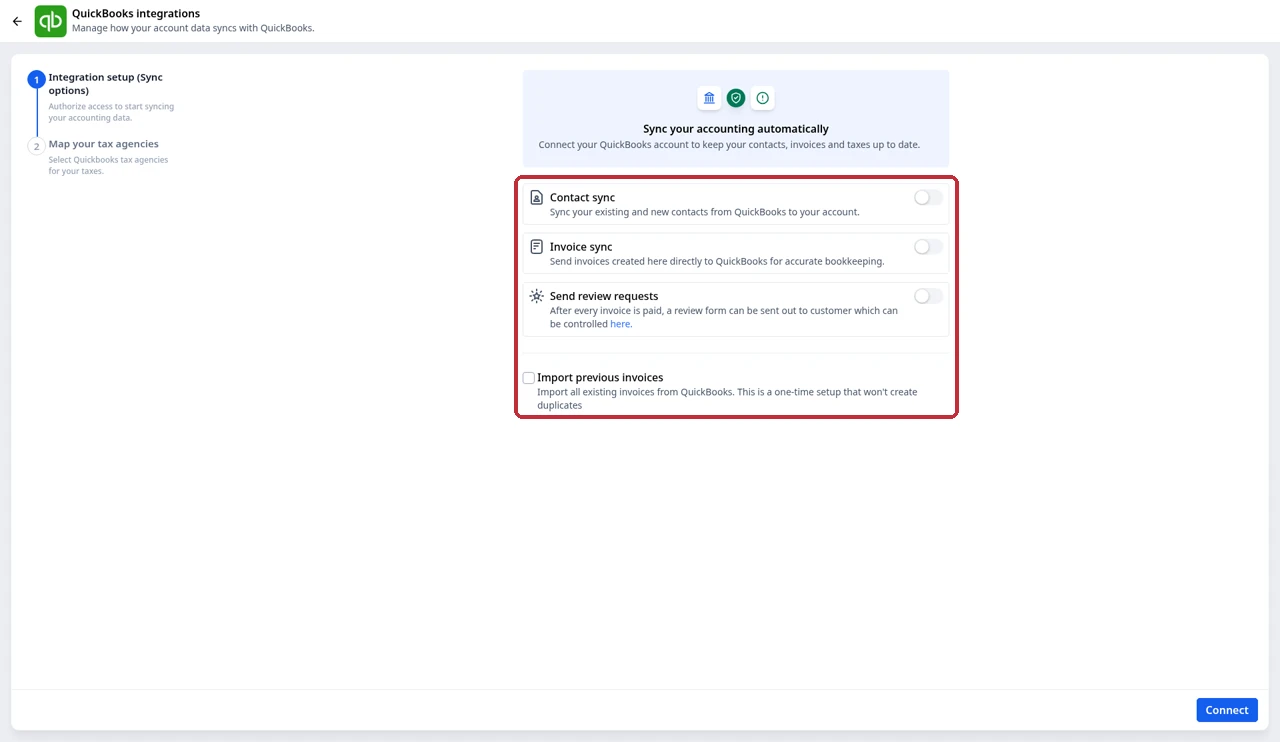
- Turn on Contact sync to bring your existing and new QuickBooks contacts into GoHighLevel.
- Turn on Invoice sync so invoices created in GoHighLevel go to QuickBooks.
- Turn on Send review requests only if you want paid customers asked for a review.
- Tick Import previous invoices if you want your past QuickBooks invoices in GoHighLevel.
The settings screen describes the import as a one-time setup that won't create duplicates. Still, I only tick it if I actually want the history in GoHighLevel.
Map taxes and authorize QuickBooks
- Click Connect at the bottom of the setup screen.
- Log in to QuickBooks Online and accept all the permissions it asks for.
- In Map your tax agencies, pick the QuickBooks tax agencies for your taxes.
- Finish the setup and go back to the Integrations page.
Check the first sync
- Create a real invoice in GoHighLevel under Payments, then Invoices.
- Send it, so it moves out of Draft.
- Open QuickBooks and look for the invoice and the customer, matched by email.
- Check a QuickBooks customer has appeared as a contact in GoHighLevel. Give it up to 5 minutes.

The Invoices page shows your Draft, Due, Received and Overdue totals at the top. If an invoice is sitting in Draft, it won't be in QuickBooks yet. That's the first thing I look at.
The automatic review request
The Send review requests toggle is part of the QuickBooks setup. When it's on, a contact whose first QuickBooks invoice is paid in full can get a review request automatically. It runs on its own, separate from your workflows, so you won't find it in the workflow builder.
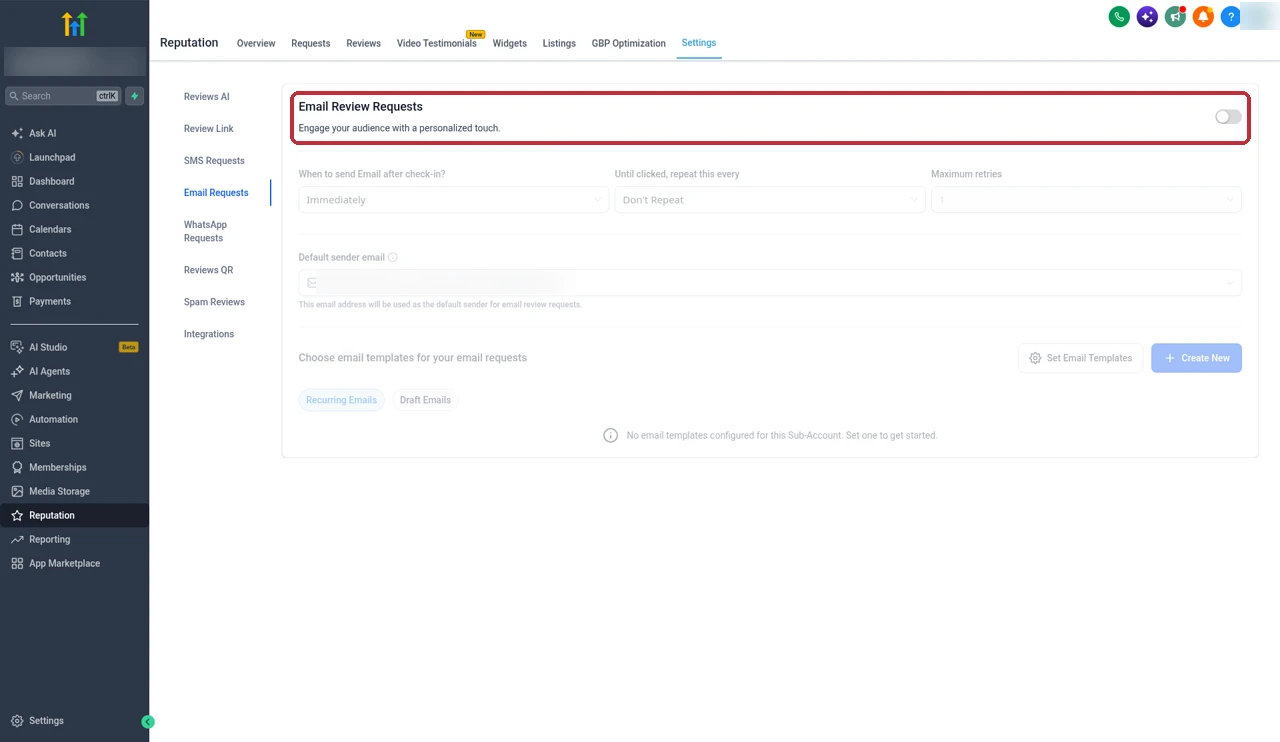
To switch it off later, go back to Settings, then Integrations, open QuickBooks with Manage, and turn the toggle off. The setup screen also links to where the review request is controlled. The review request settings I see in my account are under Reputation, then Settings, then Email Requests, which is a good place to check your message before you turn this on.
The rule HighLevel describes is narrow on purpose: it's the contact's first QuickBooks invoice, paid in full. That makes it a good fit for new customers, and it stops repeat clients getting asked again every time they pay.
Automations: what works and what doesn't
If you want a follow-up when an invoice is paid, the workflow trigger is called Invoice, under Payments. You add a filter for Invoice status and choose Paid. The other status options are Partially Paid, Sent, Viewed and Void.
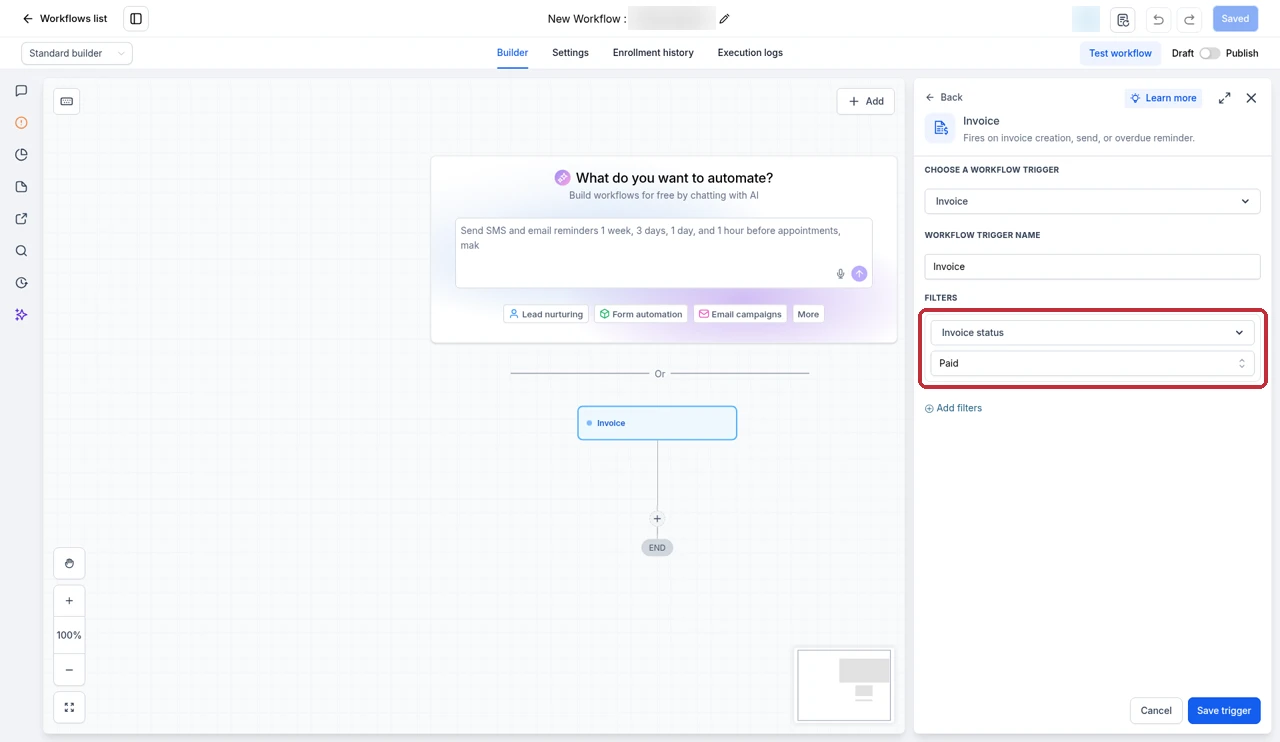
One catch: HighLevel's help doc notes that the older Invoice Paid trigger didn't fire for invoices paid inside QuickBooks. If your clients pay in QuickBooks, test the Invoice trigger with status Paid on a real payment before you rely on it for a thank-you message or a handover. For invoices paid in GoHighLevel, it's the right tool, and my GoHighLevel workflow templates guide has recipes you can build on.
Fixing sync problems
When an invoice or contact doesn't show up, I go through this in order:
- Check the status. Drafts don't sync. Only Sent, Pending and Paid invoices do.
- Check the date. Invoices from before you connected won't go across.
- Check the customer. The contact may need to exist in QuickBooks, matched by email.
- Check estimates. Accepting an estimate doesn't create the QuickBooks customer.
- Check the toggles. Make sure Contact sync and Invoice sync are still on under Manage.
- Give contacts time. New QuickBooks contacts can take up to 5 minutes to appear.
Native integration vs Zapier or n8n
For invoices, payments and contacts, I use the native integration. It's built in, it matches on email, and it handles the invoice fields for you. I'd only reach for Zapier or n8n when you need something the native sync doesn't cover, like sending data to a different accounting tool or a custom flow of your own. My GoHighLevel vs n8n guide compares the two approaches if you're weighing it up.
The one thing I wouldn't do is run both for the same data. If the native sync already sends invoices to QuickBooks and a Zap does the same, you'll create the same invoice twice and spend an afternoon cleaning it up.
Partner offerFree 30 day trial+ 2 months free on annual
- 30 days instead of the public 14
- Full access to the plan you choose
- Cancel any time before it ends
Common questions
Does GoHighLevel integrate with QuickBooks?
Yes. GoHighLevel has a native QuickBooks Online integration. You connect it per sub-account under Settings, then Integrations, on the QuickBooks card.
Is the GoHighLevel QuickBooks sync two-way?
Partly. Invoices and payments go from GoHighLevel to QuickBooks, and contacts come from QuickBooks into GoHighLevel. You can also import old QuickBooks invoices once, but edits to those don't sync back.
Why isn't my GoHighLevel invoice showing in QuickBooks?
The most common reason is that it's still a draft. Only invoices that are Sent, Pending or Paid sync. Also check that invoice sync is on and that the invoice was created after you connected QuickBooks.
Will my old invoices sync?
Old GoHighLevel invoices from before the connection don't sync to QuickBooks. Going the other way, you can tick Import previous invoices during the first connection to bring your past QuickBooks invoices into GoHighLevel.
Do GoHighLevel payments show up in QuickBooks?
Yes. Payments made in GoHighLevel, such as order forms, subscriptions, membership checkouts and calendar payments, register as sales receipts in QuickBooks, matched to the customer by email.
How do I stop the automatic QuickBooks review request?
Open Settings, then Integrations, click Manage on the QuickBooks card and turn off Send review requests. It runs separately from your workflows, so turning off a workflow won't stop it.
Does the Invoice Paid workflow trigger work for QuickBooks payments?
Test it first. HighLevel's help doc notes that the older Invoice Paid trigger didn't fire for invoices paid inside QuickBooks. Today the trigger is called Invoice, with the Invoice status filter set to Paid, so run a real QuickBooks payment through it before you rely on it. For invoices paid in GoHighLevel, it works as expected.
The verdict
The QuickBooks integration does the boring part well. Invoices and payments from GoHighLevel land in QuickBooks, matched by email, and your QuickBooks customers show up as contacts without any copying.
Just know the rules before you rely on it. Send your invoices instead of leaving them in Draft, decide on the old invoice import at the first connection, and test your paid invoice workflows with a real QuickBooks payment before you rely on them.
Checked against HighLevel's help guides on setting up the QuickBooks integration and the automatic review request, its changelog on automatic invoice sync and importing previous invoices, plus screens from our own GoHighLevel account.
Some links on this page are partner links. How that works is explained on our affiliate disclosure page.