Workflows are where GoHighLevel actually does the work for you. A lead fills in a form and gets a text within seconds. Someone misses an appointment and gets a link to rebook. A deal goes quiet and the owner gets a task. I build these for every account I set up, and every one of them is just a trigger plus a few actions. Here's how triggers work, which ones matter, and 10 workflow templates you can build today, all using the real trigger and action names from my account.
Short version
- Every workflow is a trigger (what starts it) plus actions (what happens next). Filters on the trigger are optional.
- In my account the trigger picker has 17 categories, from Contact and Appointments to Payments and Google ads.
- The Template Library has 47 ready-made workflows. Get there with Create workflow, then Select from Template.
- Saved is not published. A workflow only runs once you flip the Draft/Publish toggle.
- Workflow Automation is a core feature on every plan, including $97 Starter.
How GoHighLevel workflows work
A workflow has two parts. The trigger is the event that starts it, like a form submission or a new booking. The actions are what happens after, like sending an SMS, adding a tag or creating a task. You can add filters to a trigger so it only fires in certain cases, for example only for one form or one phone number. Filters are optional, but I use them almost every time.
You can also put more than one trigger in a workflow so contacts can come in from different places. Every trigger fires when its own conditions are met, so keep them from overlapping.
Workflows live under Automation in the left menu of a sub-account.

The Workflows list has three tabs: All workflows, Needs review and Deleted. Each row shows whether the workflow is in Draft or Published.
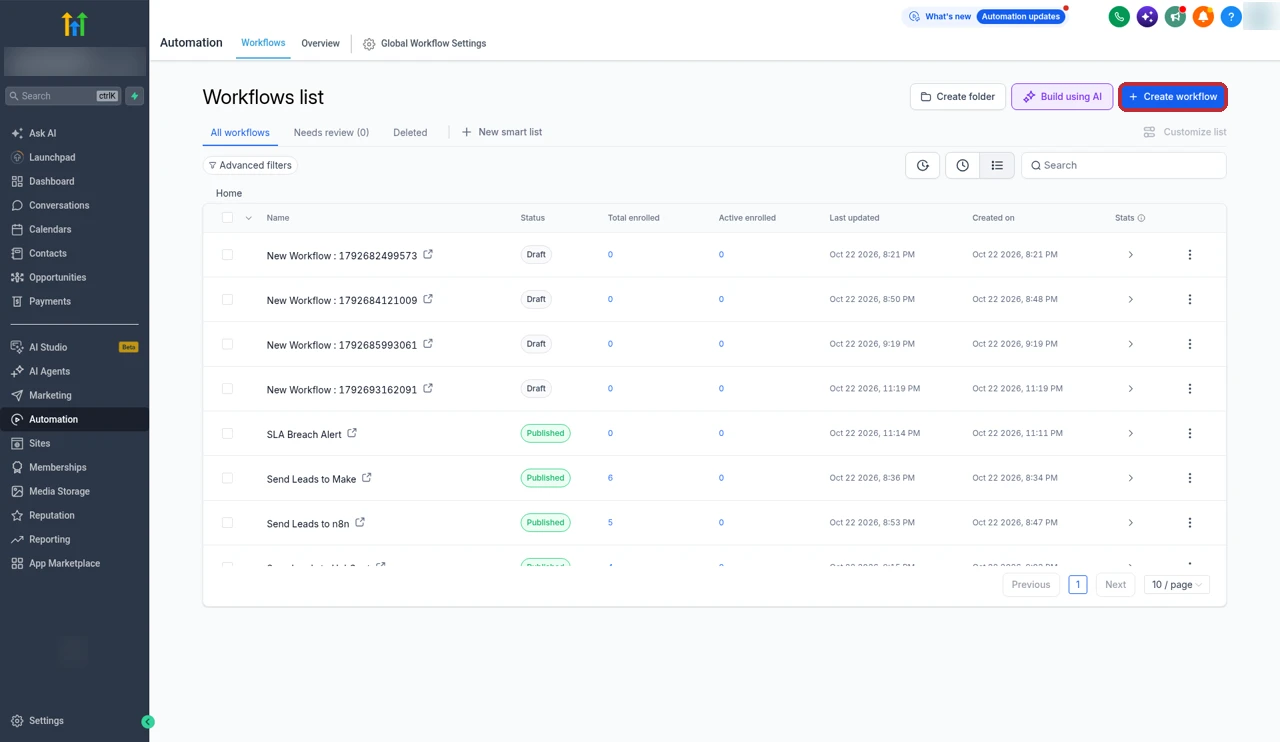
Every workflow trigger category
Click Add trigger in the builder and you get a picker with two tabs, Triggers and Apps. The Triggers tab is grouped into 17 categories in my account: Contact, Events, Appointments, Opportunities, Affiliate, Courses, Payments, Ecommerce stores, IVR, Facebook/Instagram events, Communities, Certificates, Communication, Events management, Client portal, Social planner and Google ads. There's a search bar at the top, which is the fastest way to find one.
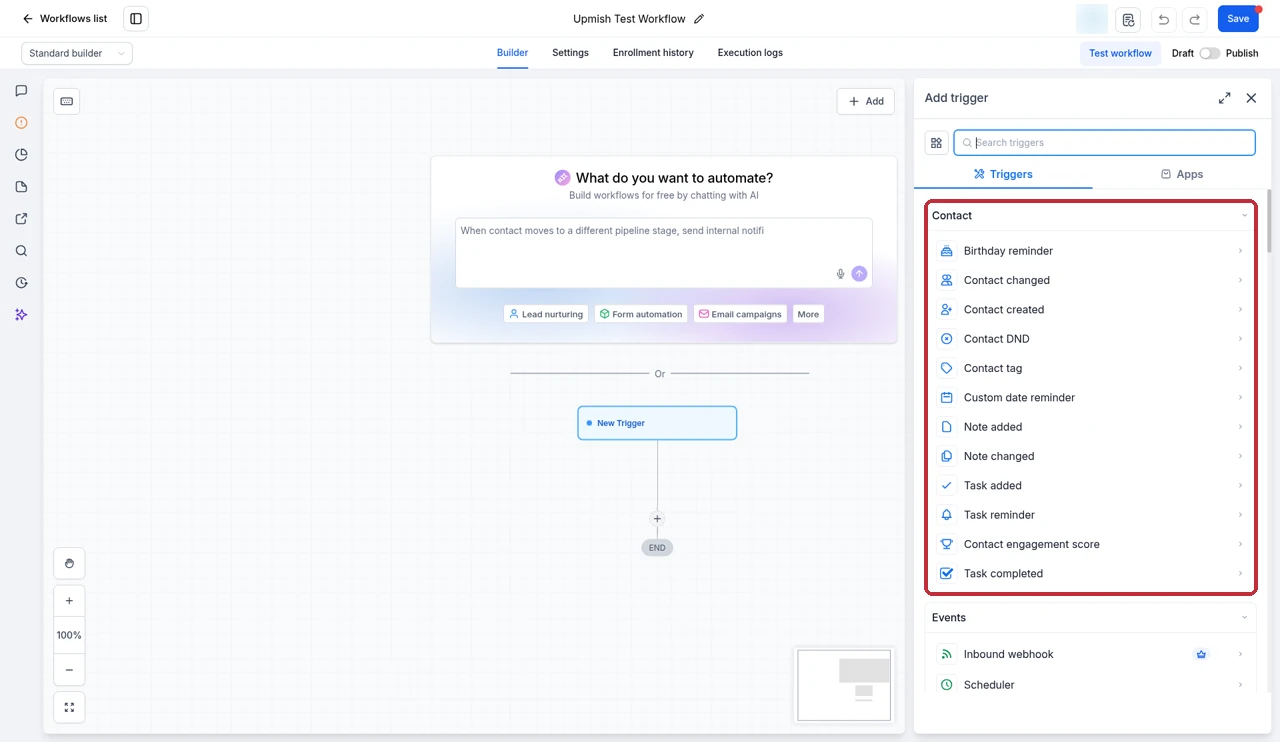
Here are the categories and the triggers I reach for most.
| Category | Key triggers | What I use it for |
|---|---|---|
| Contact | Contact created, Contact tag, Birthday reminder, Contact changed | Welcome steps, tag-based routing, birthday offers |
| Events | Inbound webhook, Scheduler, Call details, Email events, Customer replied, Form submitted | Lead capture, missed calls, reply handling, data from other apps |
| Appointments | Customer booked appointment, Appointment status | Confirmations, reminders, no-shows |
| Opportunities | Opportunity status changed, Pipeline stage changed, Stale opportunities | Sales handoffs and follow-up |
| Payments | Payment received, Invoice | Onboarding and receipts |
| Ecommerce stores | Abandoned checkout | Cart recovery |
| Facebook/Instagram events | Facebook lead form submitted | Instant follow-up on lead ads |
| Affiliate, Courses, Communities, Certificates | Affiliate created, new affiliate sales and course or community events | Membership and affiliate programs |
| IVR, Communication | IVR and messaging events | Phone menus and conversations |
| Events management, Client portal, Social planner, Google ads | Newer categories in my account | Niche setups, check the picker for the current list |
A few of these are worth knowing in plain English. Call details fires when a call log matches the details or outcome you pick, which is how missed-call workflows work. Customer replied fires when a contact replies on any connected channel. Stale opportunities fires when a deal meets your inactivity rule. Inbound webhook fires when data hits the workflow's webhook URL, so other apps can start a workflow. New review received fires when a review comes into Reputation.
Triggers being retired
The Shopify abandoned cart and order fulfilled triggers are marked "deprecating soon" in the picker. If you run a store, use the Ecommerce stores triggers such as Abandoned checkout for anything new.
The actions that matter
Click the + on the workflow line to add an action. The action picker has Actions and Apps tabs and is grouped too: Contact, Communication, Internal, Workflow AI, Opportunity, Payments, AI Actions, Voice AI and more.

- Contact: Add contact tag, Remove contact tag, Update contact field, Assign to user, Add task.
- Communication: Send email, Send SMS, Send review request, Send internal notification.
- Internal: If / else, Wait, Goal event, Split, Add to workflow, Custom code.
- Workflow AI: AI Agent. If you want AI to handle the replies themselves, see my Conversation AI guide and Voice AI guide.
Wait, If / else and Goal event
Three Internal actions do most of the heavy lifting. Wait pauses the contact for a set time, so your follow-ups don't all land at once. If / else splits contacts down different paths based on a condition, like whether they opened an email. Goal event lets a contact skip ahead when they hit a goal, so someone who books or buys stops getting the "are you still interested?" messages. If you send to a big list, Drip mode lets contacts through in batches so you don't flood your phone number or email domain.
Which plans include workflows
All of them. HighLevel lists Workflow Automation under the core features on its pricing page, so you get workflows on Starter at $97, Unlimited at $297 and Pro at $497 a month. What changes between plans is the number of sub-accounts and extras like SaaS mode, not the workflow builder. My GoHighLevel pricing guide covers the full differences. Keep in mind SMS and calls sent by workflows are billed on top, which I break down in GoHighLevel SMS pricing.
Free 30 day trial + 2 months free on annual

Build these workflows free for 30 days Load a template, add your triggers and test a workflow in your own account before you pay.
- Free trial
- 30 days
- Annual saving
- 2 months free
- In the trial
- Full access to your plan
How to build a workflow from scratch
Click Create workflow and you get five choices: Start from Scratch, Build Using AI, Select from Template, Import from a campaign and Company based workflow.
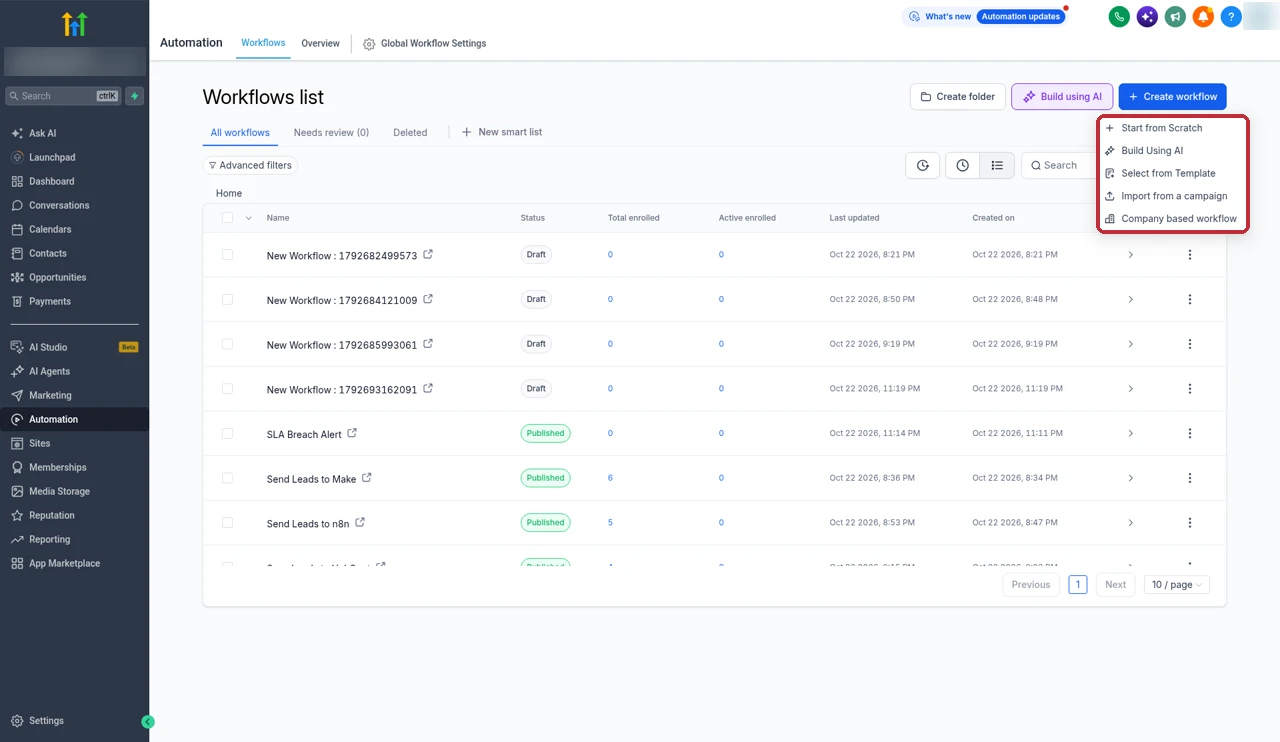
- Go to Automation, open Workflows and click Create workflow, then Start from Scratch.
- Click Add trigger, search or browse for the trigger you want, and set it up.
- Add filters if you only want it to fire in certain cases.
- Click the + under the trigger to add your actions, one at a time. Give each one a clear name so the canvas is easy to read later.
- Click Save, then Test workflow with a test contact.
- Flip the toggle from Draft to Publish when you're happy. Until then, nothing runs.
The builder has four tabs across the top: Builder, Settings, Enrollment history and Execution logs. Once a workflow is live, Enrollment history and Execution logs are where you check who went through it and what happened. Stats View on the canvas shows how many contacts each trigger attempted, matched and didn't match over the last 30 days.
If you're brand new to the platform, my GoHighLevel tutorial for beginners walks through the rest of the sub-account setup first.
How to load an official workflow template
The quickest way to get a solid workflow is to start from one of HighLevel's. The Template Library has 47 of them.
- Click Create workflow and choose Select from Template.
- Use the left menu: All templates, My templates, Shared with me and Favorites. Below that, browse by category.
- Click Preview on a card to see the full trigger and action flow.
- Click Choose to load it into the builder, then edit the messages and timing for your business.

The categories are Content & Engagement, Customer Onboarding, Customer Retention & Loyalty, Event Marketing, Industry-specific, Internal Operations, Lead Generation & Nurturing, Local Business Automations, Reviews & Reputation, Sales & Appointments and Workflow AI.

A loaded template is a normal workflow. Everything is editable, and it stays in Draft until you publish it. Prefer to describe what you want instead? Build Using AI drafts a workflow from a plain-English prompt, which you then check step by step.
10 workflow templates I'd build first
Each of these uses only real trigger and action names, so you can build them in a few clicks. Where HighLevel has an official template that does the same job, I've said so.
1. Speed to lead
Every new lead gets a text and an email the moment they fill in your form, and someone on the team is told to follow up. This is the one I set up first in every account.
- Trigger: Form submitted, filtered to the form you use for leads.
- Send SMS thanking them and saying you will be in touch.
- Send email with the same message and anything they asked for.
- Assign to user so the lead has an owner.
- Send internal notification to that user to call the lead.
HighLevel has official versions of this idea in the Template Library, called Fast Five and Fast 5 Lite. They are worth previewing before you build your own.
2. Missed call text-back
If you miss a call, the caller gets a text straight away instead of going to a competitor. HighLevel ships this as a template, and it is the one I show people first because it is so simple.
- Trigger: Missed or No-Answer Call, as the official template labels it. Building by hand, use Call details filtered to the call outcome.
- Send Missed Call SMS.
- Wait 5 Minutes.
- Send Missed Call Email.
- Add task so someone calls them back.
That is the exact flow in the official Missed Call Text-Back template shown above. Load it, edit the message and you are most of the way there.
3. Appointment confirmation and reminders
Confirm every booking right away, then remind them before the appointment so fewer people forget.
- Trigger: Customer booked appointment.
- Send email and Send SMS confirming the time and place.
- Wait until shortly before the appointment.
- Send SMS with a reminder.
The Template Library has Appointment Confirmation + Reminder and Appointment Reminder (24h + 1h) if you would rather start from HighLevel's version.
4. No-show recovery
People who miss an appointment get a friendly nudge to rebook instead of quietly dropping off.
- Trigger: Appointment status, filtered to no-show.
- Send SMS with your booking link.
- Wait a day or so.
- Send email with the same link.
- Add task for a person to follow up if they still have not booked.
The official No-Show Nurture template covers the same ground.
5. Review request
Ask for a review right after a good outcome, while the customer is still happy.
- Trigger: Opportunity status changed to won, or Appointment status set to showed.
- Wait a short while so it does not feel automatic.
- Send review request.
These are the same triggers HighLevel's own Send Review Request template uses. It can also fire when a tag is added.
6. Pipeline stage handoff
When a deal moves stage, the right person owns it and knows what to do next.
- Trigger: Pipeline stage changed, filtered to the stage you care about.
- Assign to user.
- Add task with the next step.
- Send internal notification to the new owner.
7. Stale deal nudge
Deals that sit untouched get flagged before they go cold.
- Trigger: Stale opportunities, set to your inactivity rule.
- Send SMS to the contact checking in.
- Add task for the deal owner.
8. Payment onboarding
A new customer is tagged, given access and welcomed the moment they pay.
- Trigger: Payment received.
- Add contact tag, for example "customer".
- Course grant offer, if you are selling a course.
- Send email with a welcome and next steps.
9. Abandoned checkout
Bring back people who start a checkout and leave, and stop chasing them once they buy.
- Trigger: Abandoned checkout.
- Wait a little while.
- Send email with a link back to the checkout.
- Goal event set to the purchase, so anyone who buys skips the rest of the follow-up.
10. Birthday offer and re-engagement
Keep in touch with past customers so they come back.
- Trigger: Birthday reminder, then Send SMS with an offer.
- Or, for a cold list: trigger Contact tag (a tag like "cold"), then a run of Send email steps with Wait between them and an If / else that checks whether the last email was opened.
HighLevel has a Birthday Template, a List Reactivation template and an Email Drip Sequence that resends an email with a new subject if it was not opened within 24 hours.
Once these work in one account, don't rebuild them for the next client. Save the sub-account as a snapshot and load it into new accounts. I cover how in my GoHighLevel snapshots guide.
Mistakes to avoid
- Leaving it in Draft. Saved and published are separate. If a workflow isn't firing, check the toggle first.
- Overlapping triggers. Every trigger in a workflow fires when its conditions are met, so two triggers that match the same contact can enrol them twice in different ways. Use filters.
- No way out. Without a Goal event, a contact who books or buys keeps getting follow-ups meant for people who didn't.
- Trusting test runs too much. HighLevel says Test workflow isn't perfect, especially if you reuse the same contact. Test with a fresh contact, then watch the Execution logs once it's live.
- Texting before registration. Workflows that send SMS to US numbers need A2P 10DLC sorted first. My A2P 10DLC guide covers it.
Partner offerFree 30 day trial+ 2 months free on annual
- 30 days instead of the public 14
- Full access to the plan you choose
- Cancel any time before it ends
Common questions
What is a trigger in GoHighLevel?
A trigger is the event that starts a workflow, like a form being submitted, a tag being added or an appointment being booked. Once it fires, the contact moves through the actions you've set up after it.
How many workflow triggers does GoHighLevel have?
There are dozens, and HighLevel adds more often, so a hard number goes out of date fast. In my account the trigger picker groups them into 17 categories, from Contact and Appointments to Payments, IVR and Google ads.
Where are workflow templates in GoHighLevel?
Go to Automation, open the Workflows tab, click Create workflow and choose Select from Template. That opens the Template Library, where you can browse by category, preview a template and click Choose to load it.
Can I save my own workflows as templates?
The Template Library now has a My templates tab, but HighLevel's own Template Library guide still says creating your own templates isn't available yet. If you want to reuse your own workflows across client accounts, the dependable way is a snapshot.
Are workflows included on the $97 Starter plan?
Yes. HighLevel lists Workflow Automation under the core features on its pricing page, so it comes with Starter at $97, Unlimited at $297 and Pro at $497 a month.
What's the difference between saved and published?
They're separate. Saving stores your changes. Publishing is the Draft/Publish toggle that decides whether the workflow actually runs. A workflow can be saved and still sit in Draft, doing nothing.
Can a workflow have more than one trigger?
Yes. You can add several triggers to one workflow so contacts can enter from different places. Every trigger fires when its own conditions are met, so check they don't overlap.
How do I test a workflow?
Click Test workflow in the builder, pick a contact and run the test. HighLevel says test runs aren't perfect, especially if you reuse the same contact, so the real check is publishing it and watching Enrollment history and Execution logs.
The verdict
Workflows are the part of GoHighLevel that pays for itself. Pick a trigger, add a few actions, and leads get answered, no-shows get chased and happy customers get asked for reviews without anyone lifting a finger.
Don't try to build all ten at once. Start with missed call text-back and speed to lead, publish them, and add the rest once those are running.
Checked on 23 October 2026 against HighLevel's list of workflow triggers (updated 19 June 2026), list of workflow actions (updated 3 June 2026), getting started with workflows, workflow builder walkthrough, Template Library for workflows and introduction to workflows guides, HighLevel's workflow templates page and pricing page, plus the Workflows screens in our own GoHighLevel account. Screens change from time to time, so check your account if something looks different.
Some links on this page are partner links. How that works is explained on our affiliate disclosure page.