You can connect GoHighLevel to Claude in a few minutes with HighLevel's official MCP server. Add one URL as a custom connector, sign in to HighLevel, pick the sub-accounts and approve the install, and Claude can search contacts, move opportunities, check calendars and draft content inside your CRM from a normal chat. We ran the claude.ai setup in our own GoHighLevel and Claude accounts, on Claude's Free plan, and the steps and screenshots below come from that test. This guide also covers Claude Desktop and Claude Code, based on Anthropic's and HighLevel's documentation, the choice between OAuth and a Private Integration token, what it costs on each side, and how to keep Claude's access safe.
Short version
- HighLevel runs an official MCP server. Claude connects at
https://services.leadconnectorhq.com/mcp/anthropic/v2and signs in with OAuth. - In claude.ai and Claude Desktop you add it as a custom connector. In Claude Code it is one
claude mcp addcommand. - Each request runs against one sub-account. Agencies can authorise several sub-accounts on one connection and switch between them in the same chat.
- The OAuth install asks for 154 required scopes in one go. Your real day-to-day control is Claude's approval prompt: keep Execute Operation on Allow once and check each operation before you approve it.
- HighLevel doesn't list a separate fee for MCP. We added the connector on Claude's Free plan, which allows one custom connector. Claude Code needs a paid plan.
What the GoHighLevel MCP server does
MCP (Model Context Protocol) is an open standard that lets AI assistants use outside tools and data. HighLevel hosts an MCP server, which it calls the LeadConnector MCP server, so you don't install or run anything yourself. Claude connects to it over the internet, and HighLevel's API does the work behind it.
HighLevel offers the server at two kinds of address:
- The Claude endpoint,
/mcp/anthropic/v2. Built for Claude, signs in with OAuth, and exposes HighLevel's full operation catalog: more than 550 active read, create, update and delete operations across close to 40 product areas, filtered by the scopes you grant. Agencies can authorise several sub-accounts on one connection. - The original endpoint,
/mcp/. Works with any HTTP-based MCP client, accepts OAuth or a Private Integration token, and offers a smaller set of core tools for contacts, conversations, opportunities, calendars, payments, social planner, blogs and emails. One sub-account per connection.
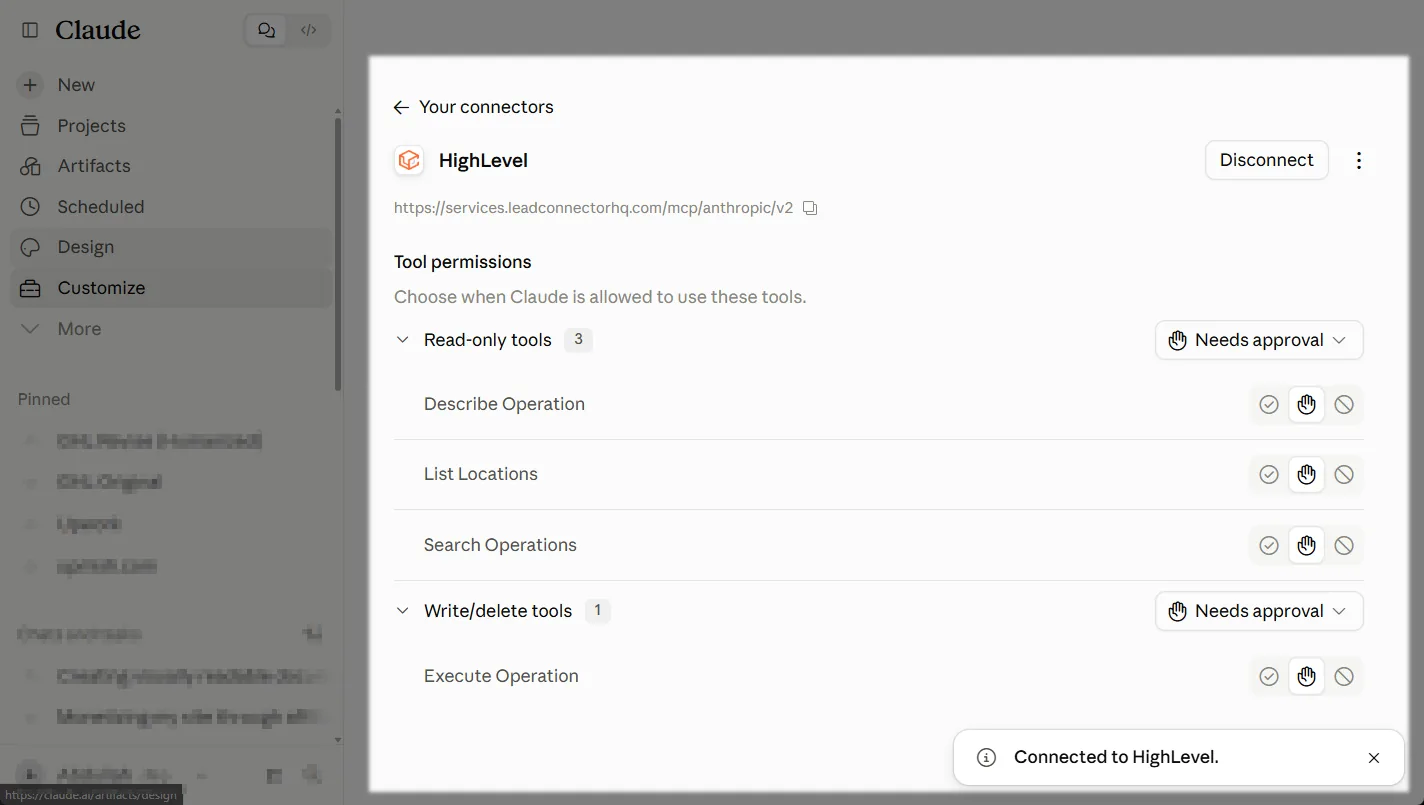
Rather than handing Claude hundreds of separate tools, the server exposes a handful of general ones. When we connected it, Claude listed four: Search Operations to find the right operation, Describe Operation to check its inputs, List Locations to see which sub-accounts it can use, and Execute Operation to actually run an operation. The first three are read-only. Execute Operation is the one that does the work, and it matters for safety, as the permissions section explains. You never see any of this unless you look at the tool calls; you just ask in plain English.
What you need before you start
- A GoHighLevel account with access to the sub-account you want to connect. Agency admins can authorise several sub-accounts at once.
- A Claude account. Any plan can add a custom connector in claude.ai or Claude Desktop. We set ours up on the Free plan. Claude Code needs a paid plan or API credits. The costs section below has the details.
- A way to sign in. OAuth is the default and the one HighLevel recommends. A Private Integration token is the alternative for header-based setups.
The choice between the two sign-in methods matters more than it first looks, because it decides how much Claude can reach.
| OAuth | Private token | |
|---|---|---|
| Endpoint | Claude endpoint | Original endpoint |
| Coverage | 550+ operations | Core tools only |
| Sub-accounts | One or several | One per token |
| Setup | Sign in and approve | Paste token and ID |
| Upkeep | Refreshes itself | Rotate by hand |
Use OAuth unless you have a specific reason not to. HighLevel says OAuth exposes the widest set of scopes and needs no token storage or rotation. A Private Integration token suits a custom script, a self-hosted agent, or a client that can only send fixed headers. We cover the token route further down.
What it costs
On the HighLevel side, we couldn't find a separate charge for the MCP server in HighLevel's MCP documentation or its pricing guide. It runs on your existing plan. HighLevel's MCP pages also don't name a minimum plan. Its pricing page lists basic API access on the $297 Unlimited plan and advanced API access on the $497 Agency Pro plan, and none on the $97 Starter plan. Since the MCP server works through HighLevel's API, check that it is available to you before you rely on it on Starter. Our GoHighLevel pricing guide breaks down what each plan includes.
Actions Claude takes still cost what they normally cost. If Claude sends an SMS or email, or buys a phone number, the charge lands in your wallet exactly as if you had clicked the button yourself.
On the Claude side, custom connectors work on every plan, with one limit on Free.
| Claude plan | Price | For this setup |
|---|---|---|
| Free | $0 | One custom connector. No Claude Code. |
| Pro | $20 a month, or $17 billed yearly | Custom connectors and Claude Code. |
| Max | From $100 a month | Same as Pro, with 5x or 20x the usage. |
| Team and Enterprise | Per seat | An Owner adds the connector, then each member signs in. |
Claude's usage limits are shared across chat and Claude Code, and long CRM tasks with many tool calls use more of them than a quick question. If you already pay for Claude Pro, connecting GoHighLevel adds nothing to the bill.
Free 30 day trial + 2 months free on annual

Not on GoHighLevel yet? Start a 30 day trial on the plan you would actually buy, then connect Claude and see how it fits your workflow.
- Free trial
- 30 days
- Annual saving
- 2 months free
- In the trial
- Full access to your plan
How to connect GoHighLevel to claude.ai
These are the exact steps we followed on an individual claude.ai account on the Free plan. Team and Enterprise members should read the note after the steps.
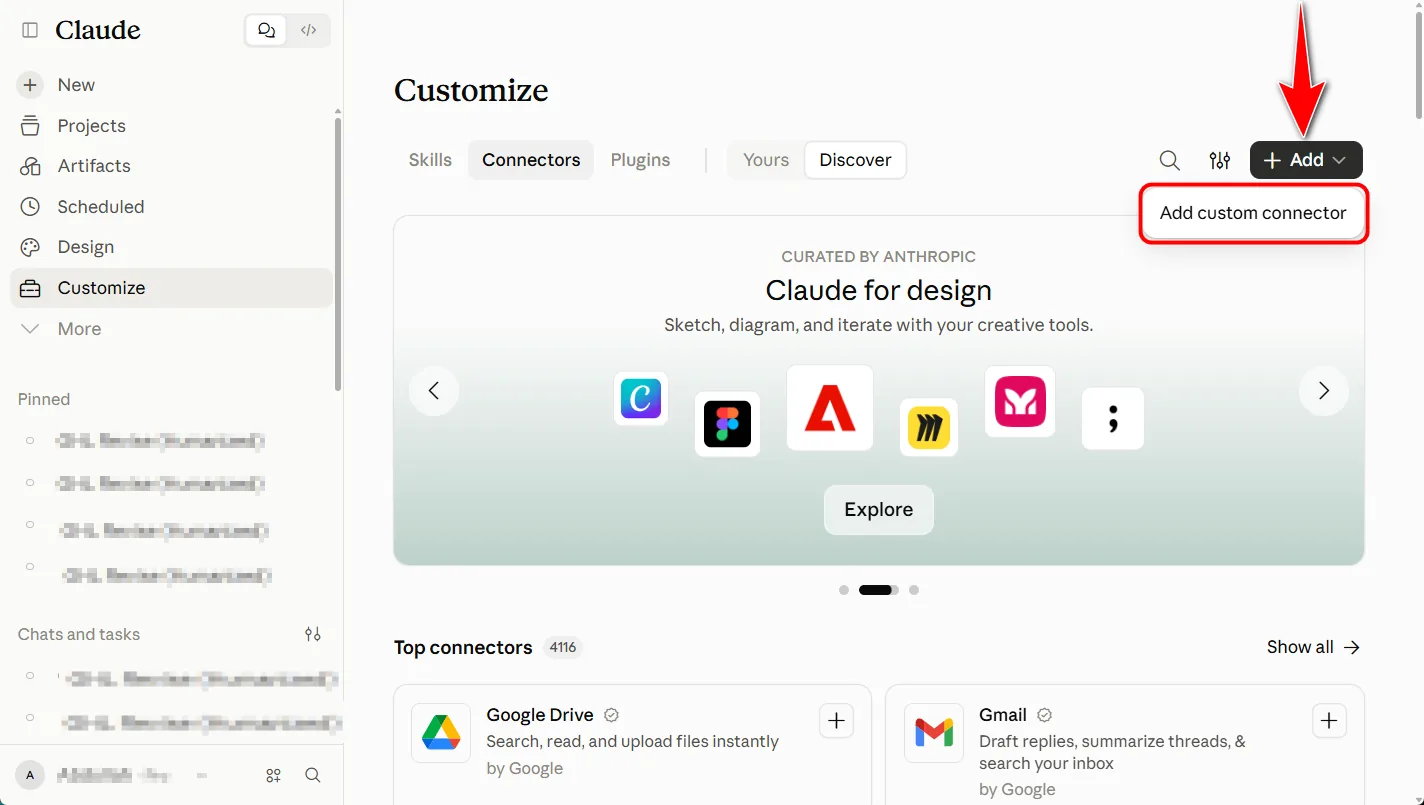
- In claude.ai, open Customize, then the Connectors tab. HighLevel's own guide calls this Settings, then Connectors, which is where it sat in older layouts.
- Click + Add, then Add custom connector. Don't bother searching the connector directory: HighLevel isn't listed there, so you add it by URL.
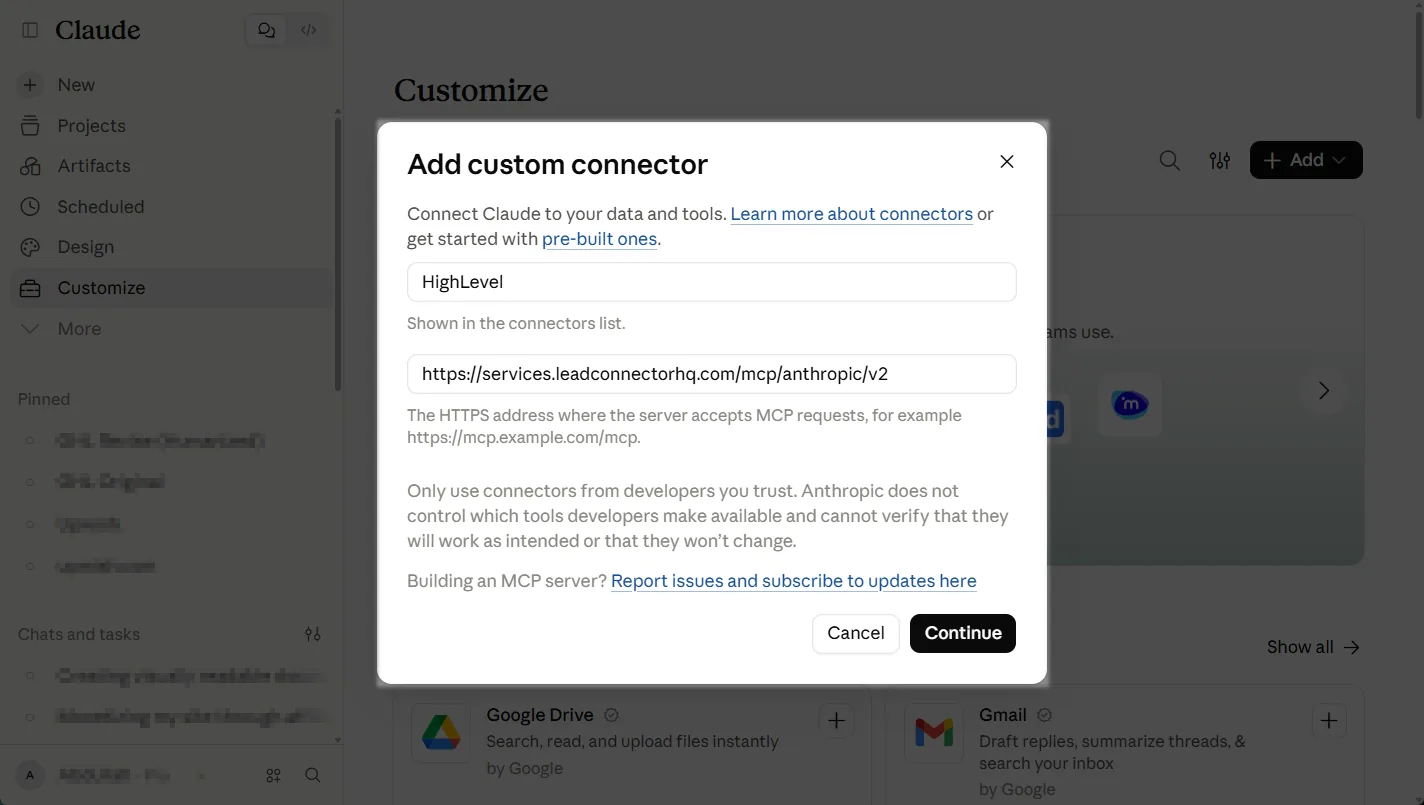
- Name the connector HighLevel and paste the server URL
https://services.leadconnectorhq.com/mcp/anthropic/v2. Click Continue, then Add.
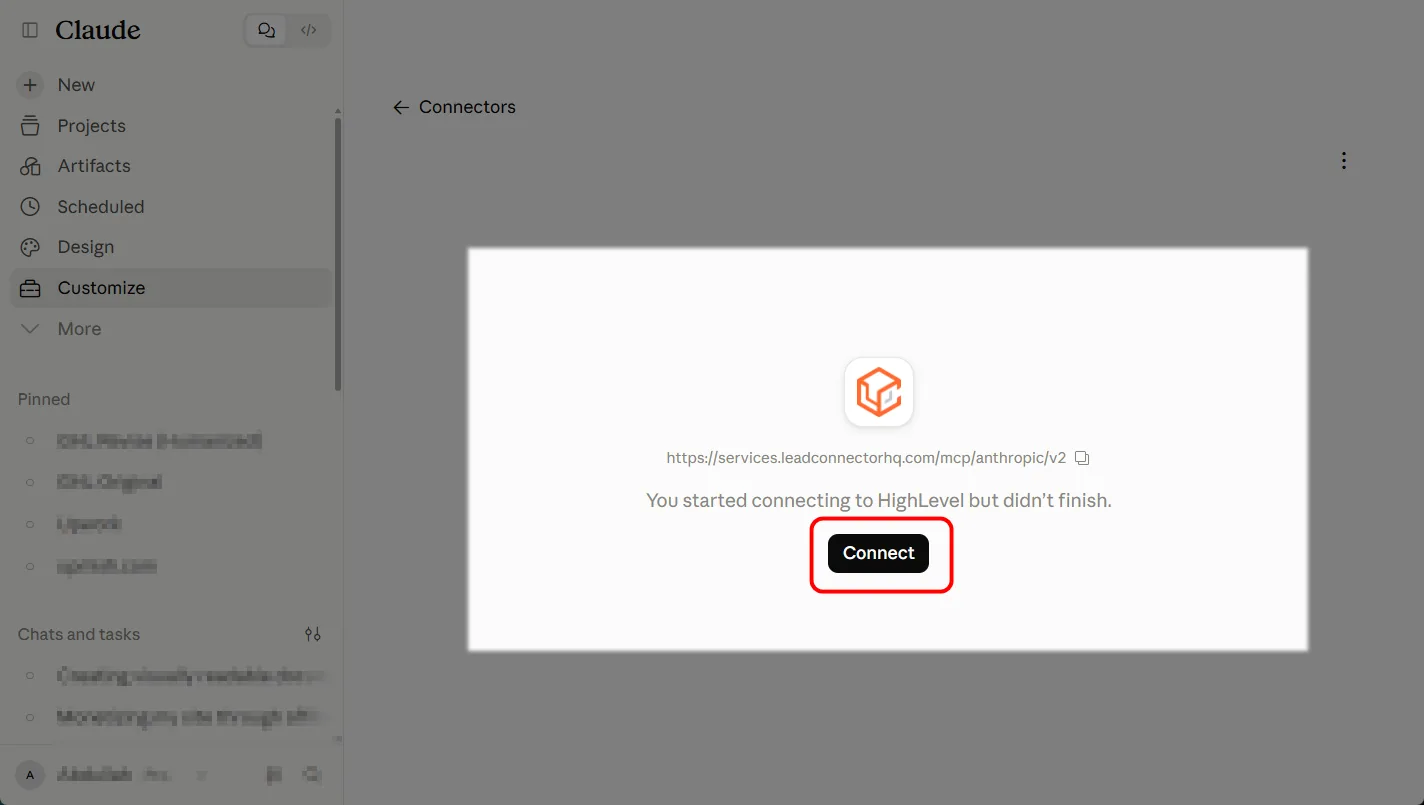
- Click Connect on the new connector. Claude sends you to the LeadConnector Marketplace sign-in. The app you are installing is called lc-mcp - Anthropic. Sign in with your HighLevel login.
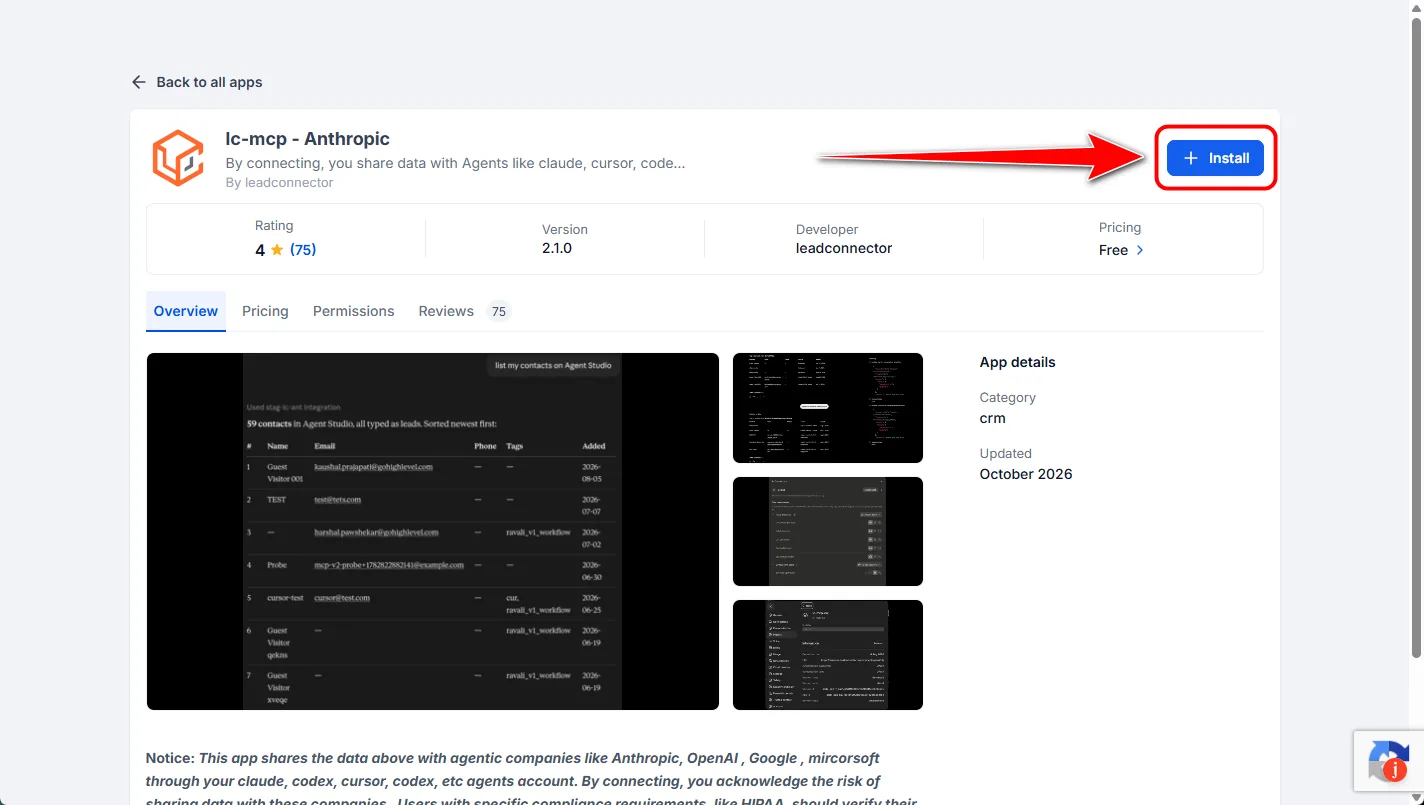
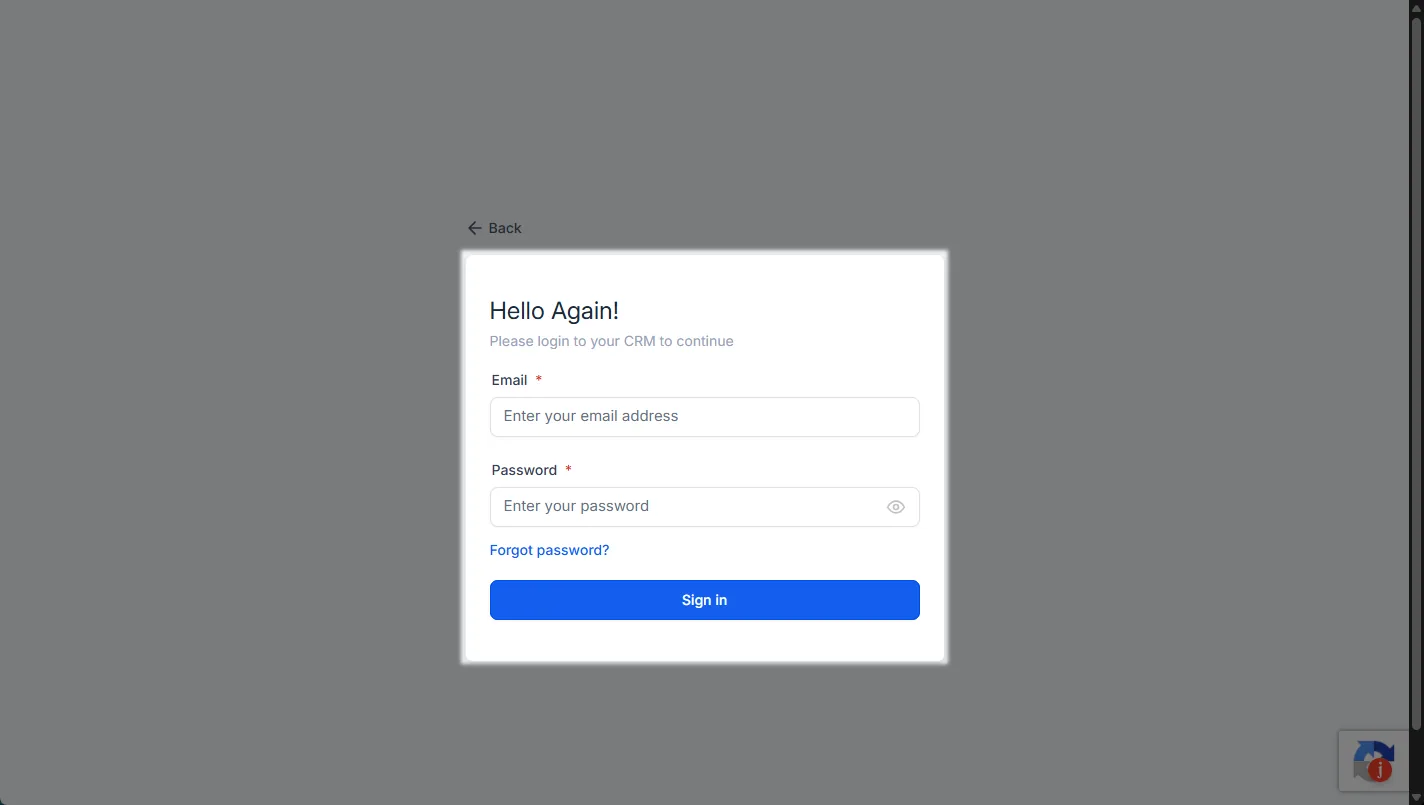
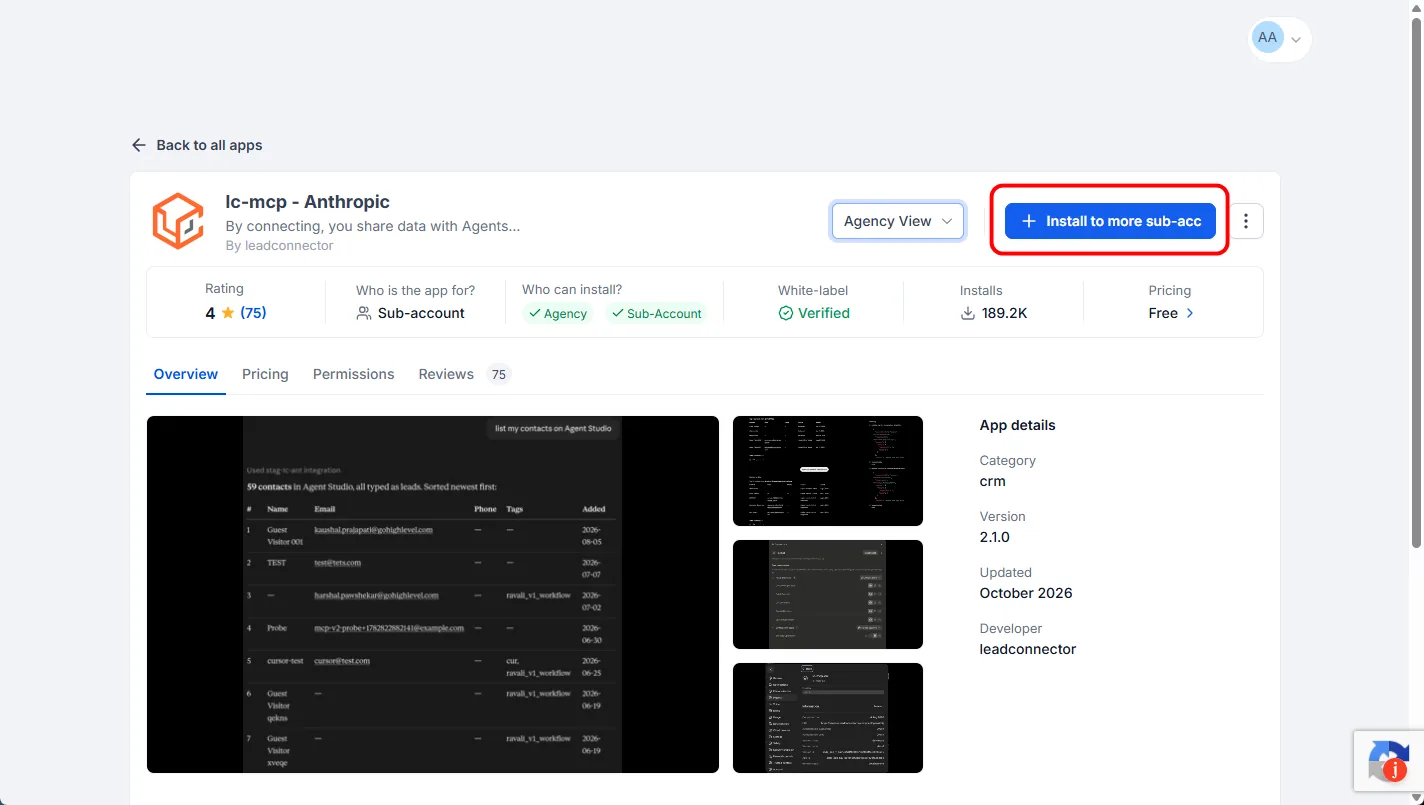
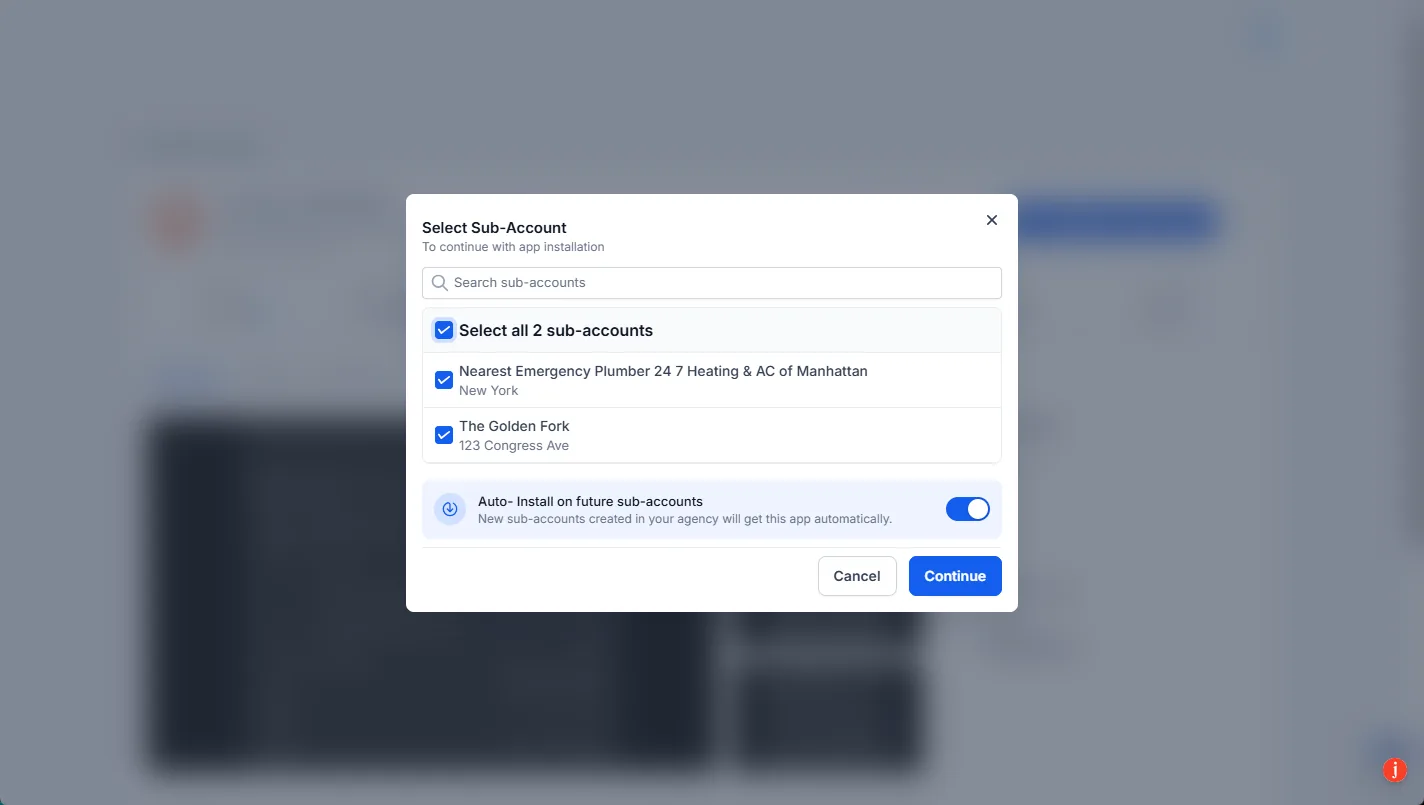
- On Select Sub-Account, search for the sub-account you want, or tick Select all to include every sub-account you can see. Click Continue.
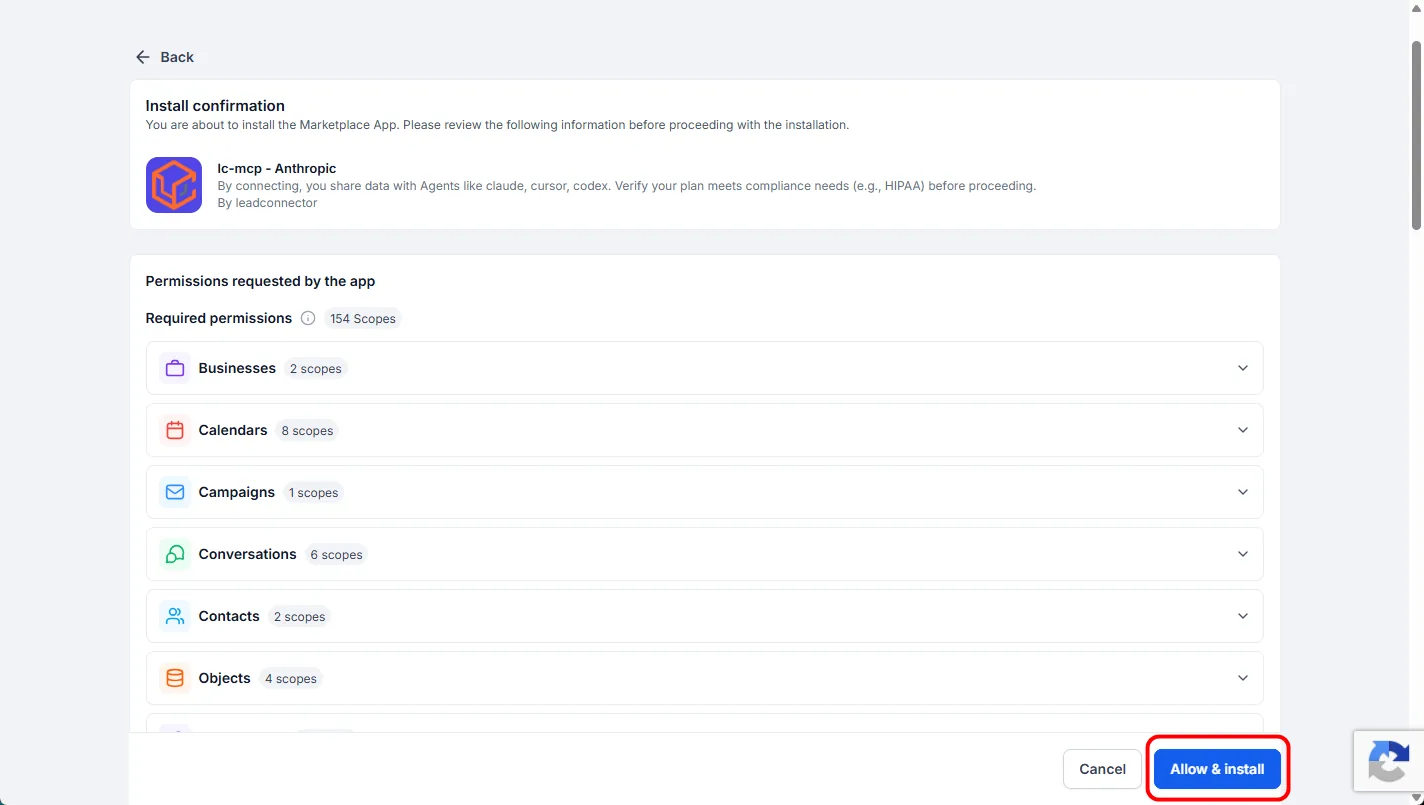
- Review the Install confirmation screen. It shows the app, the sub-accounts you picked and Required permissions: 154 scopes, grouped into areas such as Contacts, Calendars, Conversations, Opportunities, Payments, Workflows and Voice AI. You can expand each group to read the scopes, but they are listed as required, and we saw no option to untick individual ones. Click Allow & install.
- Claude shows Connected to HighLevel. The connector page now lists its tools and when Claude needs your approval to use them. Both groups were set to Needs approval on our account.
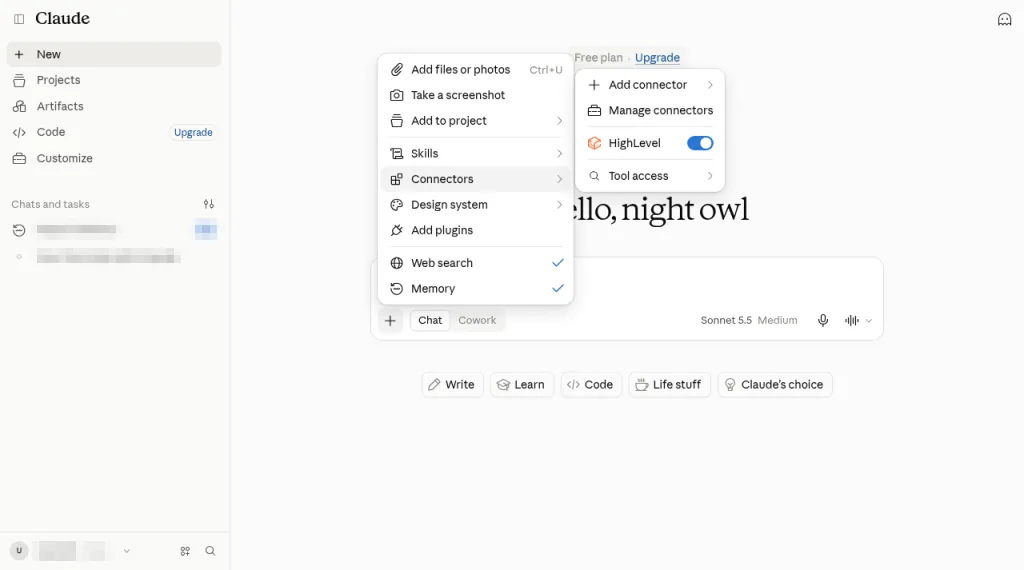
- Start a new chat, click +, choose Connectors and switch on the HighLevel toggle.
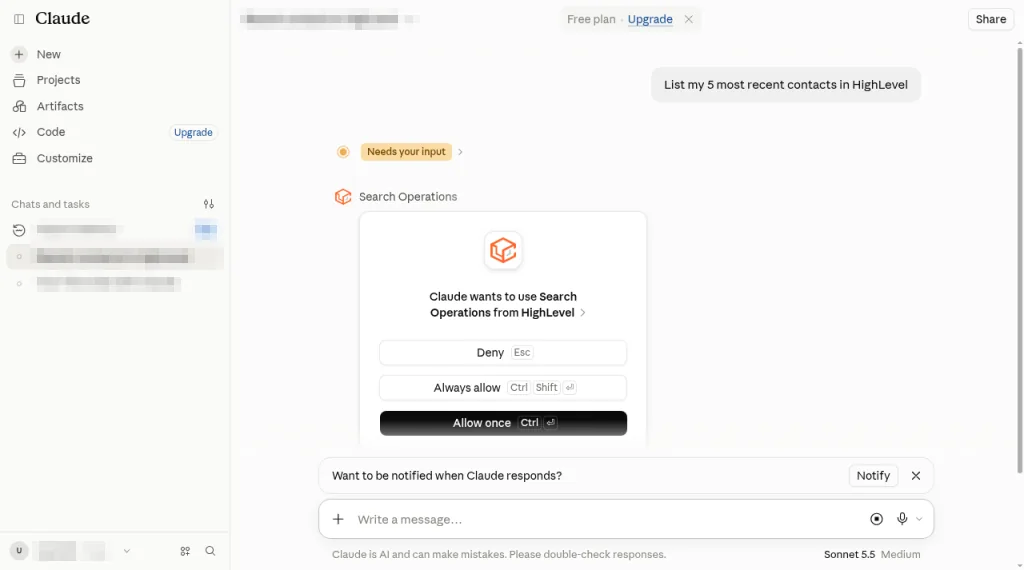
- Test it with a read-only question. We used "List my 5 most recent contacts in HighLevel." Claude will stop and ask permission before each tool call, which is covered next.
Only an Owner or Primary Owner can add a custom connector on Team plans. On Enterprise, Owners, Primary Owners and people whose role can manage connector libraries can add one. They add it once under Organization settings, then Connectors. Each member then finds it under Customize, then Connectors, and clicks Connect to sign in with their own HighLevel login, so every person only reaches the sub-accounts they can already see.
Execute Operation and the permission prompts
This is the part most setup guides skip, and it is where you actually control what Claude does in your CRM. Since the install grants 154 scopes up front, the approval prompt in Claude is your main safety check.
Every time Claude wants to use a HighLevel tool, it pauses the chat with a card that reads "Claude wants to use [tool] from HighLevel" and three buttons: Deny, Always allow and Allow once. The chat shows "Needs your input" until you choose.
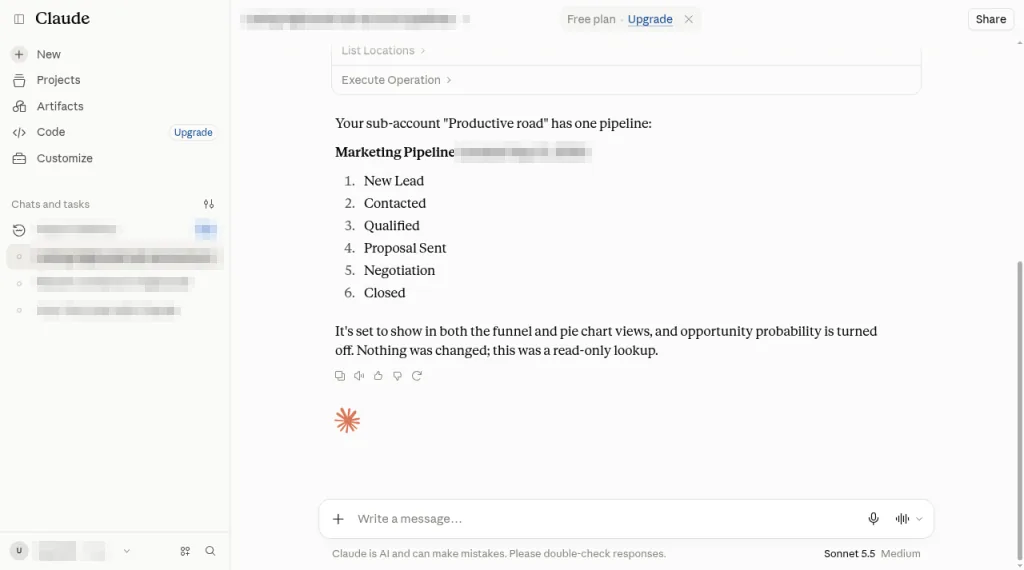
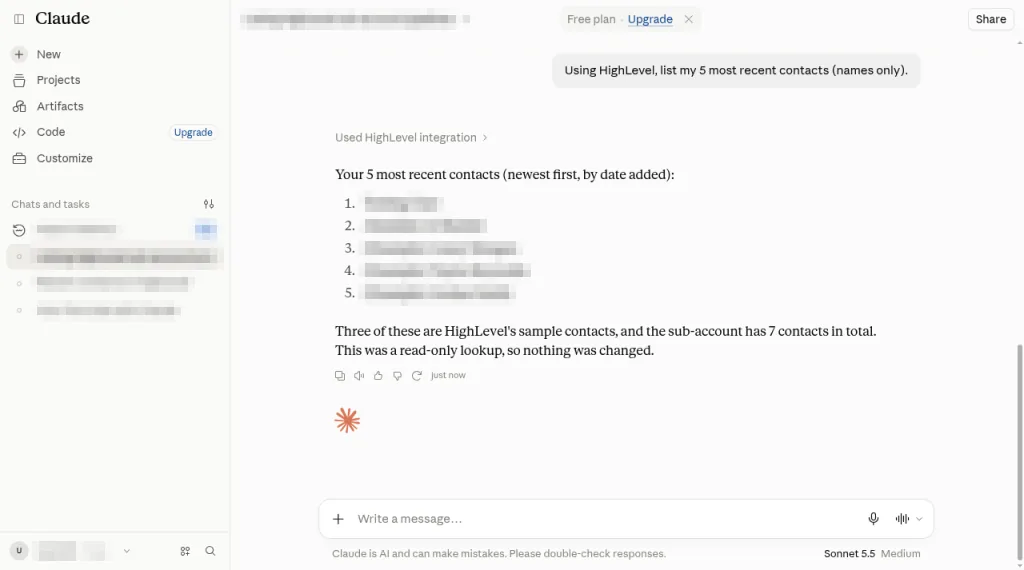
The catch is Execute Operation. Claude uses it to run every real HighLevel operation, whether that reads data or changes it, so Claude lists it under Write/delete tools even when the request is harmless. In our test, simply listing pipelines (get-pipelines, which is GET /opportunities/pipelines) and listing recent contacts (search-contacts-advanced) both went through Execute Operation.
That means the tool name alone doesn't tell you whether Claude is about to read or delete. Expand the card before you approve it. It shows the operationId, the locationId of the sub-account, and Claude's stated reason.
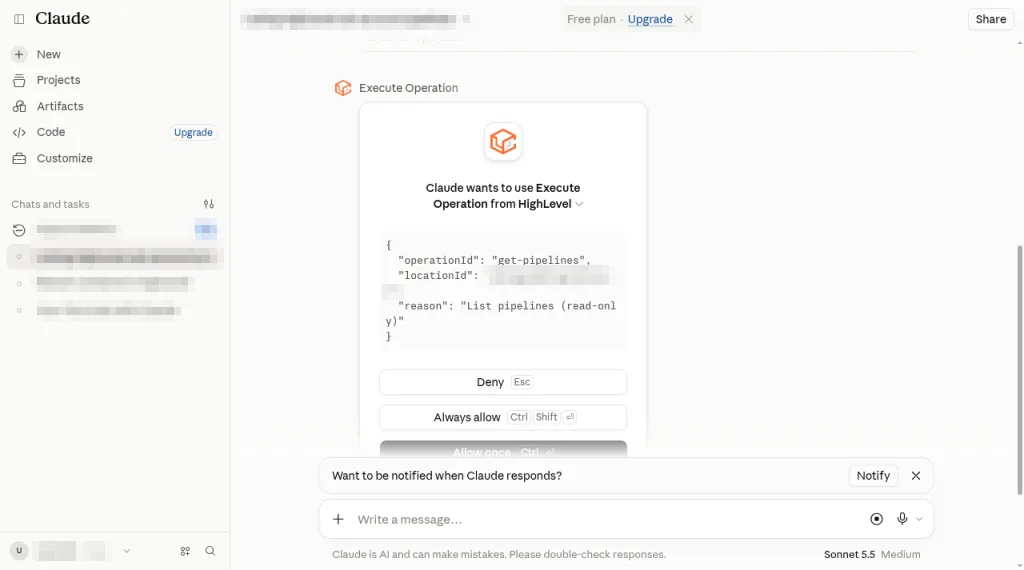
Click Allow once and check the operation name before each approval. Avoid Always allow on Execute Operation: approving it once for a read would also let later create, update and delete operations run without asking. Always allow is reasonable for the three read-only tools if the prompts get tiring.
With those approvals, our test returned real data from our sub-account. Asked for pipelines, Claude found one, "Marketing Pipeline", and listed its six stages from New Lead to Closed. Asked for the 5 most recent contacts, it listed them and noted the sub-account held 7 contacts in total. Both times Claude confirmed nothing was changed.
How to use it in Claude Desktop
We tested the claude.ai route only. This section is based on Anthropic's and HighLevel's documentation.
Custom connectors belong to your Claude account, not to one app. If you added GoHighLevel in claude.ai, sign in to Claude Desktop with the same account and it is already there. You can also add it from Desktop's own Customize, then Connectors screen with the same steps as above.
Anthropic notes that remote connectors in Desktop are brokered through your Claude account, so the connection to HighLevel comes from Anthropic's servers rather than your computer. You don't need to edit claude_desktop_config.json. That file is for local MCP servers running on your machine, and HighLevel's server is remote.
HighLevel's own docs list claude.ai, Claude Code and Claude Cowork as the supported Claude clients and don't name Desktop separately. Anthropic says custom connectors work in Desktop, so it should behave the same as claude.ai. Turn it on per chat from the + menu in the same way.
How to add GoHighLevel to Claude Code
We haven't tested Claude Code with HighLevel yet. These steps follow HighLevel's and Anthropic's documentation.
Claude Code adds remote MCP servers from the terminal. This is the command HighLevel publishes:
claude mcp add --transport http leadconnector https://services.leadconnectorhq.com/mcp/anthropic/v2--scope user before the name. Without it, the server is only available in the current project.claude, type /mcp, pick leadconnector and authenticate in the browser. Or run claude mcp login leadconnector from the shell.claude mcp list should show the server as connected.To share the setup with a team through version control, put it in a .mcp.json file at the project root instead. HighLevel's example uses the server name leadconnector with "type": "http" and the same URL. Each person still signs in to HighLevel with their own account; the file holds no credentials. Claude Code asks you to approve project servers from .mcp.json the first time.
There is a shortcut if you already connected GoHighLevel in claude.ai. When you log in to Claude Code with the same claude.ai subscription account, your claude.ai connectors appear in /mcp automatically. If you then add the same URL with claude mcp add too, Claude Code uses its own entry and hides the claude.ai one.
Using a Private Integration token instead
A Private Integration token is a static key you create in HighLevel and send with each request. HighLevel documents it for the original /mcp/ endpoint, which takes the token in an Authorization header and the sub-account's ID in a locationId header. Expect the smaller core toolset and one sub-account per token.
- In the sub-account, go to Settings, then Private Integrations, and click Create new Integration. If you don't see the menu item, your user may need the Private Integrations permission.
- Give it a name and description, for example "Claude, read only".
- Select only the scopes Claude needs. For a first test, read-only scopes for contacts, opportunities and calendars are plenty.
- Copy the token straight away and store it somewhere safe. HighLevel shows it once.
- Find the location ID. It is the string after
/location/in the sub-account's address bar.
In Claude Code, pass both headers when you add the server:
claude mcp add --transport http ghl-token https://services.leadconnectorhq.com/mcp/ --header "Authorization: Bearer pit-your-token" --header "locationId: your-location-id"/mcp. A server with a bad token shows as failed, usually with a 401.In claude.ai, Anthropic's documentation describes a Request headers option for fixed credentials on custom connectors, which is where the same two headers would go. The dialog we used for the OAuth setup only asked for a name and URL, and we haven't tested the token route. Be careful on Team and Enterprise plans: a header credential is shared, so everyone who uses that connector reaches HighLevel with the token's access.
Anyone holding it can act on that sub-account within its scopes. Never paste it into a chat, a shared repository or a screenshot. HighLevel recommends rotating tokens every 90 days; when you rotate, the old and new tokens both work for 7 days so you can update Claude without downtime.
What Claude can do: example prompts
The two prompts we tested, "List my 5 most recent contacts in HighLevel" and a request to list our pipelines, both worked on the first try once we approved the tool calls. HighLevel's catalog covers contacts, conversations, opportunities and pipelines, calendars, payments, invoices, products, social planner, blogs, email campaigns, forms and surveys, funnels, workflows, Voice AI, the phone system, the knowledge base, the media library, custom objects and more. What Claude can actually reach depends on the scopes you approved. Some prompts to try:
- Contacts. "Find everyone tagged 'webinar' who hasn't been contacted in 30 days and list them with their last activity."
- Pipelines. "Summarise the Sales Pipeline: how many open opportunities per stage, total value, and which ones haven't moved in two weeks."
- Updates. "Find the contact with email [email protected], add the tag 'vip' and create an opportunity in the Sales Pipeline worth $5,000." This is close to HighLevel's own example.
- Calendars. "What appointments are booked on the Consultation calendar next week, and where are the free slots on Thursday?"
- Conversations. "Show me unread conversations from the last 24 hours and draft a reply to each one. Don't send anything."
- Content. "Draft three social posts announcing our new service and save them as drafts in Social Planner."
- Agencies. "List the contacts tagged 'vip' in Downtown Clinic, then compare the count with Uptown Med Spa." With several sub-accounts authorised, Claude asks which one you mean whenever it isn't clear.
Claude Code adds a file system to the mix, which suits bigger jobs: exporting a filtered contact list to a CSV in your project, checking a pipeline against a spreadsheet, or writing a script that calls the same operations on a schedule. If you are new to HighLevel itself, our GoHighLevel tutorial for beginners explains the pieces these prompts refer to.
Limits and safety
Connecting an AI assistant to your CRM means it can change real records and message real customers. HighLevel and Anthropic both build in guard rails, but the settings you pick matter most.
- Scopes set the outer limit. Claude can only run operations your OAuth grant or token scopes allow, and HighLevel also applies its role-based permissions, so Claude can't reach what your user can't. The OAuth install we ran asked for 154 required scopes with no option we could see to untick them, so on that route your approvals in Claude do the real limiting. If you want narrower scopes, the Private Integration token route lets you choose them.
- One sub-account per request. Even an agency connection runs each request against a single sub-account you included at sign-in. Requests for any other sub-account are refused.
- Destructive actions get extra checks. HighLevel says sensitive and irreversible operations are gated with additional confirmation. Claude also asks before it uses a tool. Read each request, use Allow once for Execute Operation, and keep Always allow for the read-only tools.
- Watch for prompt injection. Contact notes, form submissions and inbound messages are written by outsiders. Anthropic warns that hidden instructions in tool results can try to steer Claude, so be wary when Claude proposes actions you didn't ask for.
- Research mode runs tools without asking. Anthropic advises switching off write tools before you use Research with a connector.
- Sending still follows the rules. SMS sent through Claude goes through the same numbers, wallet and compliance as any other SMS. US texting still needs A2P 10DLC registration and consent.
- You can revoke access at any time. Disconnect the connector in Claude, revoke the grant from your HighLevel account, or delete the Private Integration.
Connect one test sub-account rather than every client. Ask Claude reporting questions for a week, approving each Execute Operation call with Allow once and checking the operation name. Once the answers match what you see in HighLevel, add the sub-accounts you actually need.
Troubleshooting
Bearer in the header, and has no stray space or line break at the end.locationId header is pointing at a different sub-account./mcp and choose authenticate, or claude mcp login leadconnector.ANTHROPIC_API_KEY in your environment stops that. Run /status to check.Partner offerFree 30 day trial+ 2 months free on annual
- 30 days instead of the public 14
- Full access to the plan you choose
- Cancel any time before it ends
Usage such as SMS and email is billed from your wallet as you go.
Common questions
Can you connect GoHighLevel to Claude?
Yes. HighLevel runs an official MCP server with a Claude endpoint at https://services.leadconnectorhq.com/mcp/anthropic/v2. Add it as a custom connector in claude.ai or Claude Desktop, or with claude mcp add in Claude Code, then sign in to HighLevel and approve the sub-accounts and scopes.
Is the GoHighLevel MCP server free?
HighLevel doesn't list a separate charge for it in its MCP documentation or pricing guide; it runs on your existing plan. Actions Claude takes, such as sending SMS or email or buying a phone number, are billed from your wallet as normal.
Do I need a paid Claude plan?
Not for claude.ai. We added and used the HighLevel connector on Claude's Free plan, which is limited to one custom connector. Anthropic says the same connectors work in Claude Desktop. Claude Code is only included on paid plans: Pro, Max, Team and Enterprise.
Which GoHighLevel plan do I need?
HighLevel's MCP pages don't name a minimum plan. Its pricing page lists API access on the Unlimited and Agency Pro plans but not on Starter, and the MCP server works through the API, so check availability before relying on it on Starter.
Should I use OAuth or a Private Integration token?
OAuth, in most cases. HighLevel recommends it because it exposes the widest set of scopes, supports several sub-accounts and needs no token rotation. A Private Integration token suits scripts or clients that can only send fixed headers, but it works with the original endpoint's smaller toolset and one sub-account.
Can Claude work across several sub-accounts?
Yes, on the Claude endpoint, if you include several sub-accounts on the Select Sub-Account screen. Each request still runs against one sub-account, and Claude asks which one when it isn't clear. HighLevel says this multi sub-account option is still rolling out.
Can Claude delete data in GoHighLevel?
The OAuth install grants scopes that include delete operations, so it can if you approve it. Every operation runs through the Execute Operation tool, which Claude lists under write and delete tools and asks about before each use. Approve with Allow once after checking the operation name, and don't set Execute Operation to Always allow. HighLevel also says destructive actions get extra confirmation.
Does it work in Claude Code and Claude Desktop?
Yes. Claude Code adds it with claude mcp add --transport http and signs in through the browser. Claude Desktop uses the same custom connectors as your claude.ai account, so a connector added in one appears in the other.
The verdict
Connecting GoHighLevel to Claude is now a supported, official setup rather than a workaround. One URL, an OAuth sign-in, and Claude can search, report on and update your CRM in plain English, across several sub-accounts if you run an agency.
The hard part isn't the setup. It is deciding what Claude should be allowed to do. The install grants broad scopes, so the approval prompt is your control. Start on a test sub-account, approve Execute Operation with Allow once, and read the operation name every time.
If you already pay for Claude and GoHighLevel, this costs nothing extra and takes less time than reading this guide. Use the OAuth endpoint unless you have a clear reason not to.
We tested the claude.ai setup hands-on in our own GoHighLevel and Claude accounts. The Desktop, Claude Code and token sections are based on HighLevel's LeadConnector MCP server documentation, its help articles on the MCP for Anthropic endpoint, multi sub-account support for Claude, the original MCP server and Private Integrations, and Anthropic's guides to custom connectors, MCP in Claude Code and Claude plans. Menu names and plan details change from time to time, so check the current screens if something looks different.
Some links on this page are partner links. How that works is explained on our affiliate disclosure page.