I used to send coaching clients to a separate course platform and then glue it to their CRM with automations. These days I build most of their courses right inside GoHighLevel. The course builder sits under Memberships, it shares contacts and payments with everything else in the account, and students log in through the same Client Portal. In this guide I walk through how I build a course, control when lessons open, add quizzes and certificates, sell it, and where I think it still falls short.
Short version
- Courses live under Memberships, then Courses, in each sub-account, built from modules and lessons.
- Lessons can hold video, quizzes, assignments and downloads, and videos can be up to 5GB each.
- You sell through Offers, or straight from the course with Course Pricing where your account has it.
- I control access with locked lessons and prerequisites, plus offer start dates and access periods.
- Certificates go out through a workflow, and there's a Kajabi importer that skips quizzes.
- The student experience is simpler than dedicated course platforms, so test it before a big move.
The short answer
Yes, the GoHighLevel course builder is good enough for most coaches, consultants and agencies selling courses to their own audience. You create a course as a product, organize it into modules and lessons, attach it to an offer with a price, and students get access through the Client Portal after they buy or after a workflow grants it. Because it all lives in the same account as your funnels, email and pipelines, you don't need to connect a separate course tool.
Where it's weaker is the learner side. The student experience is clean but plain compared with platforms built only for courses, and some features roll out to accounts at different times. If you sell high-ticket programs where the course itself is the product people judge, test it carefully first. If the course supports a coaching offer or a membership, it does the job well.
What the GoHighLevel course builder includes
When I open a sub-account and go to Memberships, then Courses, I get a dashboard with tabs across the top for products, offers, analytics and more. Here's what the builder gives you, based on HighLevel's help center and what I see in my own account.
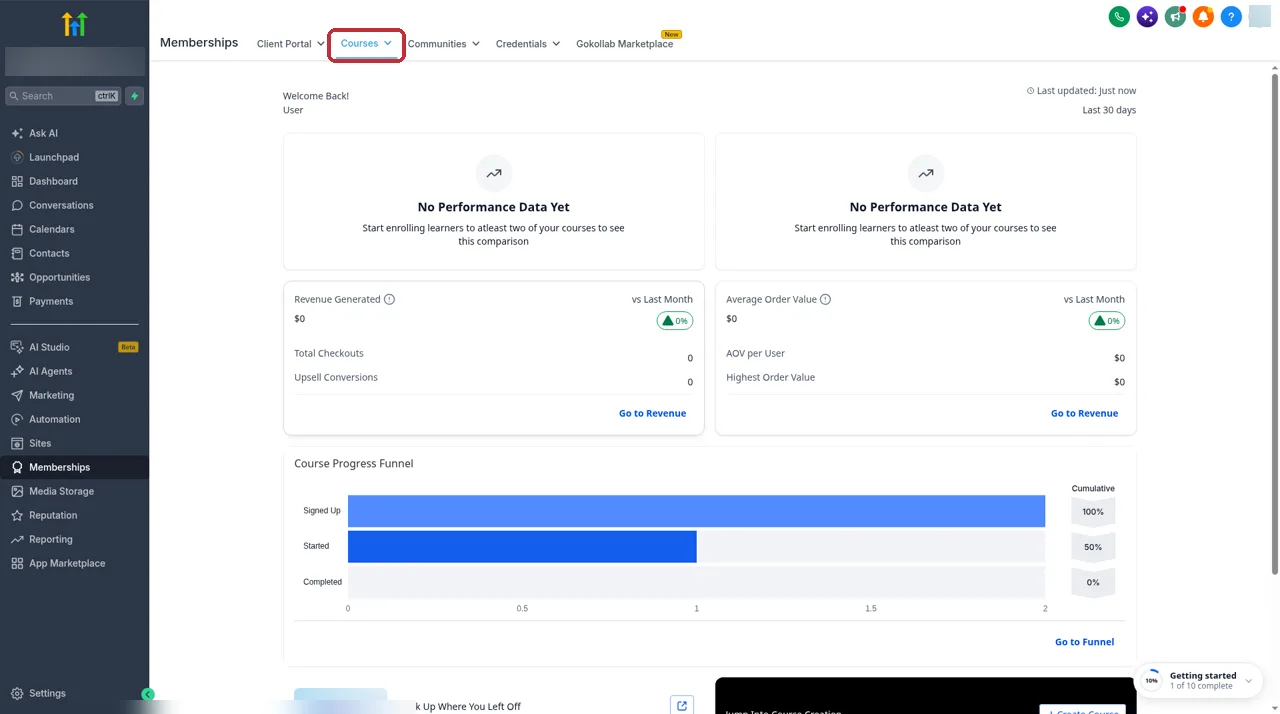
- Modules and lessons. A course is a set of modules, and each module holds lessons. The newer Course Editor shows the whole thing as a course map you can reorder.
- Lesson content. Lessons can include video, text, quizzes, assignments and downloadable files. HighLevel says video files can be up to 5GB, and other file limits vary by type.
- Assessments. Quizzes support single or multiple choice questions, an optional passing grade, pass and fail messages, and multiple attempts, with results in analytics.
- Certificates. You issue them through a workflow when a student completes a lesson, category or course.
- Selling. Courses can be free, one time or recurring, sold through offers or, in some accounts, priced directly on the course.
- Delivery. Students learn inside the Client Portal, and courses can also show up in the Learning area of a community.
Courses and Communities both appear in the feature list on HighLevel's pricing page, so check the current plan cards there for what your plan includes.
How courses, offers and products fit together
This part confused me at first, so it's worth getting straight before you build. There are three pieces.
- The product is the course itself. Under the Products tab, each course is a product with its own modules, lessons and settings.
- The offer is what people buy. An offer bundles one or more course products with a price, and it's what you put on a checkout page or grant through a workflow.
- The price lives on a payment product. For paid offers you attach a payment product that can be one time or recurring, with options like a trial, a setup fee, a compare-at price or a set number of payments.
So one course can sit in several offers. I often have a full-price offer, a cheaper offer for existing clients, and a free offer that a workflow grants as a bonus. HighLevel has also added Course Pricing, which lets you price the course directly without an offer. I cover both below.
Free 30 day trial + 2 months free on annual

Build your first course inside GoHighLevel Courses, offers, checkout and email live in one account, so you can launch without extra tools.
- Free trial
- 30 days
- Annual saving
- 2 months free
- In the trial
- Full access to your plan
How I build a course in GoHighLevel
This is the order I follow when I set up a new course for a client. It keeps the structure clean and stops me from publishing half-finished lessons.
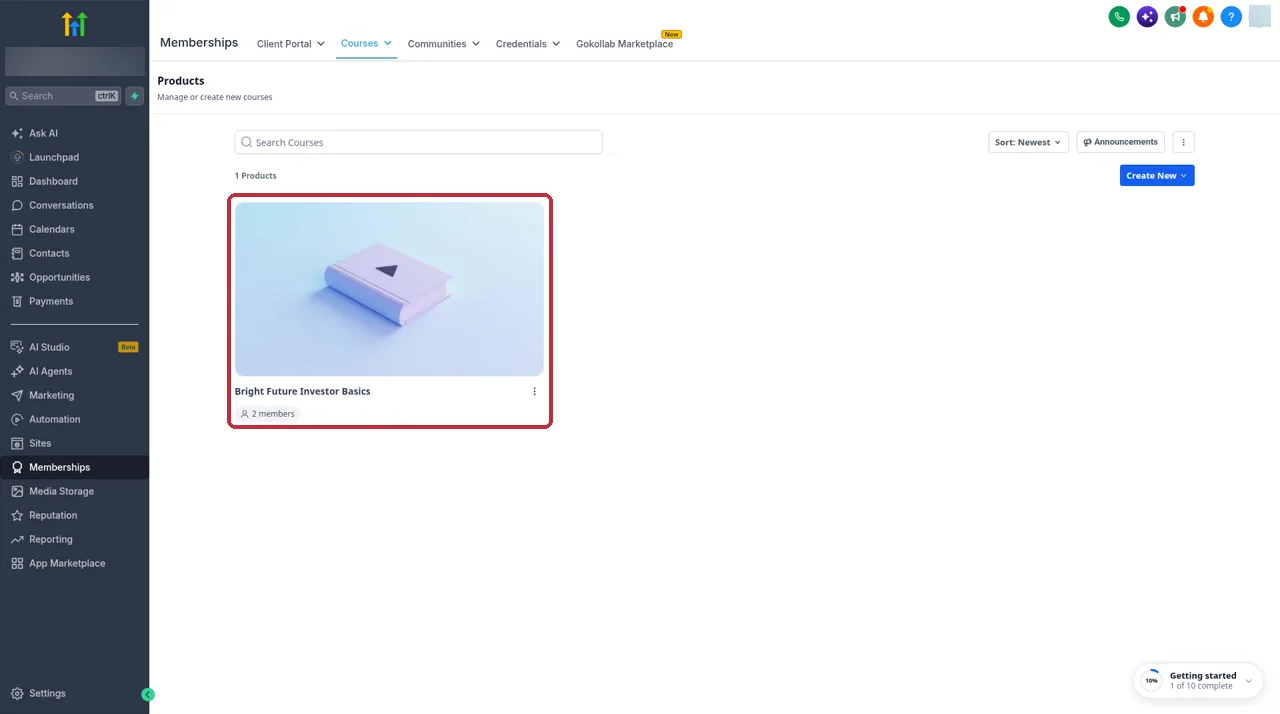
- Open Courses. In the sub-account, go to Memberships, then Courses, and open the Products tab.
- Create the product. Create a new course product, give it a clear title and description, and add a cover image. Students see these in the portal.
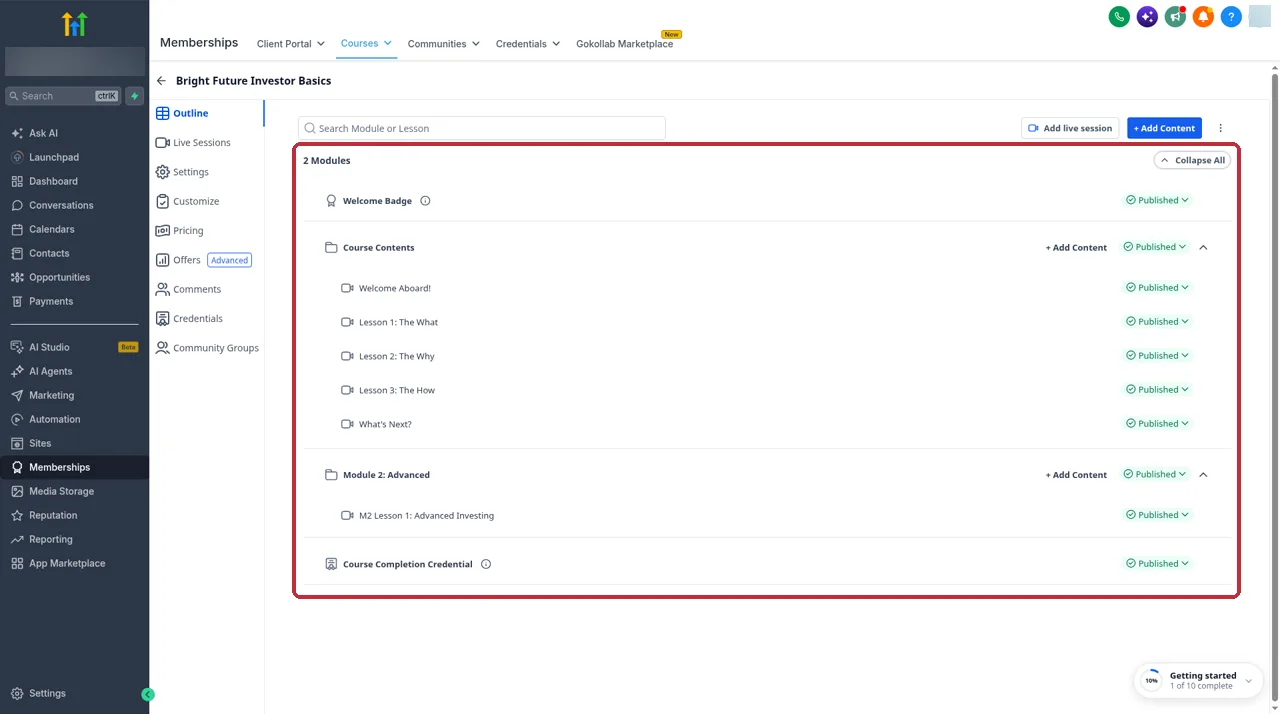
- Plan the modules. In the Course Editor, add the modules first, one for each big stage of the course. I name them so a student can tell where they are at a glance.
- Add lessons. Inside each module, add the lessons. I keep each lesson to one idea and one video where I can.
- Upload the content. Add the video, written notes and any downloads to each lesson. Keep video files under the 5GB limit.
- Set each lesson's status. Lessons can be Draft, Published or Locked. I leave unfinished ones as Draft so students never see them.
- Preview as a student. Check the course in the Client Portal before you sell it, on both desktop and phone.
If you build similar courses for several clients, put the finished setup in a snapshot so you can load it into new sub-accounts. My GoHighLevel snapshots guide explains how I package them.
How I control when lessons open
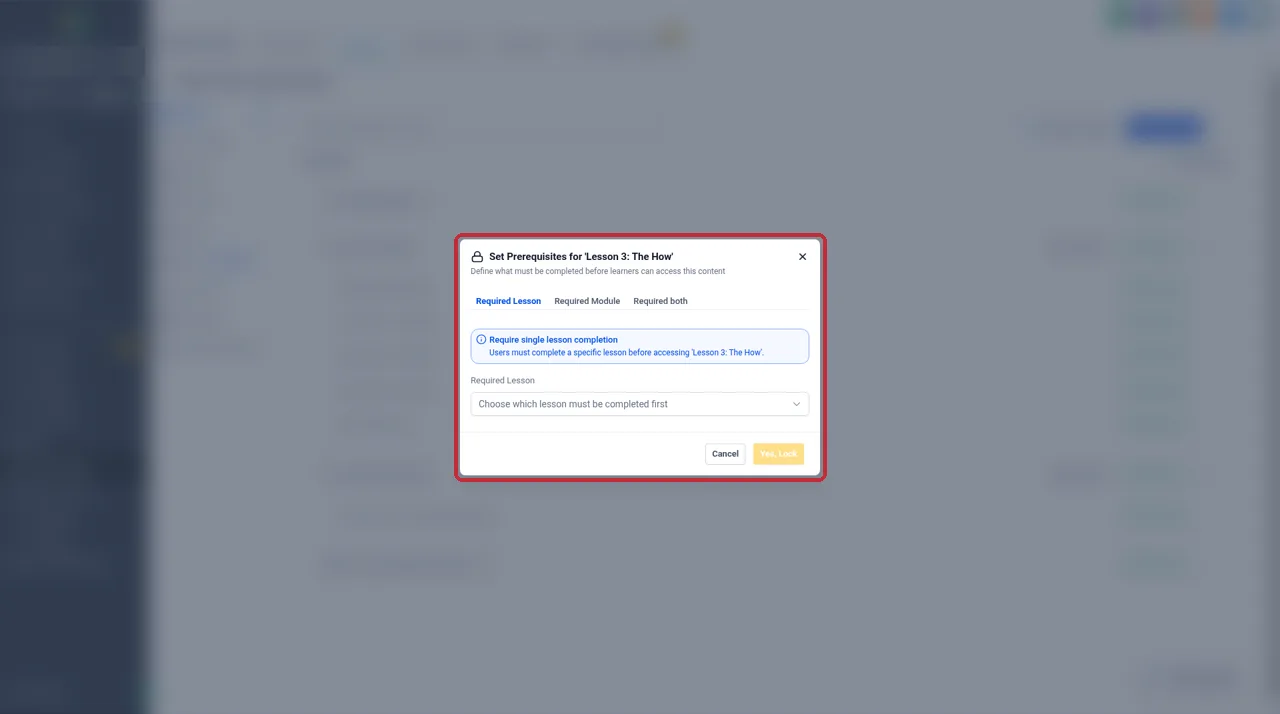
Most people search for drip content when what they really want is control over when students can see each lesson. Here's how I do that in the account I use. I didn't find a per-lesson drip timer there. Instead, each lesson has a status of Draft, Published or Locked, and choosing Locked opens a Set Prerequisites dialog.
- Open the lesson. In the Course Editor, select the lesson you want to hold back.
- Set it to Locked. Change the lesson status to Locked. This opens the prerequisites settings.
- Pick the prerequisite. Choose the lesson or module the student must finish first. The locked lesson opens once that's done.
- Repeat down the course. I chain these so each module opens after the one before it, which keeps students moving in order.
- Set the access window on the offer. In the offer's access settings, you can make access begin on a set date or restrict it to a number of days from signup. I use this for cohorts and for time-limited bonuses.
HighLevel's help center also describes time-based drip settings by lesson or category. I didn't see those in this account, and HighLevel rolls features out to accounts at different times, so check your own Course Editor. If you have them, the help center notes the delay has to be more than zero.
Adding quizzes and assignments
Quizzes are useful even in simple courses, because they show you where students get stuck. This is how I add one.
- Add an assessment to a lesson. In the Course Editor, add a quiz or assignment to the lesson where you want to check understanding.
- Write the questions. Choose single choice or multiple choice for each question and mark the right answers.
- Set a passing grade. This is optional. I use it on lessons that lead to a certificate.
- Write the messages. Add a pass message and a fail message, and decide whether students can try again.
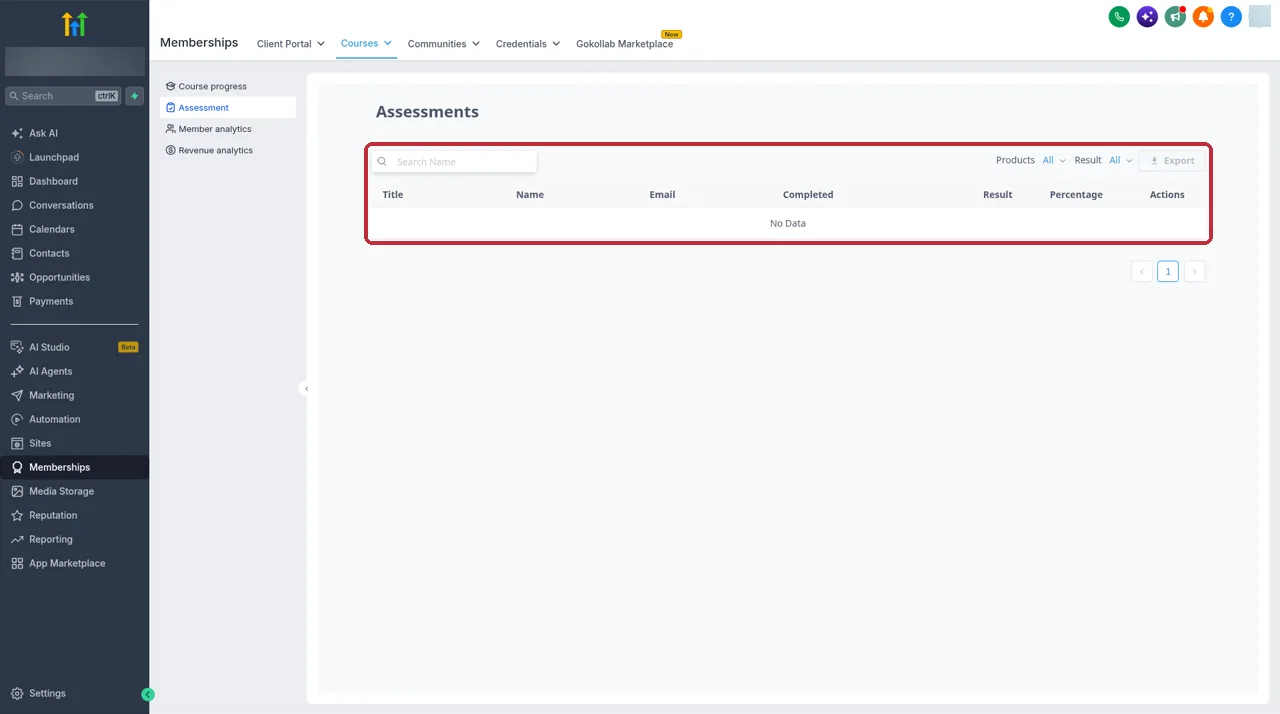
- Check the results. Go to Analytics, then the Assessment tab, to see how students are doing.
Issuing certificates automatically
Certificates aren't a setting on the course. You send them with a workflow, which I actually prefer, because you can add a congratulations email or a tag in the same automation.
- Create a workflow. Go to Automation and start a new workflow.
- Add the trigger. Choose the Lesson Completed trigger.
- Filter it. Filter by the course, category or lesson that should earn the certificate. I usually pick the final lesson.
- Add the action. Add the Issue Certificate action and choose the certificate.
- Add the extras. I follow it with an email and a tag so I can offer the next program later.
- Publish and test. Turn the workflow on and complete the lesson with a test contact.
My GoHighLevel workflow templates include more recipes like this, such as onboarding sequences for new students.
Selling the course: Offers vs direct Course Pricing
There are two ways to put a price on a course. Offers work in every account. Course Pricing is newer and only in some.
Selling with an Offer
- Connect payments. Paid access needs a payment provider connected to the account.
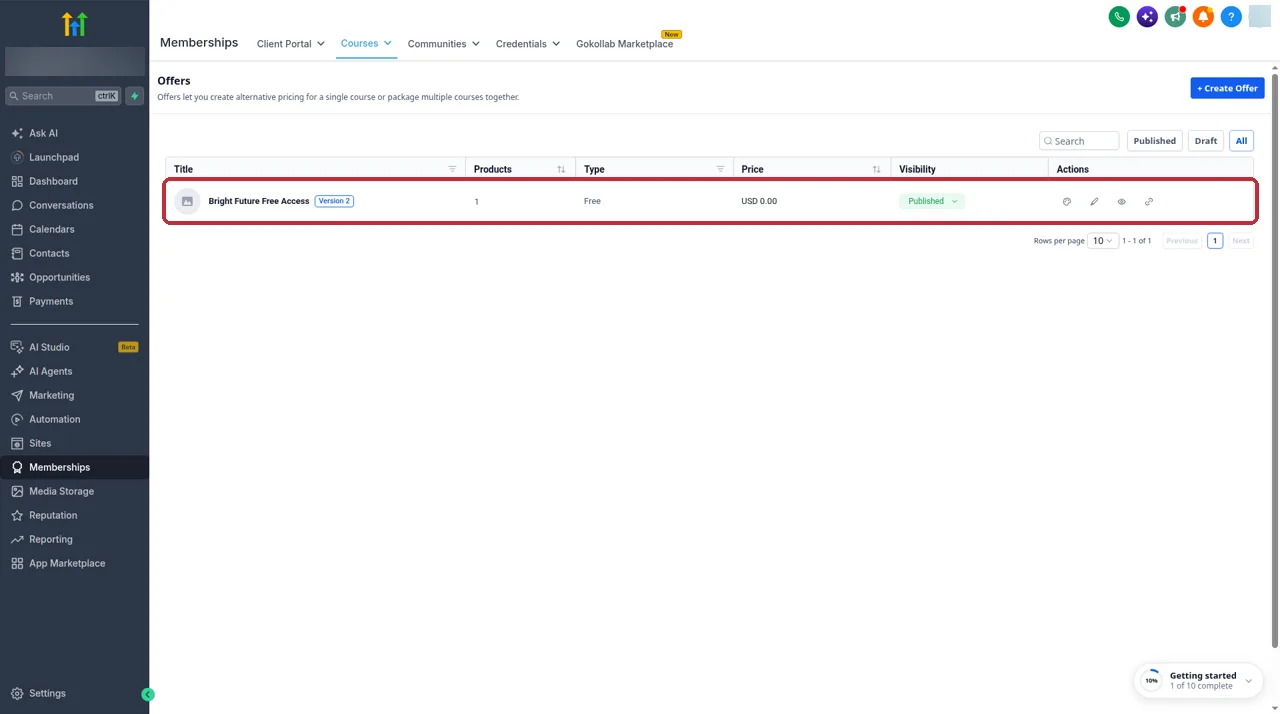
- Create the offer. Go to Memberships, then Courses, then Offers, and create an offer.
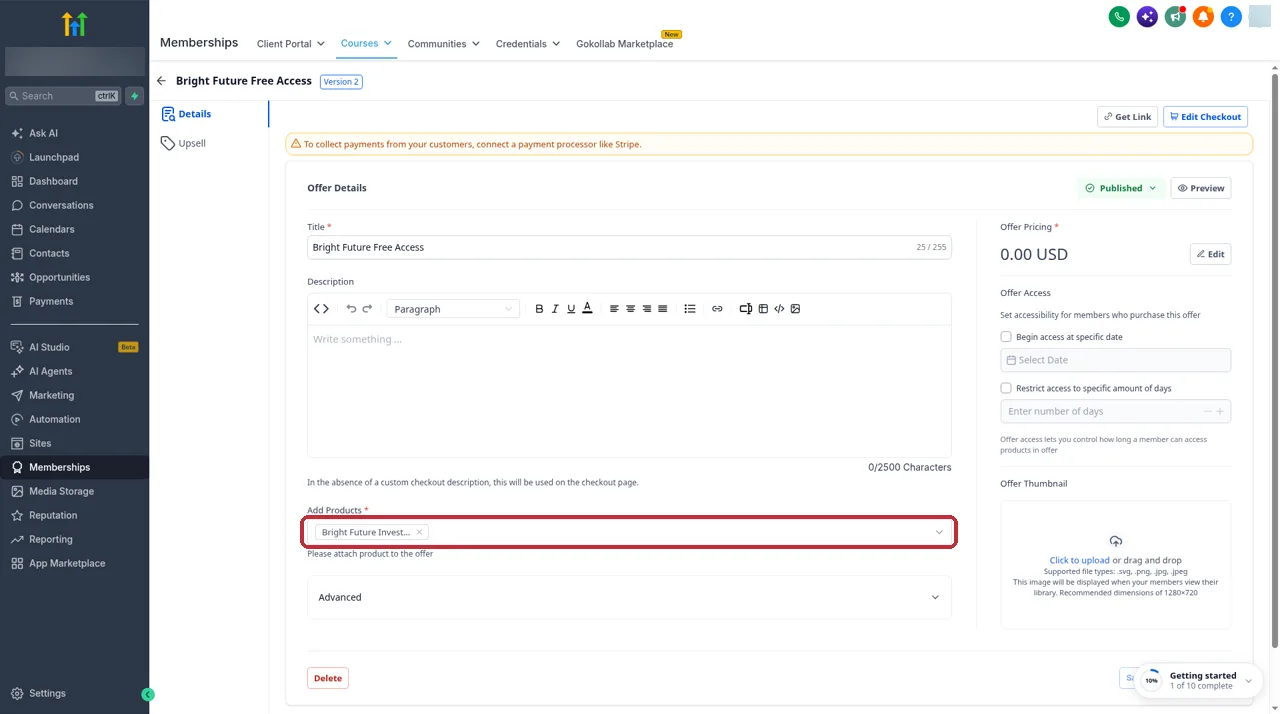
- Add the products. Add the course products this offer should unlock.
- Set the price. Choose free, or attach a one-time or recurring payment product.
- Set offer access. Decide when access begins and whether it ends after a number of days.
- Publish it. Switch the offer from Draft to Published and add it to your checkout page.
Selling with Course Pricing
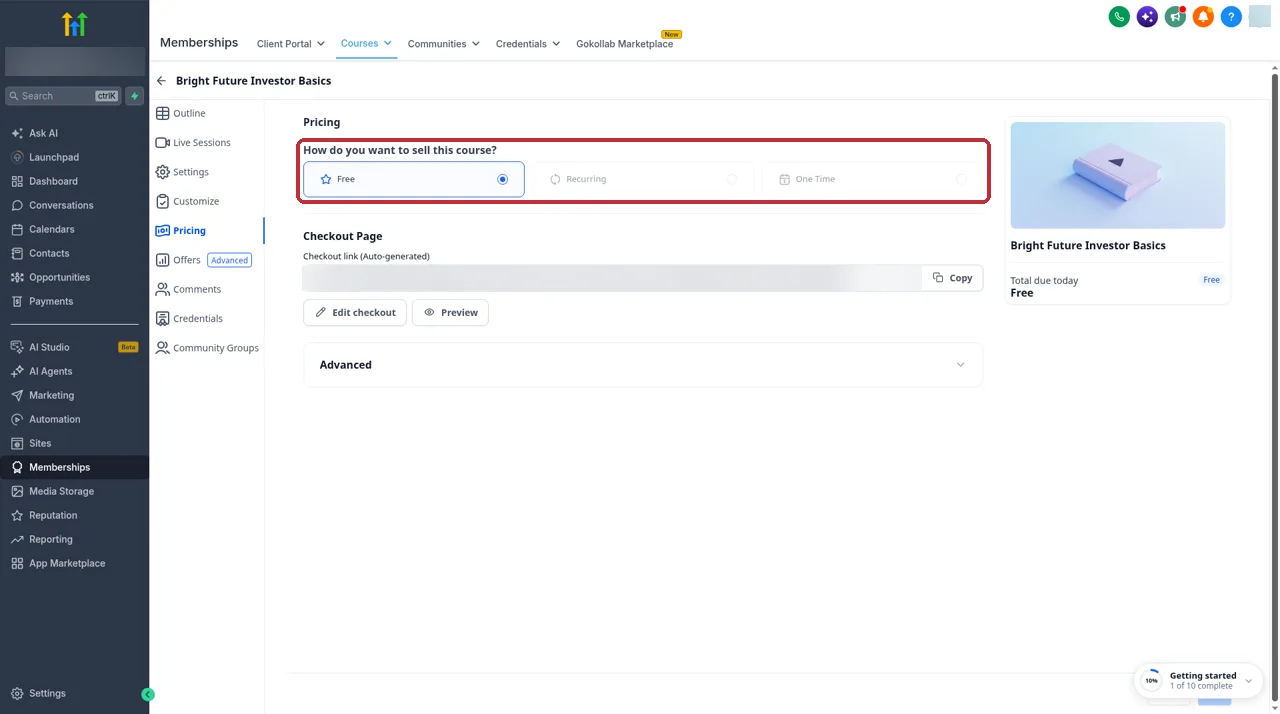
Course Pricing lets you open a Pricing tab on the course itself, choose Free, Recurring or One Time, and get a checkout link without making an offer. HighLevel says it is rolling out to a share of newly created sub-accounts and isn't in existing ones, so don't be surprised if you don't see it. When I have it, I use it for single courses with one price. When I need bundles or several prices for the same course, I still use Offers.
On recurring products, if you set a fixed number of payments, the subscription ends after that count, which works nicely for payment plans. If you want to resell course hosting to your own clients, my SaaS Mode guide covers how agencies package it.
Delivering it: Client Portal and Communities
Students reach their courses through the Client Portal. They log in once and see every course they have access to, whether they bought it or a workflow granted it. That's handy when you give a course as a bonus with coaching, because the same login covers everything.
Courses can also appear in the Learning area of a community, so members can chat and learn in one place. If you plan to run a paid group alongside the course, set up the community first. My GoHighLevel Communities setup guide walks through it.
Moving from Kajabi
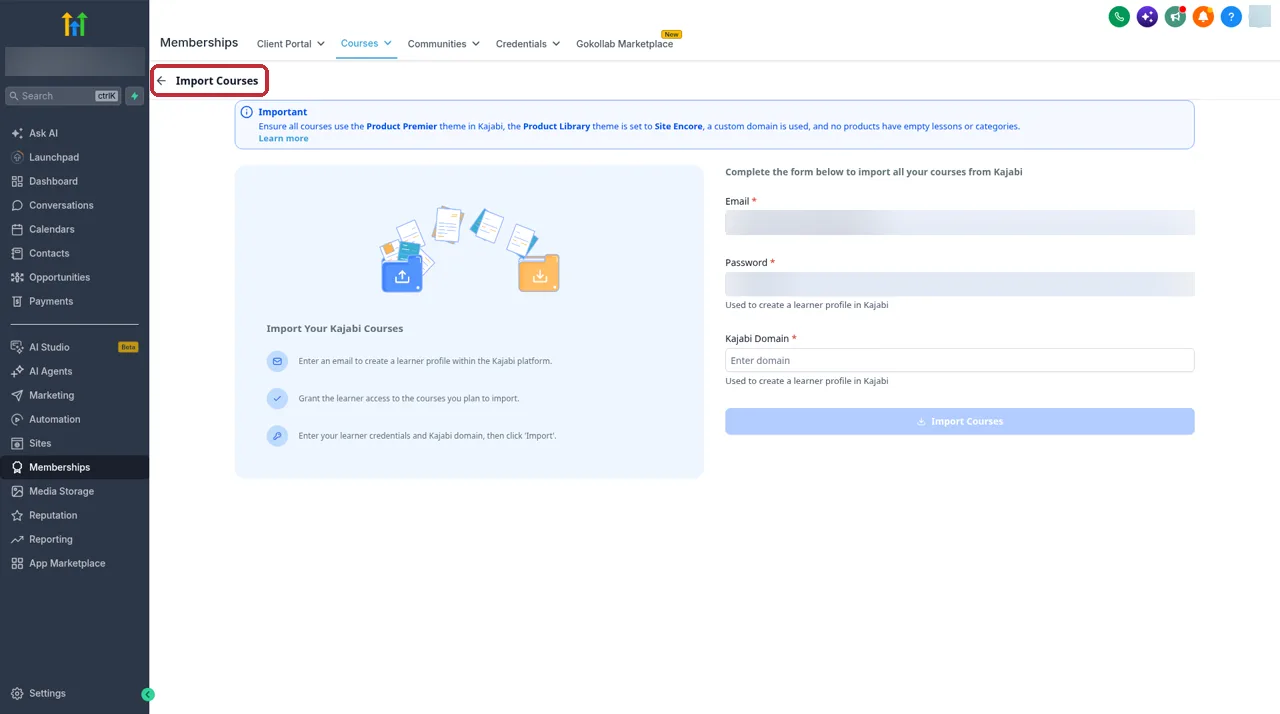
HighLevel has an importer for Kajabi courses, which saves a lot of copy and paste. It brings over the video, images and text of published lessons. It does not bring over quizzes, assignments or assessments, so plan time to rebuild those.
- Tidy the Kajabi course first. Only published lessons come across, so publish what you want to move.
- Open the importer. In Courses, choose Import Courses from Kajabi and fill in the form.
- Check every lesson. When it finishes, go through the course in the Course Editor and fix anything that looks off.
- Rebuild the assessments. Add the quizzes and assignments again by hand.
- Recreate access. Set up offers or pricing, then move students over with a workflow.
If you're still deciding whether to switch, my GoHighLevel vs Kajabi comparison goes through the trade-offs in detail.
Where the course builder falls short
I like the builder, but I'd rather you know the limits before you commit.
- The learner experience is basic. It works, but it doesn't feel as polished as platforms built only for courses. HighLevel's own ideas board has requests for a course experience more like Skool, which tells me users notice it too.
- Features vary by account. Course Pricing is rolling out to some new sub-accounts only, and HighLevel notes that labels in the builder can differ with rollouts. Two accounts can look different.
- Imports aren't complete. The Kajabi importer skips quizzes, assignments and assessments.
- Drip isn't a simple timer everywhere. In the account I use, I control timing with prerequisites and offer access dates rather than a per-lesson delay.
- Limits aren't fully documented. I didn't find official numbers for how many courses or students you can have, beyond the 5GB video limit.
Who it suits
The GoHighLevel course builder suits coaches who already sell through GoHighLevel funnels, agencies that want to deliver training to clients, and anyone running a membership where the course sits next to a community. It's also a good fit if you want to cut tool costs, because you aren't paying for a separate course platform on top of your GoHighLevel plan. If you're new to the platform, start with my GoHighLevel tutorial for beginners, and check my GoHighLevel pricing guide for what each plan costs.
It suits you less if your course is a large catalog and the learning experience is what you compete on. In that case, a dedicated course platform may still be worth paying for. For a fuller picture of the platform, see my GoHighLevel review.
Partner offerFree 30 day trial+ 2 months free on annual
- 30 days instead of the public 14
- Full access to the plan you choose
- Cancel any time before it ends
Common questions
Does GoHighLevel have a course builder?
Yes. Courses live under Memberships, then Courses, in each sub-account. You build a course from modules and lessons, add videos, quizzes, assignments and downloads, and sell it through offers or, in some accounts, straight from the course. Students learn inside the Client Portal.
Can I sell courses in GoHighLevel without an offer?
Sometimes. HighLevel has a Course Pricing option that lets you set a course as free, one time or recurring and get a checkout link without building an offer. HighLevel says it is rolling out to a share of newly created sub-accounts, so if you don't see a Pricing tab on your course, use Offers instead.
Does GoHighLevel support drip content?
You can control when students get access. In the account I use, a lesson can be set to Locked, which lets you add prerequisites so it opens only after a required lesson or module is done. Offers can also start access on a set date or limit it to a number of days. HighLevel's docs describe drip settings by lesson or category too, but what you see can vary by account as features roll out.
Can GoHighLevel issue course certificates?
Yes. HighLevel handles certificates with a workflow. You use the Lesson Completed trigger, filter it to the course, category or lesson you want, and add the Issue Certificate action, so the certificate goes out automatically when a student finishes.
Can I import my Kajabi courses into GoHighLevel?
Yes. There's an Import Courses from Kajabi option in the Courses area. HighLevel says it brings over the video, images and text of published lessons, but not quizzes, assignments or assessments, so you rebuild those by hand.
What is the video file size limit for GoHighLevel courses?
HighLevel's help article says course video files can be up to 5GB each. Limits for other file types vary, so check the upload screen for the file you're adding.
Can I sell a course as a monthly membership?
Yes. You can attach a recurring product to an offer, or choose Recurring in Course Pricing where it's available. HighLevel also supports trials, setup fees and a set number of payments, after which the subscription ends. You need a payment provider connected to take money.
Is the GoHighLevel course builder good enough to replace Kajabi?
For many coaches and agencies, yes, mostly because courses sit next to the CRM, funnels, email and automations you already pay for. The learner experience is simpler than dedicated course platforms, and HighLevel's own ideas board has requests for a better course UX, so I'd test the student side before moving a big catalog.
The verdict
The GoHighLevel course builder does what most coaches and agencies need. You build modules and lessons, add quizzes and certificates, control access with prerequisites and offer dates, and sell through offers or direct pricing, all inside the same account as your funnels and email.
The trade-off is a simpler student experience and features that vary by account. If the course supports your coaching or membership, I'd use it without hesitation. If the course is the whole business, build one course first and test it from the student side before you move everything over.
Features come from HighLevel's help center and pricing page, plus screens from our own GoHighLevel account. HighLevel changes features and rolls them out to accounts at different times, so check your own account and their site before you buy.
Some links on this page are partner links. How that works is explained on our affiliate disclosure page.