Calendars are where most GoHighLevel accounts start making money. A lead books a call, gets a confirmation, gets reminded, and lands in your CRM with a workflow ready to follow up. I set one up in every account I build, and the difference between a calendar that works and one that leaks bookings is almost always in the settings. Here's how I choose the type, set availability, sync Google or Outlook, add reminders and payments, and fix the times that go missing.
Short version
- Pick the type first. Personal booking is one host, Round robin shares bookings across a team, Class booking sells seats, and Collective books everyone at once.
- Settings are grouped into Basic details, Staff & location, Availability, Booking rules and Advanced settings.
- Sync works best with conflict checking on every work calendar and write-back on one calendar only.
- The Share button gives you the booking link, a one-time link, embed code and a QR code.
- When slots go missing, the Troubleshoot tool tells you exactly why.
What GoHighLevel calendars do
A GoHighLevel calendar is a booking engine tied to your CRM. Every booking creates or updates a contact, sits on the right team member's schedule, and can start a workflow. You share it as a link, embed it on a website, or drop it into a funnel page with the Calendar element, so the same setup works everywhere a lead might book.
You'll find it under Settings, then Calendars. The page has tabs for Calendars, Preferences and My availability, and the list shows each calendar's type, duration and status, with New calendar in the top right.

Calendars are part of the core toolkit in a sub-account. You can compare what each plan includes on GoHighLevel's pricing page, and my GoHighLevel pricing guide covers the add-ons.
GoHighLevel calendar types explained
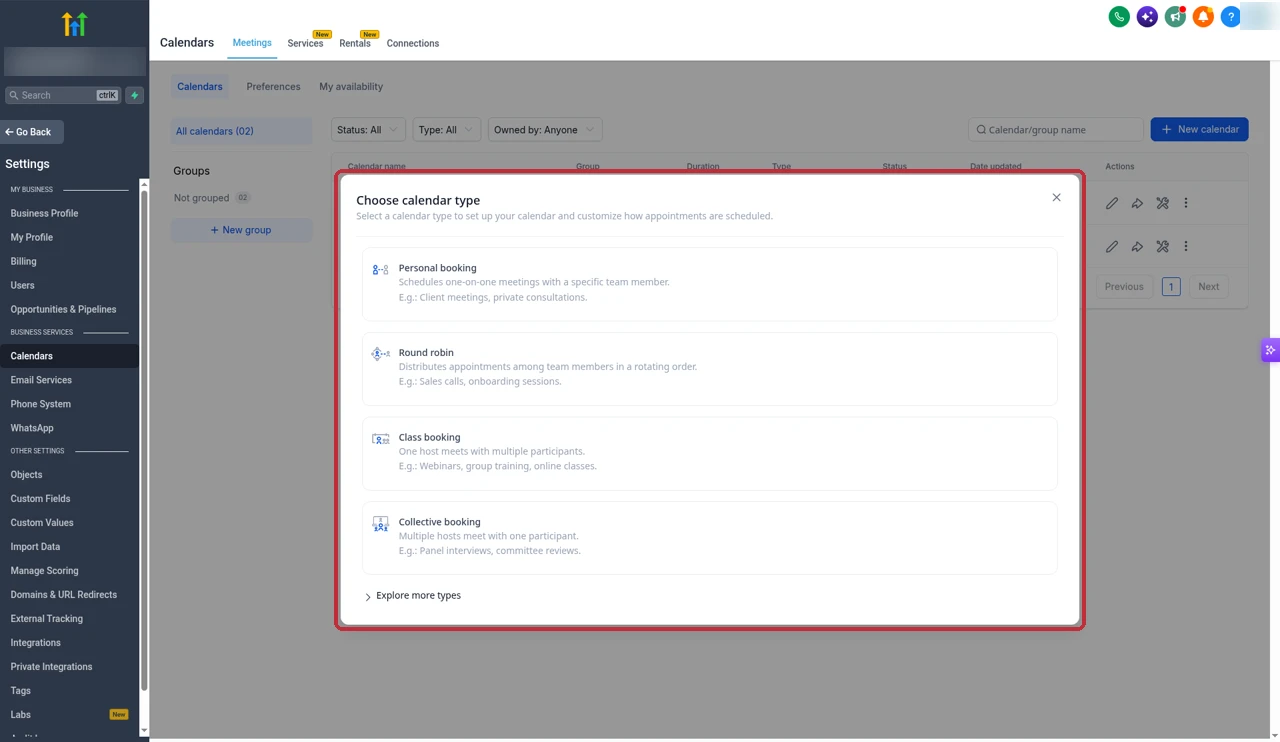
Click New calendar and the picker asks you to choose a type. Four show up front, and Explore more types opens the rest.
| Type | Best for | Key rule |
|---|---|---|
| Personal booking | One-on-one calls with one host | Uses the host calendar hours |
| Round robin | Sales or support teams sharing bookings | Each booking goes to one available member |
| Class booking | Group sessions, workshops, classes | One host, many attendees, set seats |
| Collective booking | Meetings that need several people | Only shows times when everyone is free |
| Service calendar | Salons, clinics, studios with several services | Availability comes from assigned staff |
| Event calendar | Fixed events with no host | Needs a static meeting link |
Personal booking
This is the one most people need. One host, one attendee, the host's hours. HighLevel says you need a Personal booking calendar even if you live in Google Calendar, because it holds the rules: availability, buffers, duration and reminders.
Round robin
Round robin needs at least one team member and shares bookings out between them. It checks the first member, then the next, until it finds someone free, and visitors never see a time when nobody is available. If you allow more than one appointment per slot, slot capacity decides how many can book the same time.
Class booking
One host, many attendees. You set the number of seats per class, run it on a recurring schedule, and can turn on Accept payments to charge per seat. If you want visitors to see how many seats are left, turn on Show seats per slot under Calendar Widget Style. It only works on Class calendars with more than one seat.
Collective booking
Collective merges the availability of everyone assigned and offers only the times that suit all of them. It needs at least two team members and a Primary Owner. Only the assigned user gets the email notification, but everyone gets the calendar invite through Google, Outlook or iCloud. If you take payment, the booking is only made once the payment is confirmed.
Service calendars and the Service Menu
Service calendars are built for physical services like haircuts or treatments. You turn them on in Calendar Settings under Preferences, and HighLevel says only agency admins can change that setting. Availability comes entirely from the staff you assign, so there are no calendar hours to set, and they don't support meeting locations like Zoom or Google Meet.
A Service Menu puts several service calendars on one booking page. Each service needs its own Service calendar assigned to a calendar group, because only grouped calendars can go on a menu. Then you create the menu with a name, description, URL slug and optional form, pick the services and drag them into order. HighLevel lists some limits on the Service Menu: Stripe is the only payment option, cards aren't saved, there are no in-app payments and no coupon codes. The newer Services tab you can see at the top of Calendars is the upgraded version that removes those limits, with variations, add-ons, staff pricing and locations.
Event calendar
Event calendars sit under Explore more types. They have no host, so dynamic Zoom, Meet or Teams links aren't supported and you paste a static link instead. Conflict calendars aren't checked, and bookings only sync to the calendar you choose under External Sync.
Which type should I pick?
| If you | Pick |
|---|---|
| Take one-on-one calls yourself | Personal booking |
| Want leads spread across a sales team | Round robin |
| Run a class or webinar with limited seats | Class booking |
| Need two or more people on every call | Collective booking |
| Sell several in-person services with staff | Service calendars and a Service Menu |
| Run a fixed event with a shared link | Event calendar |
Before you start
Do two things first. Make sure every person who will take bookings is a user in the sub-account, because calendars can only be assigned to users. Then have each user connect their own Google, Outlook or iCloud calendar and set a Primary calendar with Check for conflicts turned on in their profile. That setting covers their team calendars too: Round robin, Service, Class and Collective. I explain the sync options fully further down.
Free 30 day trial + 2 months free on annual

Connect your calendar free for 30 days Sync Google or Outlook, set your hours and take your first booking before you pay.
- Free trial
- 30 days
- Annual saving
- 2 months free
- In the trial
- Full access to your plan
How to create a calendar step by step
- Open Calendar Settings and click New calendar. Go to Calendars, then Calendar Settings, and click New calendar. Choose your type. For a first calendar, I'd pick Personal booking.
- Basic details and custom URL. Give the calendar a friendly name, pick the host, review the custom URL and set the meeting duration. Clients see the name and the URL, so keep both short and clear. Click Confirm and the full settings open, grouped into sections down the left. If you miss a required field, HighLevel highlights it when you save.
- Staff and meeting location. Under Staff & location, choose who takes the meetings and where they happen. You can use a phone number, an address, a custom value, or a video link. Zoom, Google Meet and Microsoft Teams links are generated for each booking once you connect them under Video conferencing in the Connections tab.
- Availability. Availability is where the calendar decides which times to show. Set your Weekly hours day by day and use Copy to other days to save time. Date-specific hours override the weekly pattern, which is how I handle holidays and one-off late days. Check the timezone at the top, too.
- Booking rules. Booking rules control how people book: how much notice you need, how many bookings a day you'll take, and how many people can book the same slot. These are exactly the rules that show up later in the Troubleshoot tool when a time is missing, so set them on purpose rather than leaving defaults.
- Advanced settings. Advanced settings has its own sections: Form & confirmation, Payments, Notifications & policies, Widget appearance and Booking channels. Pick the form people fill in when they book, decide whether they see a thank-you message or go to your own page, and style the widget to match your brand. I cover notifications and payments in their own sections below.
Availability, slot interval and buffers

Two more settings shape the slots. The slot interval sets how often a time appears, for example every 30 minutes. The date range sets how far ahead people can book.
Buffers live here too. A pre buffer reserves time before each appointment and a post buffer reserves time after it, for prep, travel or notes. They cut into bookable time, and if you use both, they can stack: an existing booking's post buffer and a new booking's pre buffer both have to fit. If you want the most slots, HighLevel suggests using only one of the two. Buffers from a user's other calendars can also affect their availability on Round robin and Collective calendars.
Faster option: Calendar Setup Assistant
HighLevel also has a Calendar Setup Assistant, an AI side panel that builds a calendar from plain-language answers. It's handy for a first draft, then you check every section yourself. HighLevel says it may only be available to eligible accounts while it rolls out, so don't worry if you don't see it yet.
Share or embed your booking widget
Open the calendar and click Share. The pop-up has four tabs: Scheduling link, One-time link, Embed code and QR code. The scheduling link follows your slug, and there's also a Permanent link that keeps working even if you change the slug. I use the permanent link on business cards and anywhere I can't easily update later.

To put the calendar on a website outside GoHighLevel, copy the code from the Embed code tab and paste it into a custom HTML block. On a GoHighLevel funnel or website, use the Calendar element in the builder instead, which picks the calendar for you. A One-time link works for a single booking, which I use when I send a private time to a client. Before sharing anything, open the link in a private window and book a test appointment.
Sync Google Calendar and Outlook
This is the part people get wrong most, so here's how it works in plain terms. The Connections tab in Calendar Settings lists Google, Outlook (Office 365, Outlook.com, live.com and Hotmail), iCloud and Calendly, with Google Meet, Zoom and Microsoft Teams under Video conferencing.
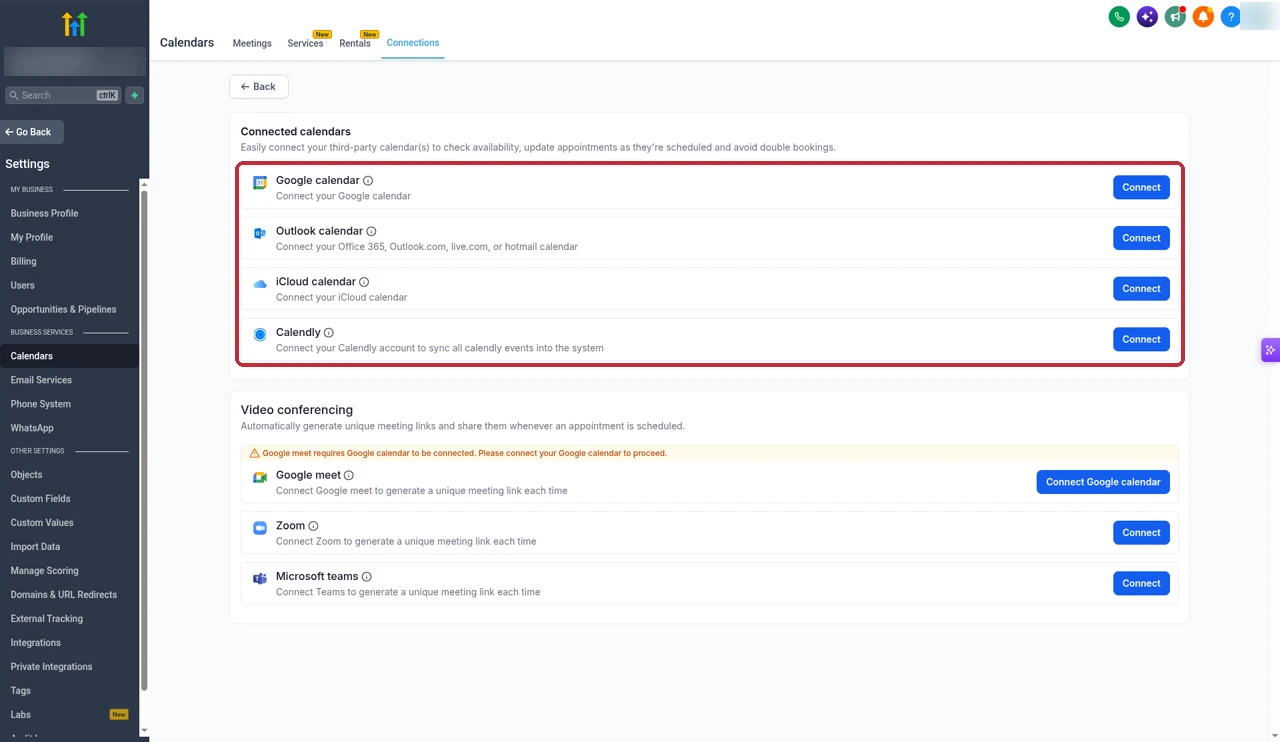
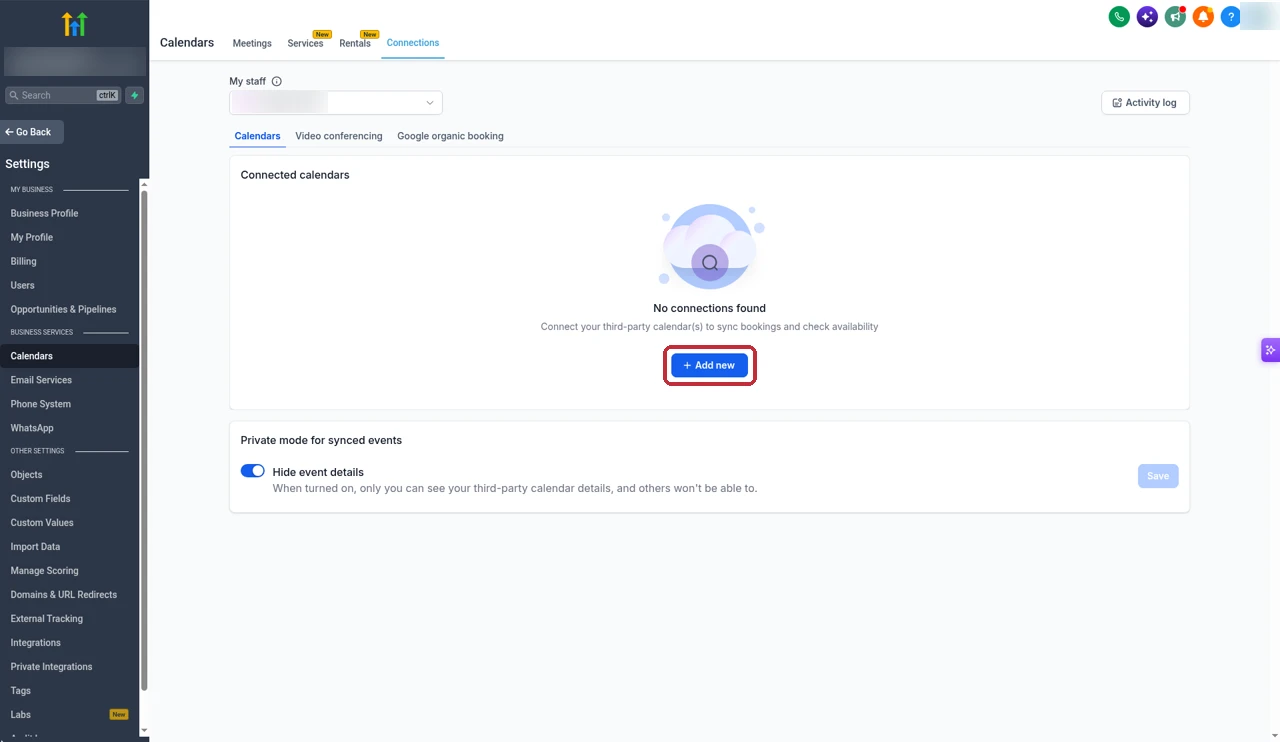
Once you're in your own staff view, connections are added from Add new. There's also a Private mode for synced events that hides their details, so others only see that you're busy.
Connected, conflict and write-back calendars
- Connected account: the Google, Outlook or iCloud account you've linked.
- Conflict calendars: the calendars GoHighLevel checks before showing a time. Only events marked Busy block slots. Events marked Free stay open.
- Write-back: the calendar GoHighLevel adds its bookings to. Turn it on for one calendar only, your main work calendar. Turning it on for several is how you get duplicates.
Showed and No-show statuses stay in GoHighLevel and don't push to Google or Outlook. If a red banner appears, reconnect the account. If events aren't showing, check that Sync Events is on. If people can still book over a busy event, conflict checking isn't enabled on that calendar.
When a Google connection breaks, go to Settings, then Integrations, then Google, and click Reconnect. HighLevel says upcoming appointments that didn't sync will sync automatically after you reconnect. If you also want Gmail in your conversations, my Gmail integration guide covers that side.
Team calendars: everyone connects their own
A Round robin or Collective calendar is only as accurate as each member's own sync. Every user needs their own connection, their own primary calendar and conflict checking on. One member skipping this is the most common reason a team calendar double-books.
Confirmations and reminders
Every calendar has a Notifications section under Notifications & policies. The list covers Appointment booked for unconfirmed and confirmed status, Cancellation, Reschedule, Reminder and Follow-up, each with its own Email, In-app, SMS and WhatsApp channels.

For a simple calendar, these are enough. When I want more control over timing and wording, I use a workflow instead, starting from HighLevel's Appointment Confirmation + Reminder template. My workflow templates guide has the confirmation and no-show flows I use. Texting US numbers needs A2P 10DLC registration first, SMS costs are in my SMS pricing guide, and WhatsApp costs are in my WhatsApp pricing guide. If confirmation emails land in spam, my guide on GoHighLevel emails going to spam walks through the fixes.
Take payments when someone books
First connect a payment provider under Payments, then Integrations. HighLevel supports Stripe, NMI, Authorize.net, Razorpay, Square and PayPal, but Razorpay, NMI and Square don't work on the Classic widget or the Service Menu, and only your default provider is used.
Then open the calendar's Payments section and tick Accept payments. Add the amount and description, and use Test mode until you've made a test booking, then switch to Live. You can charge upfront or just collect the card without charging it, and a $0 amount skips the card step. Partial payments don't work with recurring calendars.
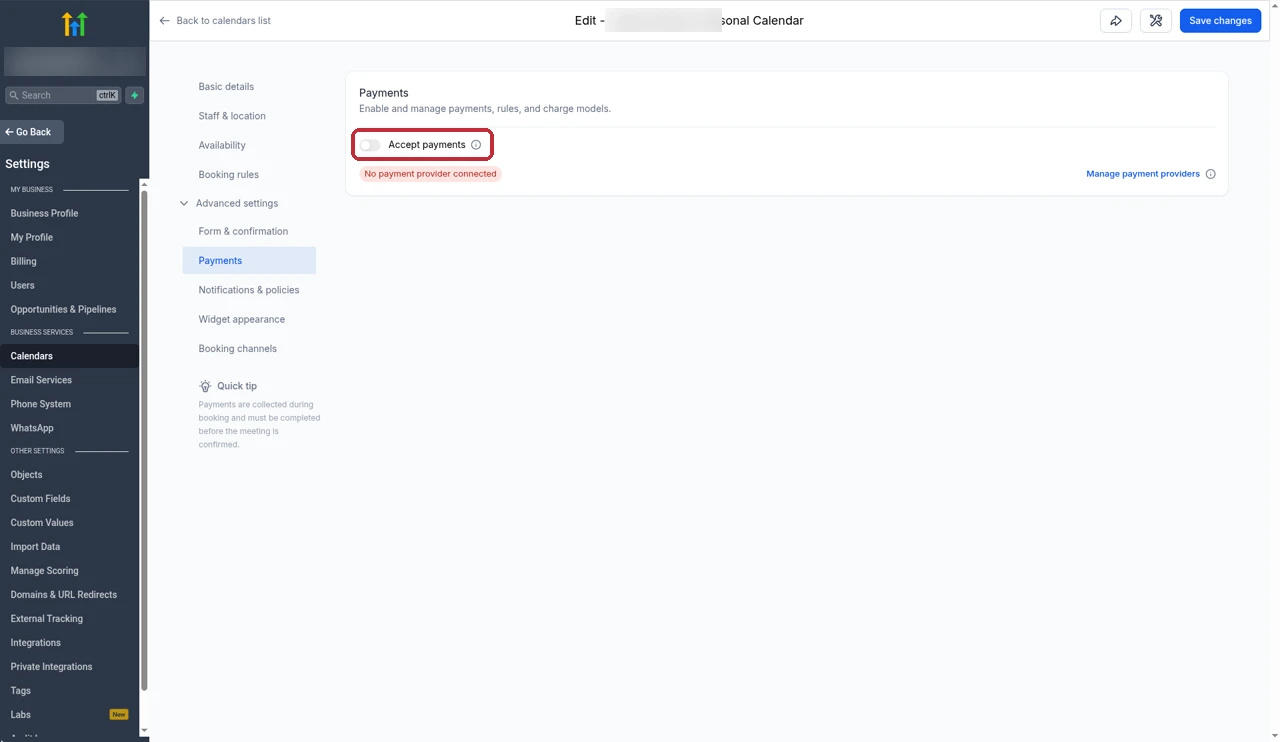
As you can see, the option tells you when no provider is connected, with a Manage payment providers link next to it.
Common calendar errors and how I fix them
When times go missing, I don't guess. I open the calendar's Troubleshoot tool, pick a date, and it shows a status code for each slot it hid. These are the ones I see most:
| Status | What it means | Fix |
|---|---|---|
| USER | No available team member for that time | Assign a user or widen their hours |
| CONFLICT | A busy event on a conflict calendar | Mark the event Free or adjust conflict calendars |
| BOOKED | The slot is already taken | Raise slot capacity if you allow more |
| NOTICE | Inside your minimum notice | Shorten the notice period |
| TOOFAR | Beyond your date range | Extend how far ahead people can book |
| DAYLIMIT | The daily booking limit is reached | Raise the limit |
| BUFFER | A pre or post buffer overlaps | Shorten buffers or use only one |
| NO SEATS | A class is full | Add seats or another class |
The tool has other codes too, including COLLECTIVE, BLOCKED, SLOTMAX, DURATION, PAST, LOOKBUSY and RESOURCE. HighLevel's list of causes for missing slots is the same story: configuration, no team member, duration and interval, buffers, external conflicts, timezone and capacity. If a time looks wrong rather than missing, check the timezone on the calendar and in the user's profile first.
My calendar setup checklist
- Your user has a connected calendar, a primary calendar for write-back and conflict checking on.
- The calendar type fits how you meet: one host, a team rotation, a group class or a joint meeting.
- Duration, slot interval and weekly hours are set, with date-specific hours for holidays.
- Buffers, minimum notice and daily limits match how you actually work.
- Location is set, with a video link that generates automatically if you use Zoom, Google Meet or Teams.
- The booking form asks only for what you need.
- Confirmation and reminder notifications are on for the right channels.
- Payments are tested in Test mode before you switch to Live.
- You have booked a test appointment from the link in a private window.
Once a calendar works in one account, save the sub-account as a snapshot so new clients start with it. My snapshots guide shows how. If you'd like AI to book calls for you, see my Conversation AI and Voice AI guides.
Partner offerFree 30 day trial+ 2 months free on annual
- 30 days instead of the public 14
- Full access to the plan you choose
- Cancel any time before it ends
Common questions
How do I set up a calendar in GoHighLevel?
Go to Calendars, open Calendar Settings and click New calendar. Pick a type, such as Personal booking for one-on-one meetings, then add a name, host, URL, duration and hours and click Confirm. After that, work through Availability, Booking rules and the Advanced settings, then share the link from the Share button.
What calendar types does GoHighLevel have?
The type picker shows Personal booking, Round robin, Class booking and Collective booking, with more under Explore more types, including Event calendars. Service calendars and the Service Menu are for businesses that sell several services, and they're turned on in Calendar Settings under Preferences.
What's the difference between Round Robin and Collective?
Round Robin gives each booking to one available team member, so the work is shared out. Collective books every assigned team member into the same meeting and only shows times when all of them are free. Collective needs at least two team members.
How do I sync Google Calendar with GoHighLevel?
Open the Connections tab in Calendar Settings, click Add new and connect your Google account. Then choose which Google calendars to check for conflicts, so busy events block times, and turn on write-back for one calendar so GoHighLevel bookings appear there too. Each team member connects their own calendar.
Why is my GoHighLevel calendar not showing available times?
The usual causes are no team member assigned, hours or date range set too tight, buffers, minimum notice, daily limits, busy events on a conflict calendar, or a timezone mix-up. Use the Troubleshoot tool on the calendar, which gives a status code for why each slot is blocked.
How do I embed a GoHighLevel calendar on my website?
Click Share on the calendar, open the Embed code tab, copy the code and paste it into a custom HTML block on your site. On a GoHighLevel funnel or website page, use the Calendar element in the builder instead, so you don't need the code.
Can I collect payment when someone books?
Yes. Connect a payment provider under Payments, then turn on Accept payments in the calendar's Payments settings and set the amount. Stripe, NMI, Authorize.net, Razorpay, Square and PayPal are supported, though not every one works on every widget, and only your default provider is used.
How do I send appointment reminders?
Each calendar has a Notifications section with a Reminder notification you can send by email, in-app, SMS or WhatsApp. For more control over timing and wording, use a workflow such as HighLevel's Appointment Confirmation + Reminder template.
The verdict
GoHighLevel's calendars do everything a booking tool should, and because they live in your CRM, every booking can trigger follow-up, reminders and payment without another app.
Start with one Personal booking calendar, connect your own calendar with write-back on one calendar only, take a test booking, then add team calendars once that runs cleanly.
Checked against HighLevel's help guides on setting up a booking calendar, Service calendars, Service Menus, pre and post buffers and embedding calendars, plus its guides to Round robin, Class, Collective and Event calendars, linked and conflict calendars, calendar payments and the Troubleshoot tool, and screens from our own GoHighLevel account.
Some links on this page are partner links. How that works is explained on our affiliate disclosure page.