Almost every GoHighLevel account I set up for a client needs to take money, and Stripe is the payment provider I connect most often. The connection itself takes a couple of minutes, but the settings around it decide whether checkouts actually work: which payment methods show up, which provider each channel uses, whether you're in test or live mode, and how products come across from Stripe. In this guide I walk through how I connect Stripe to a sub-account, set it up properly, what Stripe charges, and the problems I see most often.
Short version
- You connect Stripe per sub-account under Payments, then Integrations, and each sub-account can have one Stripe account at a time.
- Once connected, Stripe powers invoices, payment links, order forms, forms, stores, calendars, courses and communities.
- Old Stripe payments don't import. HighLevel only tracks new transactions after you connect.
- You choose payment methods per product area, and Live and Test are set up separately.
- PayPal can be paired with Stripe, but Stripe and NMI together aren't supported.
- Only recurring, live-mode, non-metered prices import from Stripe. One-time products are created in HighLevel.
The short answer
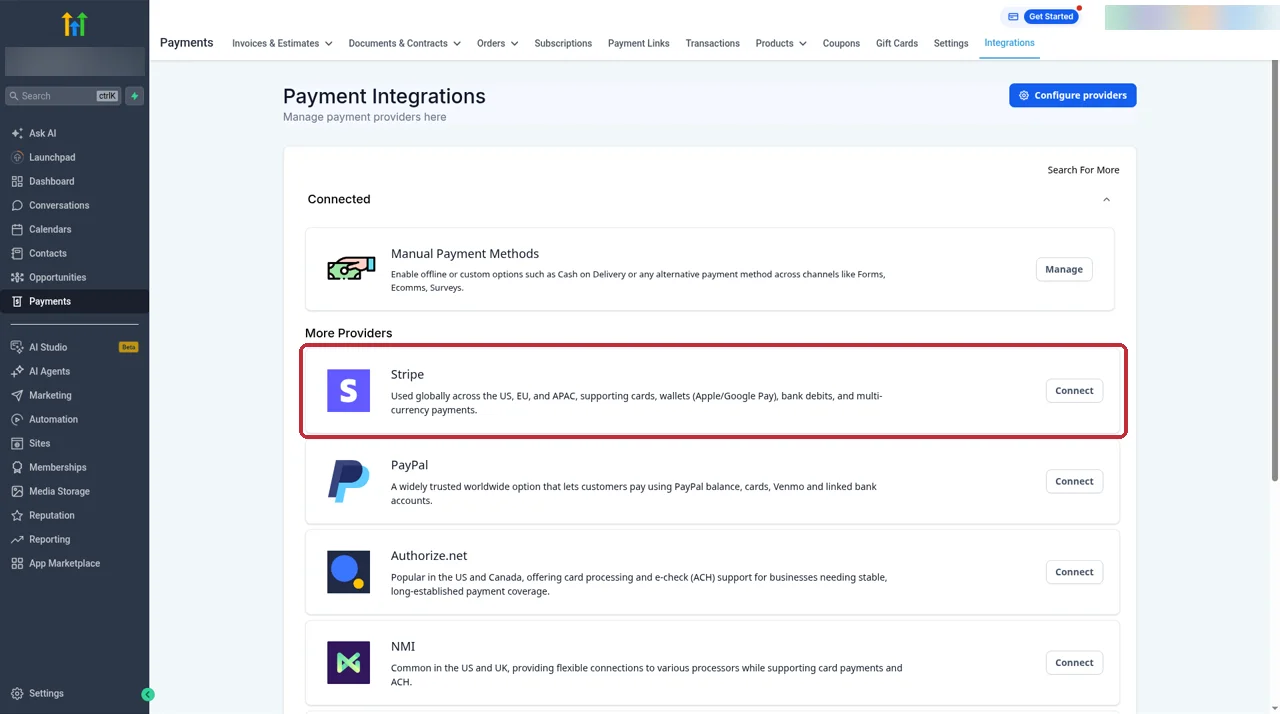
To connect Stripe to GoHighLevel, open the sub-account, go to Payments, then Integrations, click Connect on the Stripe card, log in to Stripe (or create an account) and authorize the connection. When you're sent back to HighLevel, Stripe shows as connected and you can click Manage to set payment methods. From then on, the same Stripe account takes payments across invoices, payment links, funnels, forms, stores, calendars, courses and communities in that sub-account.
The part people skip is the setup after the click. I always check payment methods for both Live and Test, set which provider each channel uses, and import any recurring plans from Stripe so they show up as products. That's what I cover below, step by step.
What the Stripe integration does in GoHighLevel
Stripe is the processor. GoHighLevel is where your checkouts live. When you connect the two, HighLevel sends payments from its checkouts to your Stripe account, and you see the results inside the Payments area of the sub-account. Based on HighLevel's help center, here's what the connection covers.
- One Stripe account per sub-account. Each sub-account connects to a single Stripe account at a time. If a client runs two brands with separate Stripe accounts, I give each brand its own sub-account.
- Every checkout in the sub-account. The connection is used across invoices, payment links, order forms, forms, stores, calendars, courses and communities, so you don't connect Stripe separately for each tool.
- Payment methods you control from HighLevel. You choose which methods appear in each product area from inside HighLevel, for Live and Test separately.
- Recurring products from Stripe. You can import recurring prices you already set up in Stripe. One-time products are created inside HighLevel.
- Test mode. You can run test payments before you switch a checkout to live.
One thing the integration doesn't do is bring your history with it. HighLevel says payments you took in Stripe before connecting aren't imported. Only new transactions that run through HighLevel are tracked, so your older reporting stays in Stripe.
What I check before connecting
Most failed connections I've seen come from one of three things that are easy to check in advance. HighLevel lists the same checks in its setup article.
- The right sub-account. I make sure I'm inside the client's sub-account, not the agency view or another client. The Stripe account attaches to whichever sub-account you're in.
- Stripe permissions. The person connecting needs enough access in Stripe to authorize a connection. If the client owns the Stripe account, I either get them on a short call or ask for the right role first.
- A supported country. Stripe has to support the business's country. If it doesn't, the connection won't work no matter what you do in HighLevel.
I also note which checkouts the client already runs elsewhere. Since old payments don't come across, it helps to tell the client up front that their earlier sales history stays in Stripe.
Free 30 day trial + 2 months free on annual

Take payments inside GoHighLevel Invoices, order forms, courses and calendars can all charge through one connected Stripe account.
- Free trial
- 30 days
- Annual saving
- 2 months free
- In the trial
- Full access to your plan
How I connect Stripe to a sub-account
HighLevel gives you three places to start the connection. They all lead to the same Stripe authorization screen, so pick whichever you find first.
- Payments, then Integrations. Find the Stripe card and click Connect. This is the one I use.
- Launchpad. Under Ecommerce, choose Start Collecting Payments with Stripe.
- Settings, then Integrations. Find Stripe and click Continue.
From there, the steps are the same.
- Click Connect on the Stripe card.
- Log in to your Stripe account, or create one if you don't have one yet.
- Authorize the connection on the Stripe screen.
- When you're sent back, go to Payments, then Integrations, and confirm Stripe shows as connected.
- Click Manage on the Stripe card to set up payment methods.
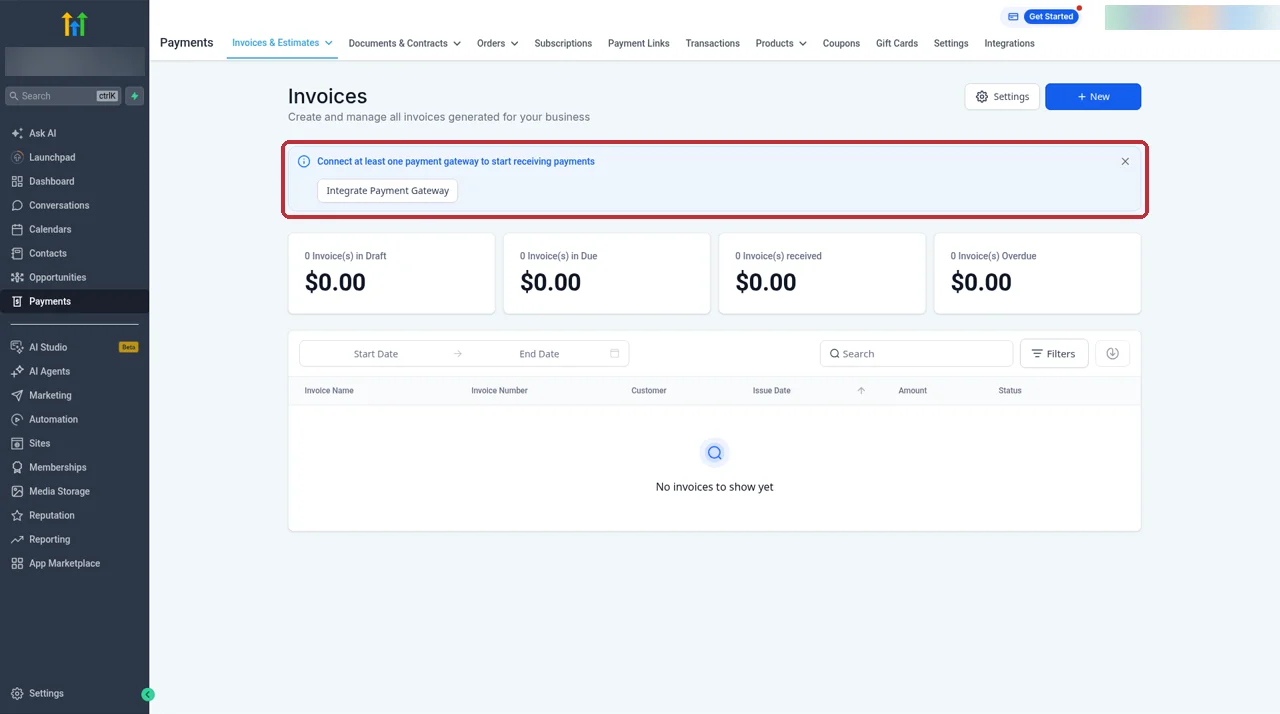
If you see a banner on the Invoices page saying you need to connect at least one payment gateway, the sub-account has no provider connected yet. That banner goes away once Stripe or another gateway is connected.
Choosing payment methods per checkout
This is the setting that changes what your customers actually see at checkout. HighLevel lets you configure Stripe payment methods directly inside HighLevel, and it disables editing those methods from Stripe's own dashboard, so HighLevel is the place to manage them. I don't have a screenshot of this panel, so here's the path and what's on it from HighLevel's help center.
- Go to Payments, then Integrations.
- On the Stripe card, click Manage.
- Open Manage Payment Methods.
- Choose Live or Test. They're configured separately.
- For each product area, turn on the methods you want. The areas are Invoices, Invoices with AutoPayments, Payment Links, one-step and two-step order forms, Forms, Stores, Calendars, Courses, Communities and Subscriptions.
- Save, then repeat for the other mode.
HighLevel says the Subscriptions list only appears after the sub-account has at least one live subscription, so don't worry if you don't see it on a new account.
As for which methods you can offer, HighLevel's supported list includes:
- Cards, Google Pay, and Apple Pay and Link on registered domains.
- ACH, plus Affirm, Klarna and Afterpay, which need a shipping address.
- Bancontact, iDEAL and SEPA.
- Amazon Pay, Revolut Pay, Cash App, GrabPay and Zip.
- BACS, BECS and FPX.
Not every method is available in every country, and some only make sense for certain products. I usually start a client with cards and wallets, then add ACH for invoices with larger amounts and buy now, pay later options for higher-priced physical products where the shipping address is collected anyway.
Setting providers by channel, including PayPal
If a sub-account has more than one payment provider connected, you can decide which one each channel uses. HighLevel calls this providers by channel. A channel setting overrides the global default, which is handy when a client wants PayPal on their store but Stripe on invoices.
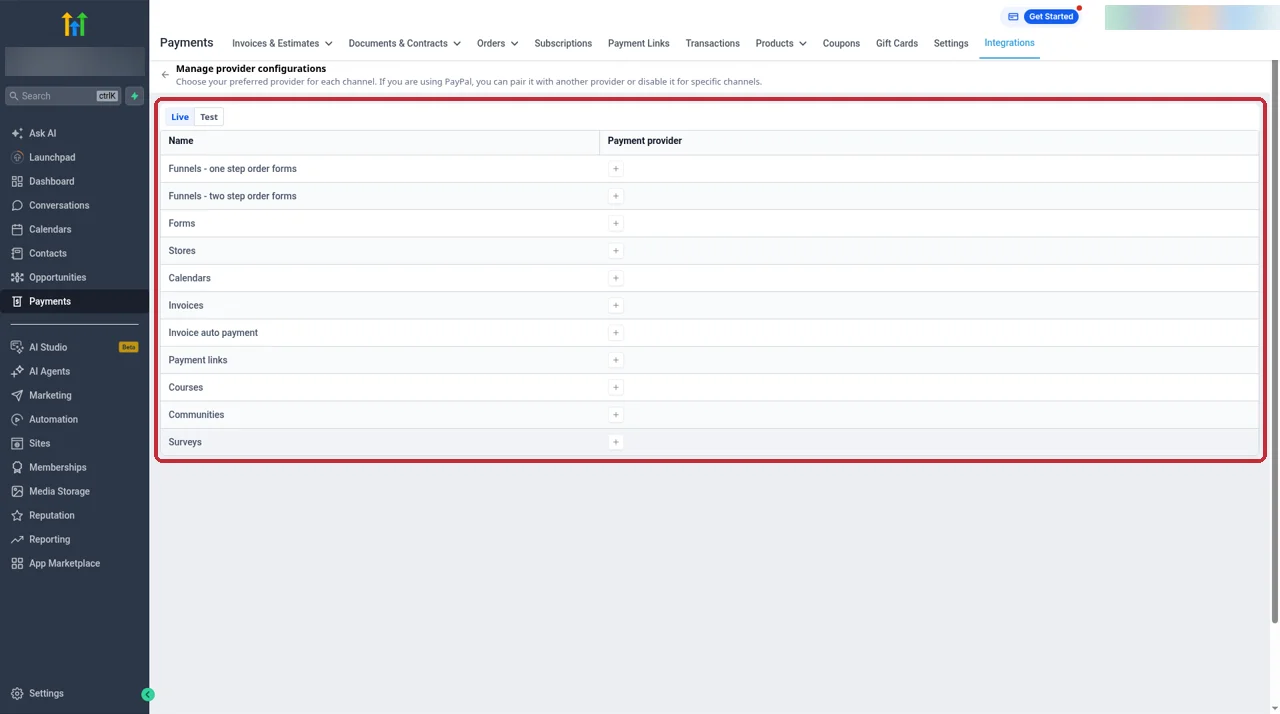
- Go to Payments, then Integrations.
- Click Configure providers at the top right.
- Choose the Live or Test tab.
- For each channel, pick the payment provider. In the account I use, the channels are one-step and two-step funnel order forms, Forms, Stores, Calendars, Invoices, Invoice auto payment, Payment links, Courses, Communities and Surveys.
- Save, then set up the other tab if you need it.
There are two rules to know here. First, HighLevel lets you pair PayPal with one other provider, either Stripe or NMI, and you can also turn PayPal off for specific channels. Second, Stripe and NMI together isn't supported, so if a client is on NMI for a reason, decide which one stays before you connect Stripe.
Test mode vs live mode
I never send a client's checkout to real customers before running a test payment through it. HighLevel supports Stripe test mode, and a few settings live separately in each mode.
| Setting | Test | Live |
|---|---|---|
| Payment methods | Set on the Test tab | Set on the Live tab |
| Providers by channel | Set on the Test tab | Set on the Live tab |
| Importing prices from Stripe | Not available | Recurring, non-metered prices only |
| SaaS sub-account creation | Test keys won't create sub-accounts | Uses your live Stripe account |
My routine is simple. I set up payment methods and providers on the Test tab, run a test purchase through each checkout type the client uses, then copy the same choices to the Live tab. The mistake I see most is a checkout that worked in testing but shows the wrong methods live, because only one tab was set up.
Importing products and prices from Stripe
If a client already sells subscriptions in Stripe, you don't have to rebuild those plans by hand. HighLevel can import recurring prices from Stripe and turn them into products in the sub-account.
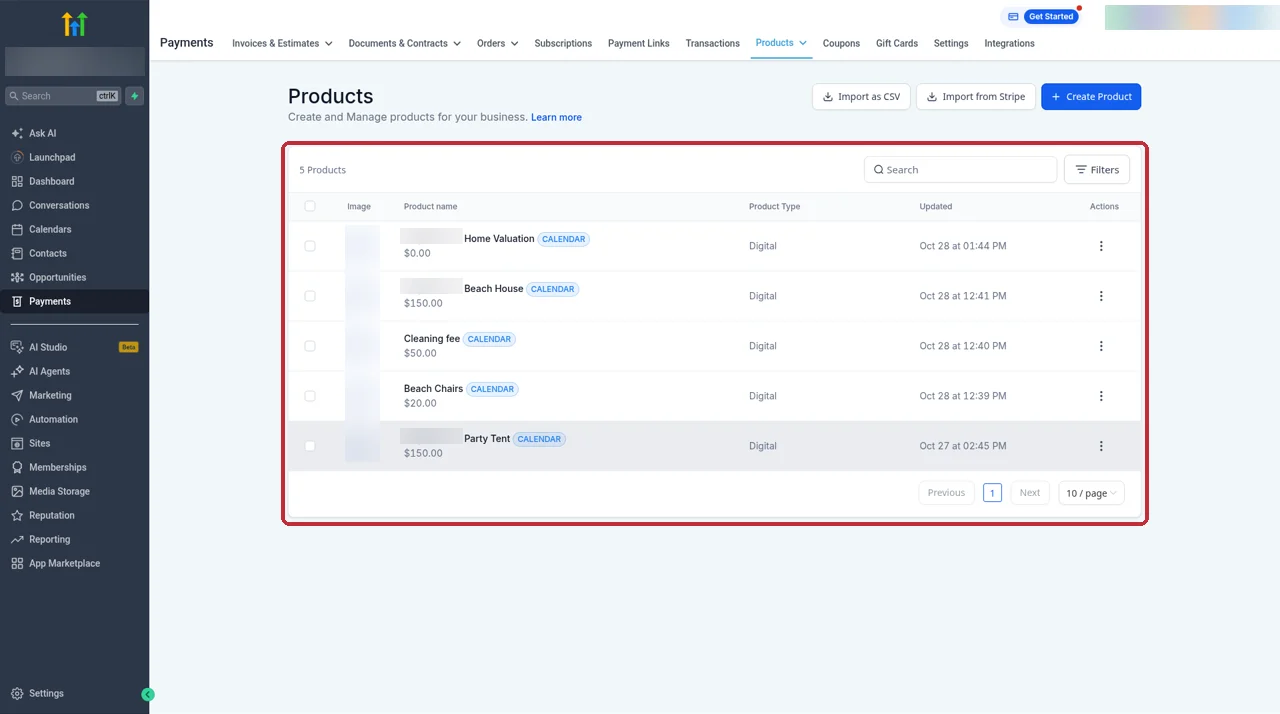
- Go to Payments, then Products.
- Click Import from Stripe.
- Pick the recurring prices you want. Prices you already imported are hidden from the list.
- Confirm the import, then check the new products in the list.
HighLevel's rules for the import are worth knowing before you start:
- Recurring prices only. One-time prices don't import. You create one-time products in HighLevel.
- Live mode only. Prices that exist only in Stripe test mode won't appear.
- No metered prices. Usage-based prices aren't supported.
- It creates copies. The import also creates the product in Stripe test mode, and in PayPal if PayPal is connected.
- No sync afterwards. If you edit the price in Stripe later, the change doesn't sync back to HighLevel.
Because of that last point, I treat HighLevel as the place where products are managed once a client moves over. If they change a price, I change it in HighLevel too.
What Stripe charges
Stripe's fees come from Stripe, not from GoHighLevel. Here are the US rates on Stripe's pricing page, which I checked on 30 Oct 2026.
| Item | Stripe US rate |
|---|---|
| Domestic cards | 2.9% + 30¢ per successful transaction |
| Manually entered cards | +0.5% |
| International cards | +1.5% |
| Currency conversion | +1% when needed |
| ACH Direct Debit | 0.8%, $5.00 cap |
| Klarna | 5.99% + 30¢ |
| Instant Payouts | 1.5% of volume, 50¢ minimum |
| Standard payouts | Free |
A few notes on this table. These are Stripe's list rates for the US, and other countries have their own pricing. Stripe also notes that Instant Payouts pricing differs for Connect users. For HighLevel itself, I didn't find an official page that covers any HighLevel-side payment fee, so I'm not making a claim either way. Check your own account and HighLevel's terms. Your HighLevel subscription is separate: the GoHighLevel plans are $97, $297 and $497 a month.
Stripe for SaaS mode and agency billing
Stripe works a little differently when you use it to bill your own clients through SaaS mode. HighLevel's SaaS documentation has three points I keep in mind.
- You can't disconnect while SaaS billing depends on it. If sub-accounts are billed through SaaS mode with that Stripe connection, HighLevel blocks the disconnect. Disable SaaS mode on those sub-accounts first.
- SaaS V1 needs the same live Stripe account in two places. The agency and the sub-account you sell from need to use the same live Stripe account.
- Test keys won't create sub-accounts. A SaaS signup with Stripe test-mode keys won't create a new sub-account.
If you're setting up SaaS mode from scratch, my GoHighLevel SaaS mode guide covers the rest of the setup.
Where Stripe payments show up: invoices, order forms, courses and calendars
Once Stripe is connected, payments from every channel land in the Payments area of the sub-account. Here's where I look.
- Transactions. Every payment, with columns for customer, provider, source, transaction date, amount and status. You can filter by date and export to CSV.
- Subscriptions. Recurring payments created through order forms, with the same kind of filters.
- Invoices. Totals for draft, due, received and overdue invoices, plus the invoice list.
- Products. Everything you sell, including imported Stripe prices.
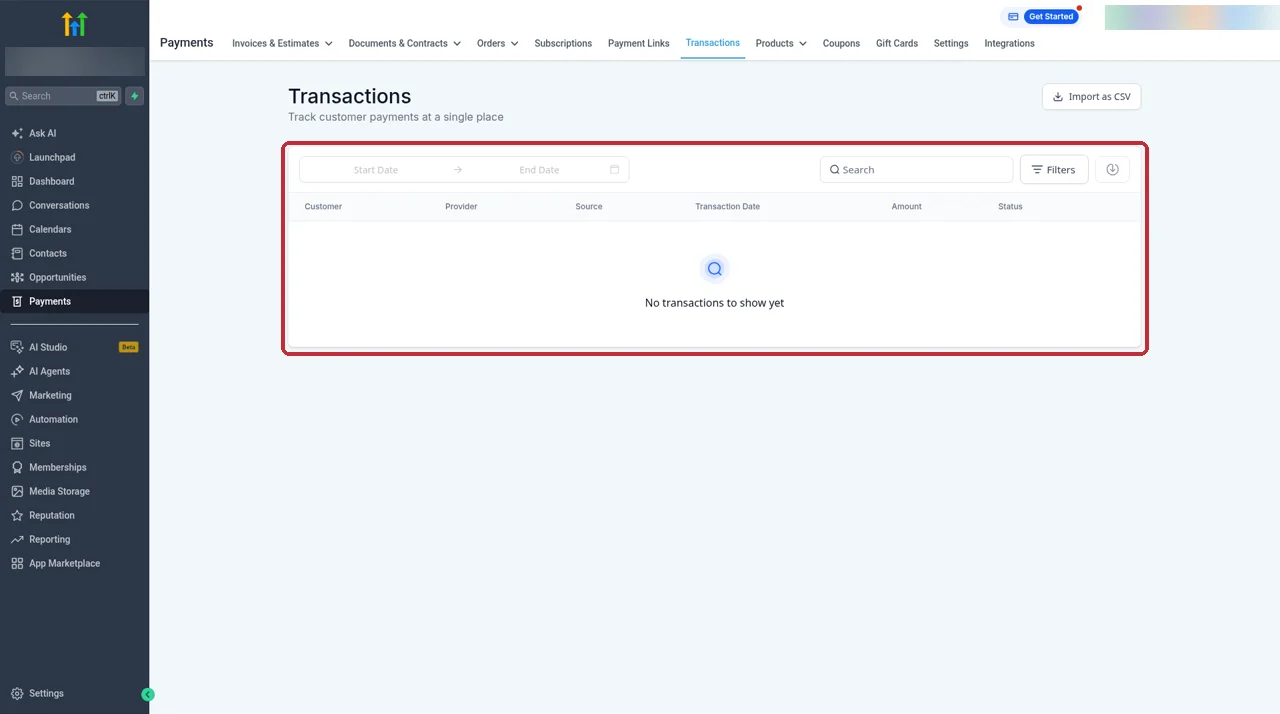
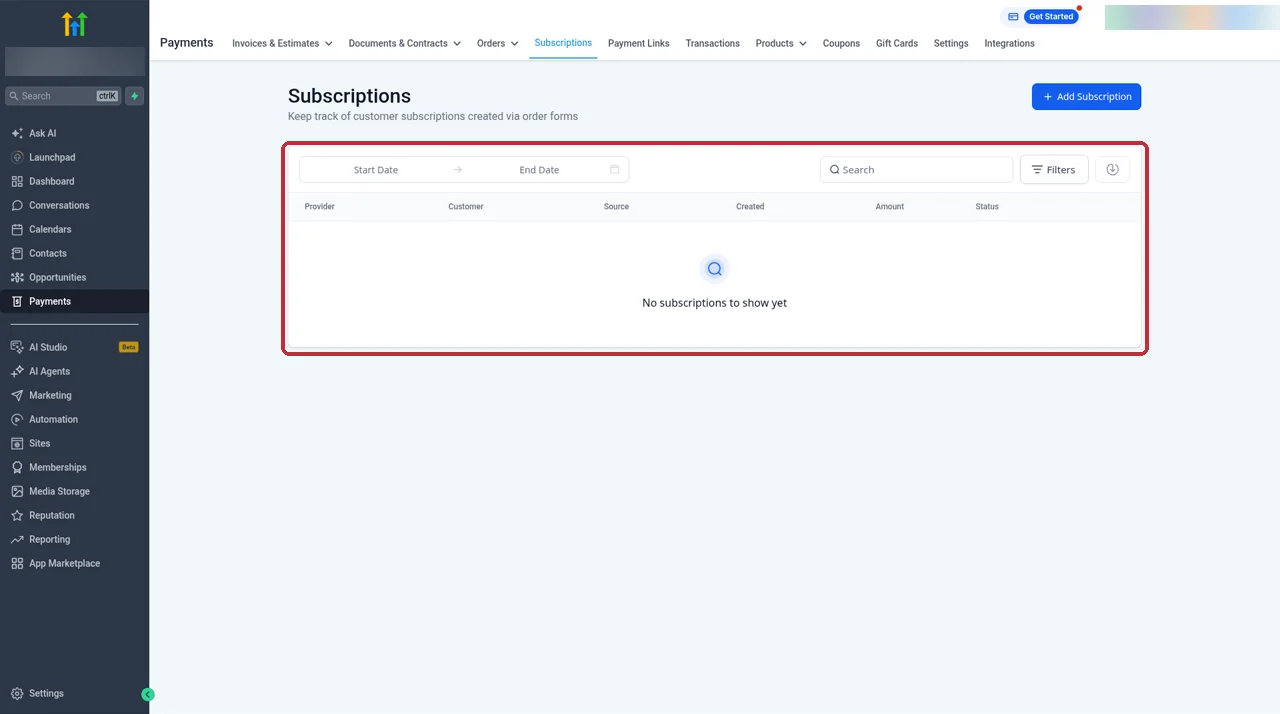
The Source column is the one I use most. It tells me whether a payment came from an order form, an invoice, a calendar booking or a course, which saves digging through Stripe. If you sell courses, my GoHighLevel course builder guide shows how offers charge through this connection, and my GoHighLevel calendar setup guide covers paid bookings. For accounting, the QuickBooks integration can pick up invoices and payments from here.
Common problems and fixes
These are the issues that come up most, with the fix HighLevel's help center points to.
| Problem | Likely cause | Fix |
|---|---|---|
| Stripe plan missing from funnel products | Wrong sub-account, test-mode price, one-time price or metered price | Check you're in the right sub-account and the price is recurring, live and not metered |
| Old payments not in Transactions | HighLevel doesn't import past Stripe payments | Use Stripe for history before the connection |
| Wrong payment methods at checkout | Only one of Live or Test was set up | Set methods under Manage Payment Methods for both modes |
| Can't edit methods in Stripe | HighLevel disables that from Stripe's dashboard | Change them in HighLevel instead |
| Can't add NMI next to Stripe | Stripe and NMI together aren't supported | Choose one, and pair PayPal with it if needed |
| Price change in Stripe not showing | Stripe-side edits don't sync | Edit the product in HighLevel |
| Can't disconnect Stripe | SaaS billing depends on it | Disable SaaS mode on those sub-accounts first |
| SaaS signup made no sub-account | Stripe test-mode keys | Use your live Stripe account |
If none of these match, I check the Stripe card on Payments, then Integrations, to confirm it still shows as connected, then run one test payment and look at the Provider column in Transactions. That usually tells me which side the problem is on. For connecting other tools to payment events, my GoHighLevel Zapier integration guide and workflow templates cover the automation side.
Partner offerFree 30 day trial+ 2 months free on annual
- 30 days instead of the public 14
- Full access to the plan you choose
- Cancel any time before it ends
Common questions
How do I connect Stripe to GoHighLevel?
Open the sub-account, go to Payments, then Integrations, and click Connect on the Stripe card. Log in to Stripe or create an account, authorize the connection, and you land back in Payments, then Integrations, where Stripe should show as connected. HighLevel also offers the same connection from Launchpad and from Settings, then Integrations.
Can I connect more than one Stripe account to a sub-account?
No. HighLevel allows one Stripe account per sub-account at a time. If you run two businesses with separate Stripe accounts, give each business its own sub-account.
Will my old Stripe payments show up in GoHighLevel?
No. HighLevel doesn't import payments you took in Stripe before connecting. It only tracks new transactions that run through HighLevel after the connection. You can import recurring prices from Stripe as products, but not past payments.
Can I use Stripe and PayPal together in GoHighLevel?
Yes. HighLevel lets you pair PayPal with one other provider, such as Stripe or NMI, and choose the provider for each channel under Configure Providers. What it doesn't support is Stripe and NMI together.
Why isn't my Stripe product showing in my funnel?
The usual causes are the wrong sub-account, a price in Stripe test mode, a one-time price or a metered price. The import only pulls recurring prices from Stripe live mode that aren't metered, and one-time products are created inside HighLevel instead.
Can I test payments before going live?
Yes. HighLevel supports Stripe test mode. Payment methods and providers by channel are set separately for Test and Live, so check both tabs before you share a checkout with real customers.
What are Stripe's fees when I use GoHighLevel?
Stripe's US pricing page lists 2.9% + 30¢ per successful domestic card payment, plus 0.5% for manually entered cards, 1.5% for international cards and 1% when currency conversion is needed. ACH Direct Debit is 0.8% with a $5 cap, and Klarna is 5.99% + 30¢. Rates differ by country, so check Stripe's page for yours.
Why can't I disconnect Stripe from my agency?
If SaaS mode billing depends on your Stripe connection, HighLevel blocks the disconnect. Disable SaaS mode on the sub-accounts that use it first, then disconnect.
The verdict
Connecting Stripe to GoHighLevel is quick, and once it's done one Stripe account powers every checkout in the sub-account. The real work is the setup around it: payment methods for Live and Test, providers by channel, and importing recurring plans the right way.
If you remember that old payments stay in Stripe, that Stripe and NMI don't mix, and that Stripe-side price edits don't sync, you'll avoid most of the problems I get called in to fix. If you're new to the platform, my GoHighLevel tutorial for beginners and GoHighLevel review are good next reads, and my GoHighLevel pricing guide explains the plans.
Setup steps come from HighLevel's help center and changelog, plus screens from our own GoHighLevel account. Stripe fees come from Stripe's US pricing page, checked 30 Oct 2026. HighLevel and Stripe change features and pricing, so check your own account and their sites before you rely on them.
Some links on this page are partner links. How that works is explained on our affiliate disclosure page.